Adjusting Volume
Voice responses and sound-effect volume for both Kachaka and Kachaka Pro are adjusted in the Kachaka App. If the prompts feel too loud, or you need them quieter in a calm setting, follow the steps below.
Steps to adjust the volume
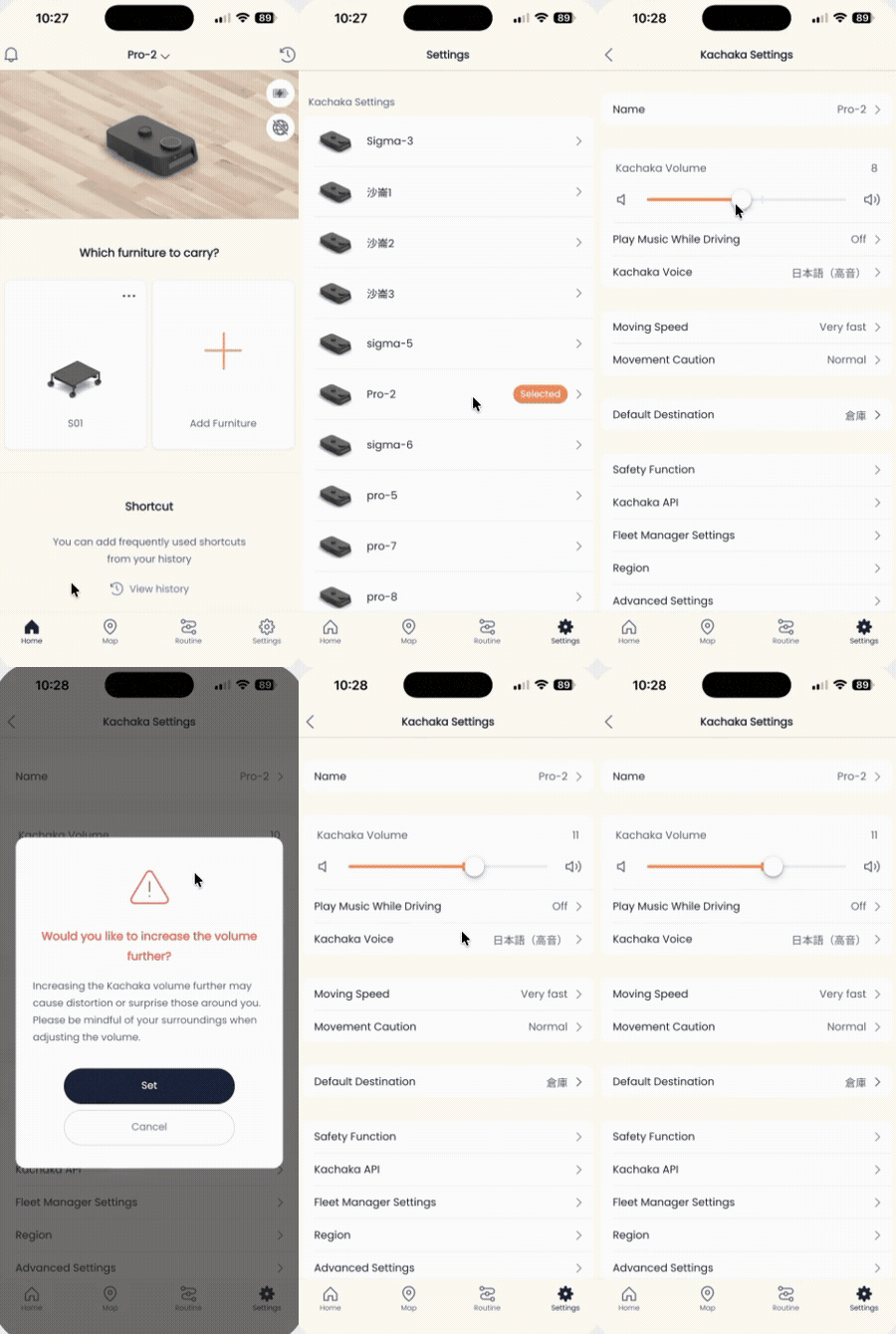
- Open the Kachaka App and tap “Settings” at the bottom right to open the settings tab.
- Under “Kachaka Settings,” tap the robot you want to adjust.
- Tap “Kachaka Volume” near the top of the screen.
- Drag the volume slider to set the voice and sound-effect volume together.
The change takes effect immediately, so you can wake the robot and listen to confirm.
Kachaka Pro: raise the volume cap
Kachaka Pro can raise the volume cap to level 17, which is useful when you need higher volume — for example, playing music to alert people nearby. To do this:
- Open the “Settings” tab and, under “Kachaka Settings,” tap your Kachaka Pro.
- Tap “Kachaka Volume” near the top of the screen.
- Drag the volume slider all the way to the right.
- Review the on-screen notice and tap “Set.”
- Drag the slider again to your desired level, up to level 17.
After raising the volume, mind the surroundings to avoid creating unnecessary noise. To pair this with alert music played while the robot is moving, see Pro: Play Music While Moving.
Screens