Pro: Play Music While Moving
Kachaka Pro can play music while it moves, letting nearby people know the robot is on the way and giving them time to clear the path. In busier commercial settings (office floors, factory aisles), this helps avoid startling people at blind corners. This feature is available on Kachaka Pro only.
If you select more than one track, Kachaka plays one of them at random each time it moves.
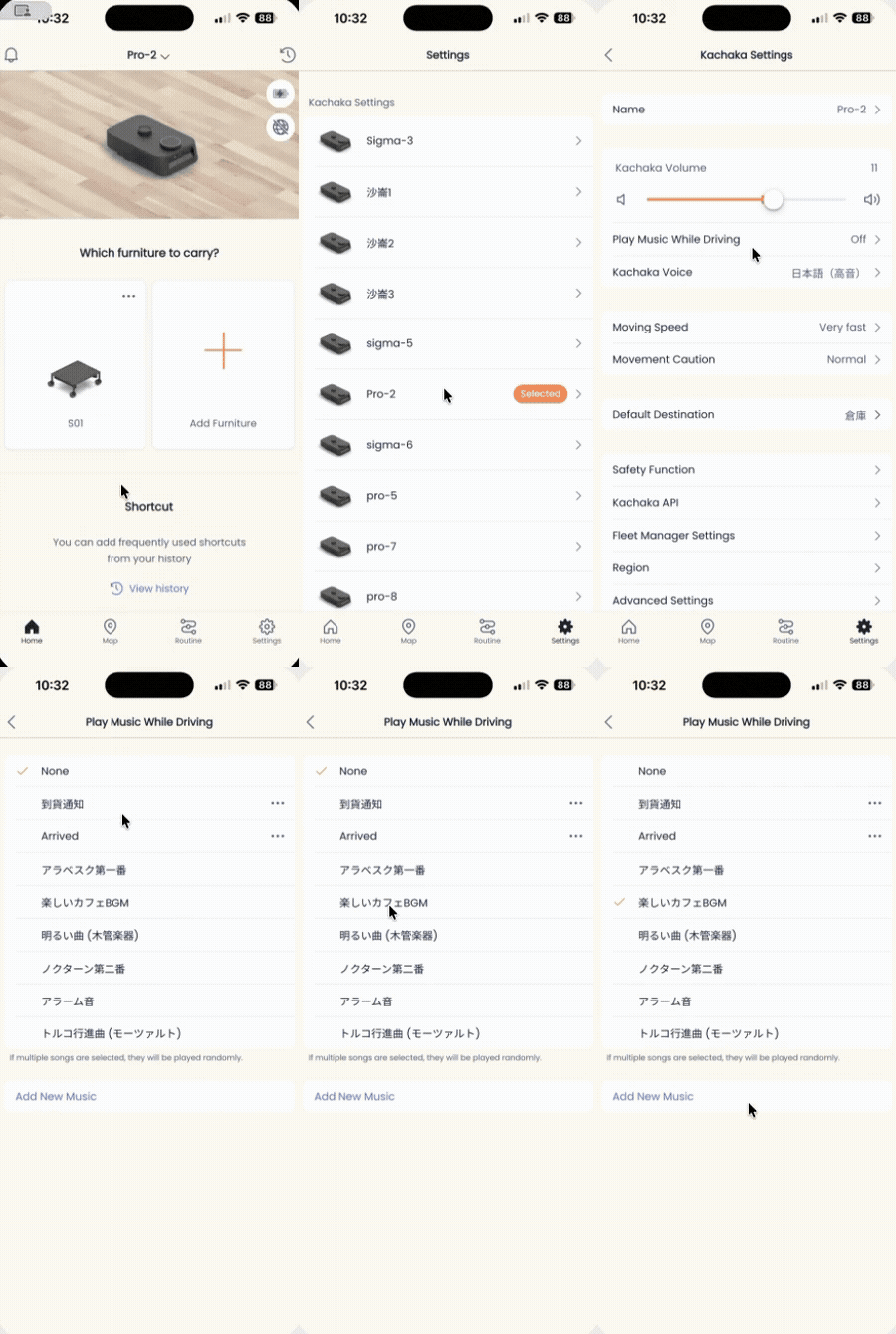
Turn on “Play music while moving”
- Open the Kachaka app and go to the Settings tab.
- Under Kachaka settings, tap the robot you want to configure.
- In the volume-related settings, open Play music while moving.
- Toggle Play music while moving on.
- Select the tracks you want from the built-in list. You can pick more than one.
The built-in tracks include classical and light background pieces plus an alert tone, so you can choose a gentle or a more noticeable cue to suit the space.
If you tap a track while Kachaka is idle (not running a task), the robot plays a preview of that track immediately, so you can check how it sounds before deciding.
When music plays
Your selected music only plays while Kachaka is actually moving — for example during map creation or while carrying furniture. When the robot is stopped and not moving, no music plays.
Add your own music (from v3.8.5)
From robot software v3.8.5, an Add new music option appears below the track list, letting you register your own tracks on Kachaka:
- Maximum 16MB per file.
- A wide range of audio formats is supported, including mp3, wav, aac, flac, m4a, ogg, aiff, wma, opus, mp2, ac3, amr, dts, pcm, and ape.
- Music you add can be renamed or deleted at any time.
If you don’t see Add new music, first make sure the robot software is updated to v3.8.5 or later — see Updating the robot’s software.
Screens