Dark Mode
What Dark Mode does
Kachaka and Kachaka Pro use the front camera to read their surroundings as they move. In low light the camera image is harder to interpret, which can affect driving. When you turn on Dark Mode, Kachaka keeps its front LED lit while moving to provide its own illumination, allowing it to travel through dim rooms.
Please note: Dark Mode only adds light. It does not mean Kachaka can move in any pitch-black environment. In a room with almost no light at all, it may still fail to drive smoothly, so use it according to the actual lighting on site.
How to turn on Dark Mode
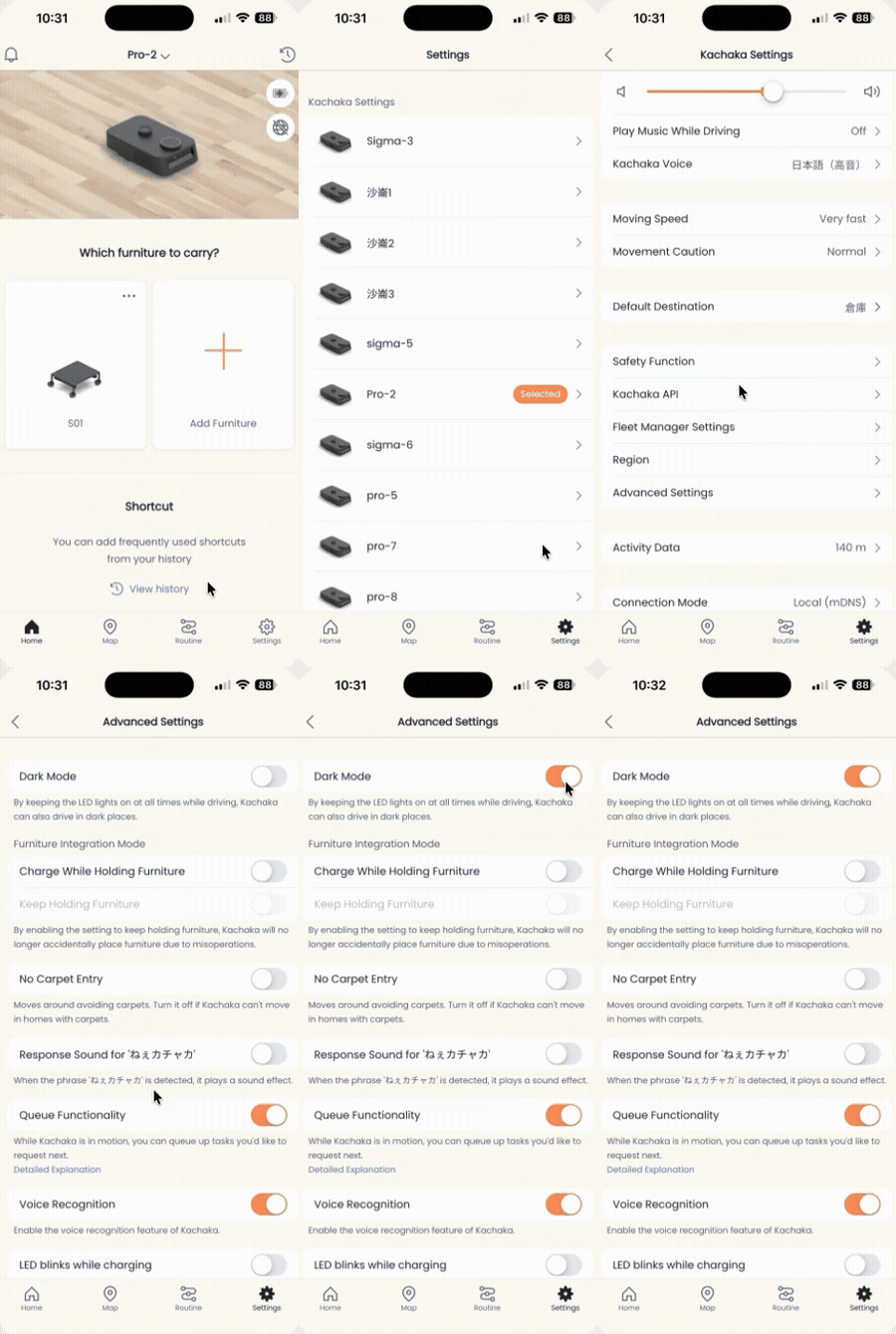
Dark Mode is toggled in the Kachaka app’s detailed settings:
- Open the Kachaka app and tap the “Settings” tab.
- Under “Kachaka settings,” tap the Kachaka you want to configure.
- Tap “Detailed settings” in the middle of the screen.
- Find the “Dark Mode” toggle and switch it:
- ON: lights the LED to drive even in dim places.
- OFF: no extra light; whether it can drive in dim places depends on the lighting on site, and it may not move properly.
Adjust it to suit your environment. A normally lit indoor space does not need it; turn it on only when Kachaka will operate in darker conditions, such as at night or in a dimly lit corridor.
Things to keep in mind
- Dark Mode lights the front LED. This is a separate feature from the charging LED ring blink setting, and the two do not affect each other.
- If Kachaka stops unexpectedly or won’t move in dim or dark-floored areas, besides checking whether Dark Mode is on, also review Safety Detection: Floor Obstacles, Drop-offs & Body Detection Height and Environment Requirements: Temperature, Floor Heating & Unsuitable Locations, since both low light and dark floors can interfere with the camera.
Screens