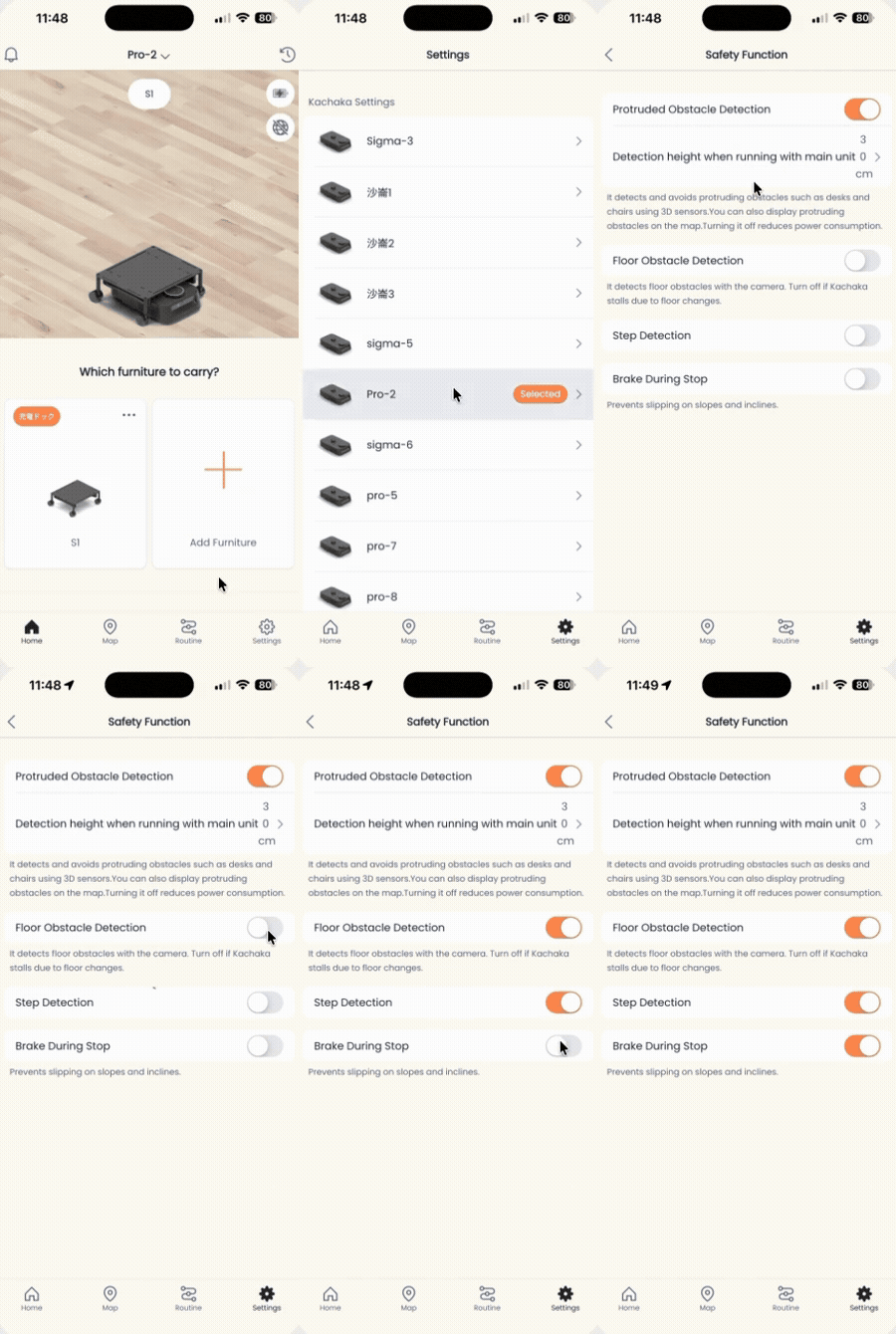
Safety Detection: Floor Obstacles, Drop-offs & Body Detection Height
As Kachaka and Kachaka Pro move around, three detection features keep them out of trouble: floor obstacle detection, drop-off detection, and the protruding-obstacle height for body-only travel. All three live in the same place in the App. This page explains what each one does, how to reach it, and the cautions that go with it.
Where to find these settings
All three live on the “Safety Features” screen, reached the same way:
- Open the Kachaka App and switch to the “Settings” tab.
- Under “Kachaka Settings”, tap the Kachaka you want to configure.
- Tap “Safety Features” in the middle of the screen.
From there, follow the section below for the item you need.
Floor obstacle detection
This feature uses the camera to detect obstacles on the floor—a loose power cord, a child’s small toy—and steers around them.
- On: when it decides there’s an obstacle on the floor, it avoids it before driving on.
- Off: even when it decides there’s an obstacle on the floor, it keeps driving on the same path.
On the “Safety Features” screen, tap the “Floor Obstacle Detection” toggle to switch it. We generally recommend leaving it on. But if Kachaka behaves oddly or stops in a clearly empty spot with nothing there, try turning this off to check whether it’s a false positive. For false stops caused by floor patterns or color changes, see Collisions, Obstacle Detection and Floor-Pattern Stops.
Drop-off detection
Drop-off detection uses the drop sensor to detect and avoid floor level changes, and it is on by default.
⚠️ Safety note: with drop-off detection off, Kachaka may fall off a ledge or down a staircase. If there is any drop-off or stairway anywhere within Kachaka’s travel area, do not turn drop-off detection off. A safer approach than disabling it is to fence off the edge with a no-go zone—see No-Go Zones and Enterable Areas.
Only consider turning this off when the floor is actually level but Kachaka keeps pausing and won’t move (its LED ring turns yellow). To turn it off:
- On “Safety Features”, tap the “Drop-off Detection” toggle.
- Read the safety cautions for turning it off.
- If you agree, check the box, then tap “Apply” to finish.
For what the various LED ring colors mean, see the LED Status Light Reference.
Protruding-obstacle height for body-only travel
When Kachaka drives on its own body without carrying furniture, you can set the height of protruding obstacles it should detect. Enter the height of a table or chair, and Kachaka will steer around them instead of slipping underneath—handy for cases like Kachaka Pro that often deliver on the body alone and need to keep clear of table and chair undersides.
To set it:
- On “Safety Features”, turn the “Protruding Obstacle Detection” toggle on.
- Tap “Detection height for body-only travel”.
- Turn on “Detect protruding obstacles during body-only travel”.
- On: during body-only travel, it avoids the underside of a tabletop or the area under chair legs at the set height.
- Off: during body-only travel, it does not detect protruding obstacles and will drive under chairs too.
- In the text box, enter the height you don’t want it to slip under.
- For example, to keep it from going under a table or chair with 45 cm legs, enter 45 cm.
- To prevent hitting lower protruding obstacles, enter the minimum value of 13 cm.
Tune the height to your actual environment. If Kachaka Pro is carrying cargo placed on its base, obstacle avoidance is driven by the cargo dimensions instead—see Pro: Setting Cargo Size on the Base.
Kachaka Pro: slope walking and “brake on stop”
This feature is Kachaka Pro only. Kachaka does not support slope walking or “brake on stop”.
Kachaka is designed to drive on level floors. If your transport route includes a gentle slope (an accessibility ramp, a slight indoor level change), Kachaka Pro can enable “brake on stop” to travel up and down inclines of up to 2 degrees and hold its position on the slope without rolling back down.
- On: the wheels lock when stopped, so Kachaka can wait safely on a gentle slope and carry loads up and down it. Turn this on whenever the route includes an incline.
- Off: the wheels don’t lock when stopped, making it easy to nudge by hand—but in this state it shouldn’t be left standing on a slope.
You enable it on the same “Safety Features” screen: open it, find the “Brake on Stop” toggle, and switch it on.
Safety cautions for slope use:
- Loads can slide off: when traveling on a slope, make sure items on the furniture won’t slide or tip over from the tilt, and secure them if needed.
- The furniture itself can roll away: when setting a furniture storage spot (Furniture Home) and destinations, avoid slopes and choose level ground; do not perform “put the furniture here”-style drop-in-place actions on a slope.
If your site has a fixed ramp, we recommend pairing this with Designating a Slope Zone (Kachaka Pro)—inside a designated slope zone the wheels lock and the laser ranging is auto-adjusted for smooth travel up and down. Do not modify the body, base, or shelf to force travel on slopes beyond spec; damage from modifications or out-of-spec use is not covered by warranty, per Sigma Taiwan’s official notices.
Screens