
Shortcuts: One-Tap Commands
Do you ask Kachaka to send the same shelf to the same spot every day? Instead of re-selecting “pick furniture → pick destination” each time, register that command as a Shortcut. After that, a single tap on the App home screen sends the robot on its way.
A shortcut is created directly from a command you have already run (your history), so there is nothing to reconfigure — it repeats the delivery exactly as before. Both Kachaka and Kachaka Pro support shortcuts.
Register a Shortcut from Your History
- On the App’s Home tab, tap the History icon in the top-right corner.
- In the history list, tap the command you want to turn into a shortcut (for example, “Bring shelf 〇〇 to 〇〇”).
- Tap Register as Routine.
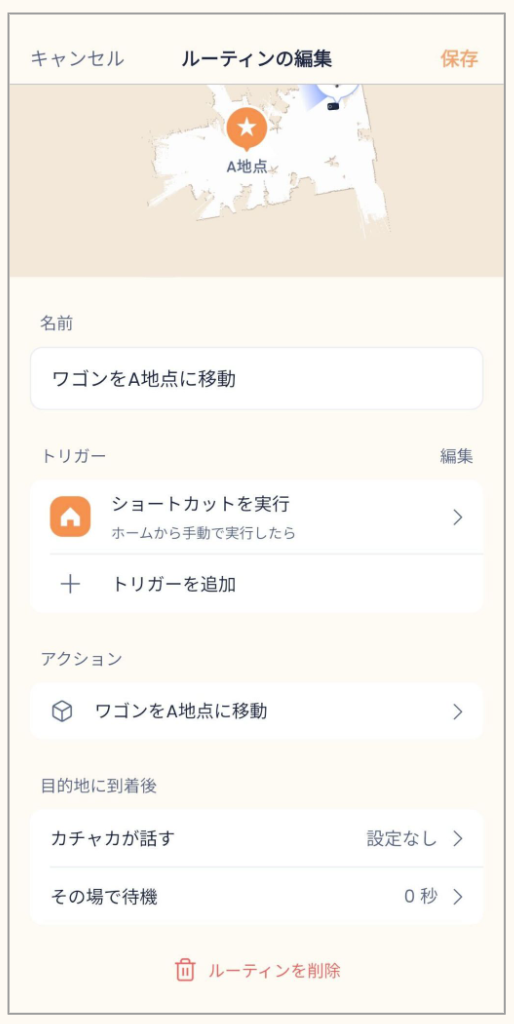
- Select Run Shortcut.
- Optionally set a name for the shortcut and a message to be spoken on arrival.
- Tap Save in the top-right corner.
Once registered, the shortcut button appears on your home screen. From then on, a single tap tells Kachaka to run the delivery with the saved settings — no need to pick each option again.
For more on the spoken arrival message, see Speak a Message on Arrival.
Add Voice and Other Triggers
A shortcut is, under the hood, a kind of Routine. From an existing shortcut’s Routine edit screen, tap + Add Trigger to attach triggers beyond the button tap — for example, a voice command.
With a voice trigger added, you can launch the same shortcut just by saying your custom keyword (after waking Kachaka with 「ねぇカチャカ」), which is handy when your hands are full. For voice-trigger setup details and the available keywords, see Voice Shortcuts and Routine Voice Keywords.
Screens
Related
- Moving Furniture: Basics
- Routine Automation: Triggers and Multi-Action Setup
- Voice Shortcuts and Routine Voice Keywords
- Speak a Message on Arrival