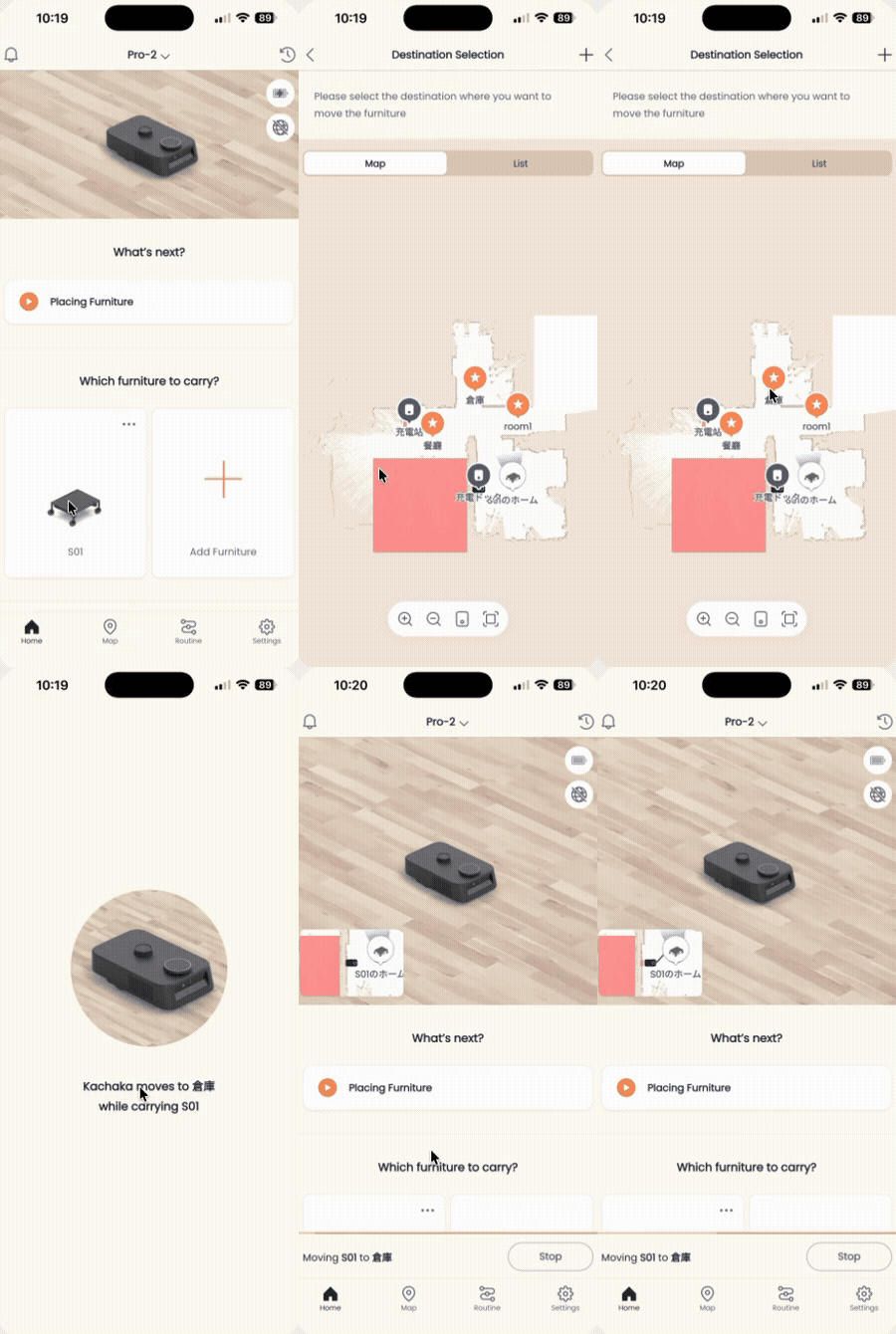
Moving Furniture: Basics
Moving furniture is the core of what Kachaka and Kachaka Pro do: the robot slides under a dedicated shelf, lifts it, and carries it to the destination you choose. This page covers how to issue a carry command from the app or by voice, and how to have the robot speak a message when it arrives.
Before you start, make sure the shelf you want to move is registered and the destination already exists. If not, see Registering Furniture and Adding Aliases and Adding, Repositioning and Setting Default Destinations first.
Move it from the App (three steps)
On the app home screen, just follow these three steps:
- On the Home tab, tap the furniture you want to move.
- Tap the destination.
- Tap “Carry now.”
The robot heads to that shelf, docks underneath and lifts it, then carries it to the destination you chose.
Move it by voice
Say the wake word “ねぇカチャカ”, and once you hear the prompt tone and see the LED ring start spinning, give the carry command, for example telling it to take a piece of furniture to a location.
To call furniture or a destination by voice, the name has to be one of the recognizable preset names; freely typed names can’t be controlled by voice. See the List of Registrable Furniture Names and the Voice-Compatible Destination Name List.
Speak a message on arrival
You can have the robot read out a reminder when it finishes carrying and reaches the destination, such as “Your meal has arrived.” To set it up:
- Before sending the robot, open the detailed settings for “Move furniture.”
- In the “On arrival, say…” field, type the message you want spoken.
- Start from “Carry now,” and the robot will speak that message when it arrives.
This spoken-message feature also works with routines and shortcuts, so a recurring carry task can carry its reminder every time.
Make carrying easier
- Save a frequently used carry as a one-tap home shortcut; see Shortcuts: One-Tap Commands.
- Set a fixed day and time for automatic carrying; see Scheduled Delivery: Set Up and Edit Time Triggers.
Screens