Finding Your Robot's Serial Number
Every Kachaka and Kachaka Pro has its own serial number. When you request a repair, report a fault, or contact support, Sigma will ask for this serial number to quickly identify your machine. There are two ways to find it — either one works.
Method 1: From the app
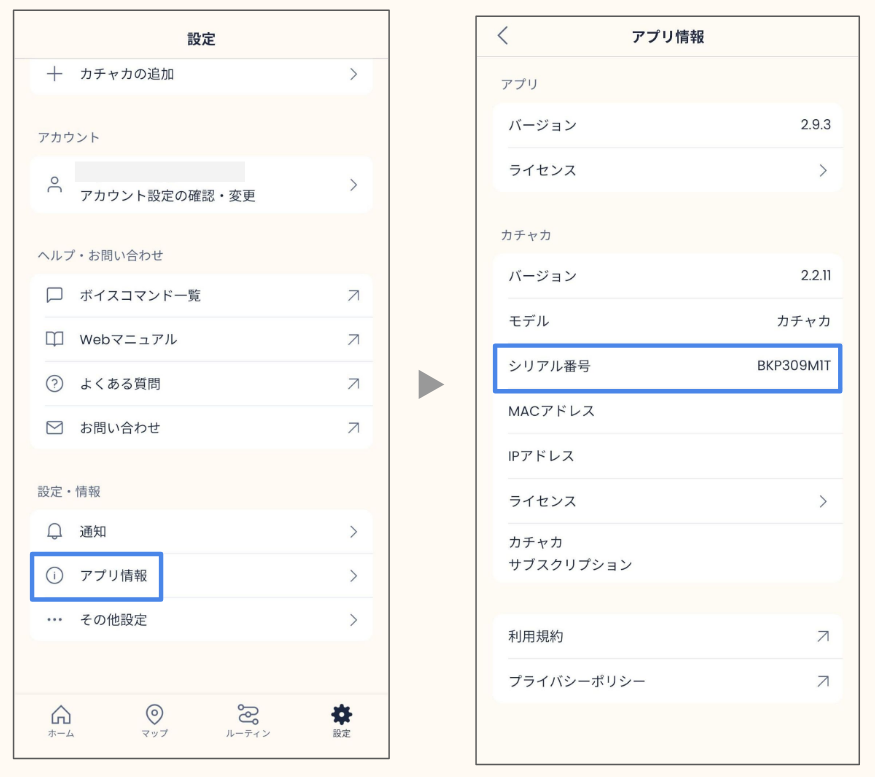
With the robot powered on and your phone on the same Wi-Fi, you can read the serial number inside the app:
- Open the Kachaka app and switch to the “Settings” tab.
- Under the “Settings & Info” category, tap “App Info”.
- Scroll to the “Kachaka” category and read the serial number in the “Serial Number” field.
This same screen also shows the app version and the robot’s software version, which is handy when you need to report all of them together. See Checking Your App and Robot Software Versions.
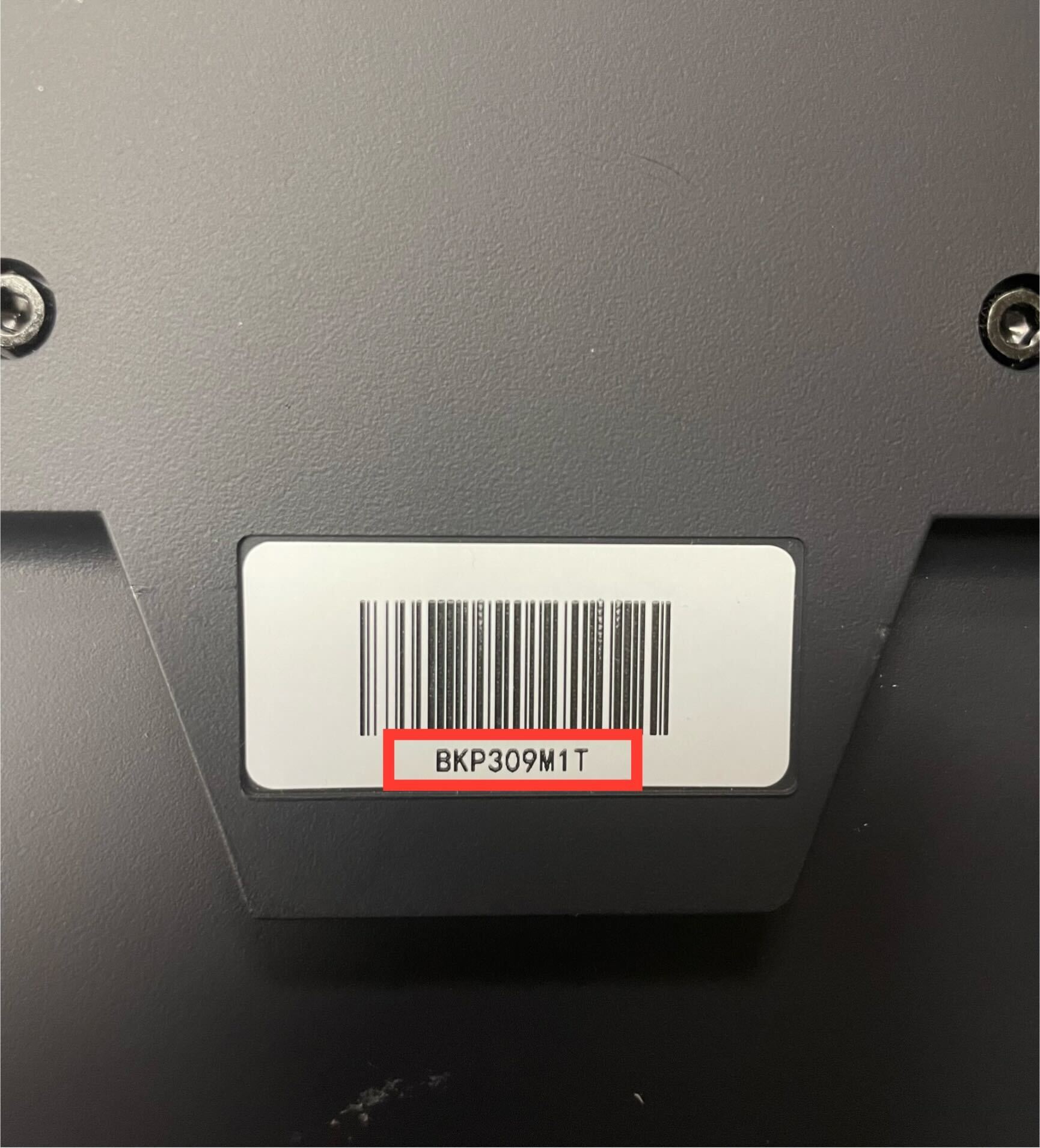
Method 2: Check the label on the back of the robot
If using the app isn’t convenient, you can read it directly off the machine. The serial number is printed below the barcode on the back of the Kachaka, as an alphanumeric code made up of letters and numbers. Write down or photograph the full string of letters and digits.
When you’ll need the serial number
The serial number is used mainly to identify your machine when you contact Sigma for support. Common situations include:
- Reporting a fault or abnormal behavior — provide it to the support team along with the software version, time of occurrence, and on-site photos to speed up the investigation. See Reporting Faults and Providing Investigation Info.
- Identifying the machine when arranging a Kachaka Pro repair or replacement unit. See Kachaka Pro Repair Process.
For any repair or support service, please contact Sigma and have this serial number ready.
Screens