Checking Your App and Robot Software Versions
Checking your version numbers is a basic step before troubleshooting, confirming an update, or reporting an issue to Sigma. The Kachaka app and the robot each have their own software version, and you can find both on the same screen in the app.
The two version numbers
- App version: the version of the Kachaka app installed on your phone or tablet, updated through the App Store / Google Play.
- Robot software version: the onboard firmware running on the Kachaka robot, updated by downloading and installing through the app.
When troubleshooting connectivity or unexpected behavior, or when contacting Sigma, you will often need both.
How to check
Both versions live on the same screen and use the same steps:
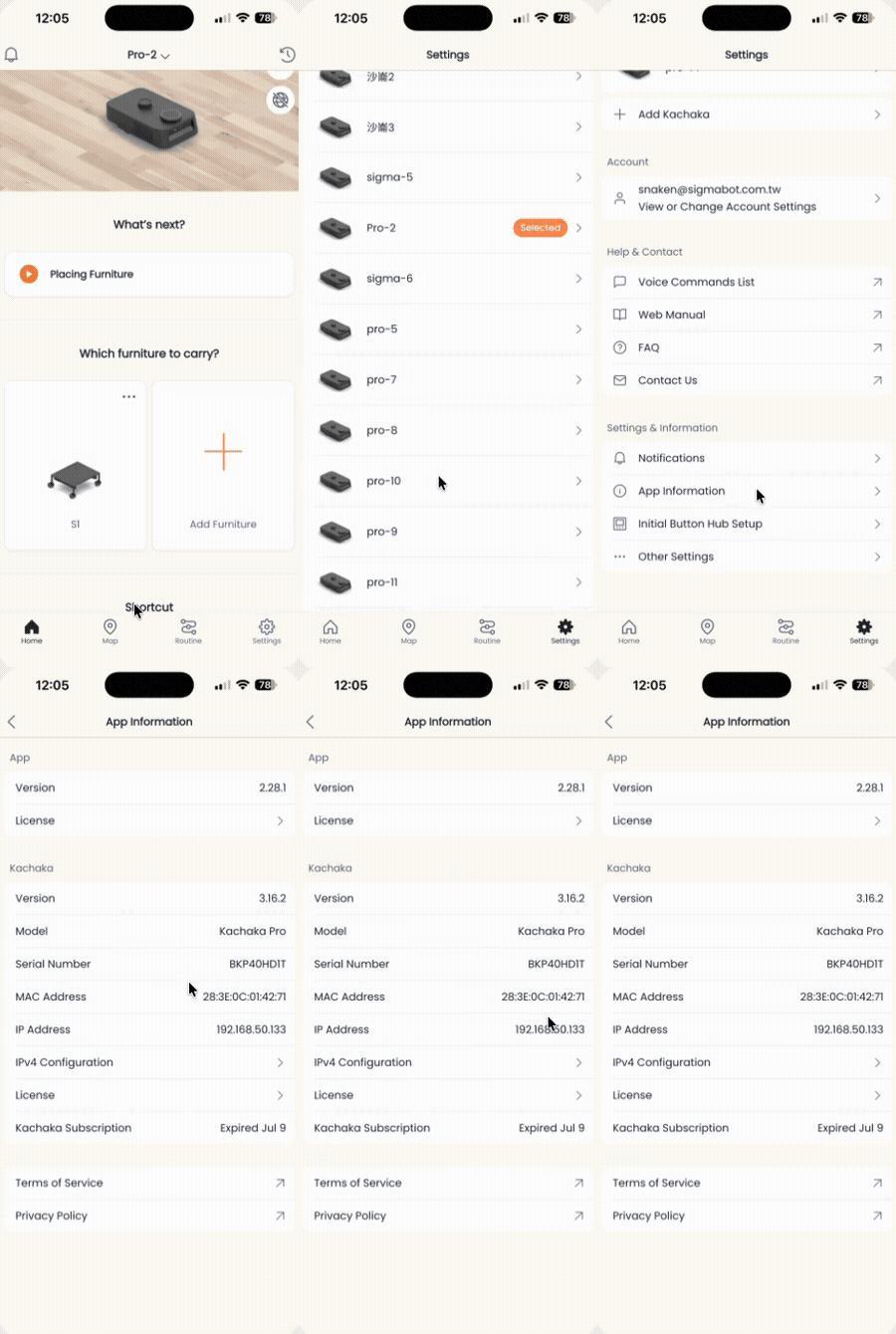
- Open the Kachaka app and switch to the Settings tab.
- Under the Settings & Info category, tap App Info.
- On the App Info screen, read the version fields:
- The Version under the Kachaka category = the robot’s onboard software version.
- The Version under the App category = the Kachaka app version.
To see the robot software version, make sure the app is connected to the robot first; otherwise the field won’t show the robot’s actual version.
When you’ll need this
- To confirm you’re on the latest build: compare versions, then decide whether to update the app or update the robot software.
- When a feature requires a specific version, check the robot software version first.
- When reporting a fault to Sigma, include both the app version and the robot software version so the issue can be diagnosed faster.
Screens