Reporting Faults and Providing Investigation Info
When your Kachaka or Kachaka Pro behaves abnormally, hits an intermittent issue that’s hard to reproduce, or repeatedly throws an error, the more complete the information you provide, the faster Sigma can pinpoint the cause. Before reporting, gather the details below and send them to Sigma all at once — this greatly cuts down on back-and-forth.
Gather This Information Before Reporting
Before contacting Sigma, try to collect the following. Missing an item or two is fine, but a complete set helps most:
- Robot serial number: Identifies the exact unit and its warranty status. See Finding Your Robot’s Serial Number.
- Software version: Include both the App version and the robot’s software version to help check whether it’s a known issue. See Checking Your App and Robot Software Versions.
- Time the issue occurred: Be as precise as possible, down to the date, hour, and minute (e.g. “MM/DD, HH:MM”), so it can be matched against backend logs.
- Photos or videos of the scene: Capture what the screen and the robot looked like at the moment of the fault. Video is especially helpful for reconstructing the motion.
- Exported map file (Kachaka Pro only): If the issue relates to localization, routing, or the map, an exported map file is very helpful. See Importing and Exporting Maps (Kachaka Pro).
- Debug log (App log): The App’s built-in log records the details of the robot’s motion and its communication status — an essential clue for tracking down intermittent issues. After a fault, export the log from the App as soon as possible so older records aren’t overwritten. To export: open the App → “Settings” → “Support” → “Send logs”, then follow the on-screen prompts to export it or send it directly to Sigma.
If an Error Code Appears
When the screen or a notification shows an error, include the error code — it’s the most direct clue.
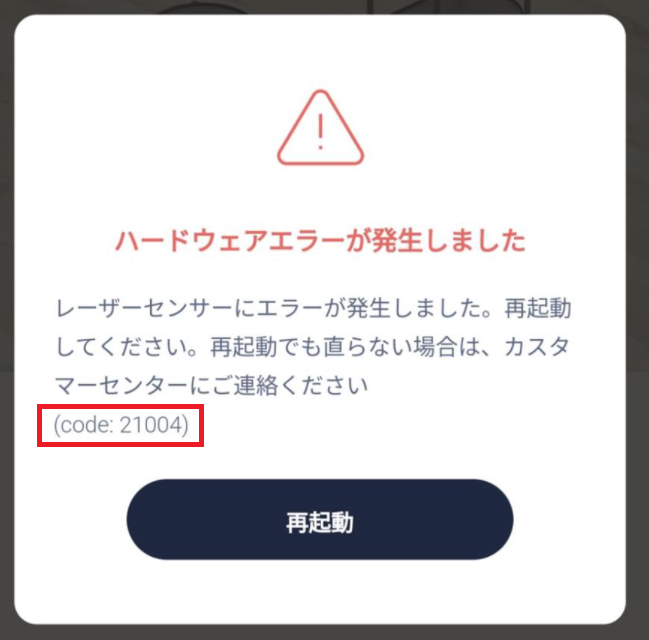
- Read it from the notification: Hardware-error and similar notifications include the code in the message. For example, when “(code:210004)” appears, the number in parentheses is the error code.
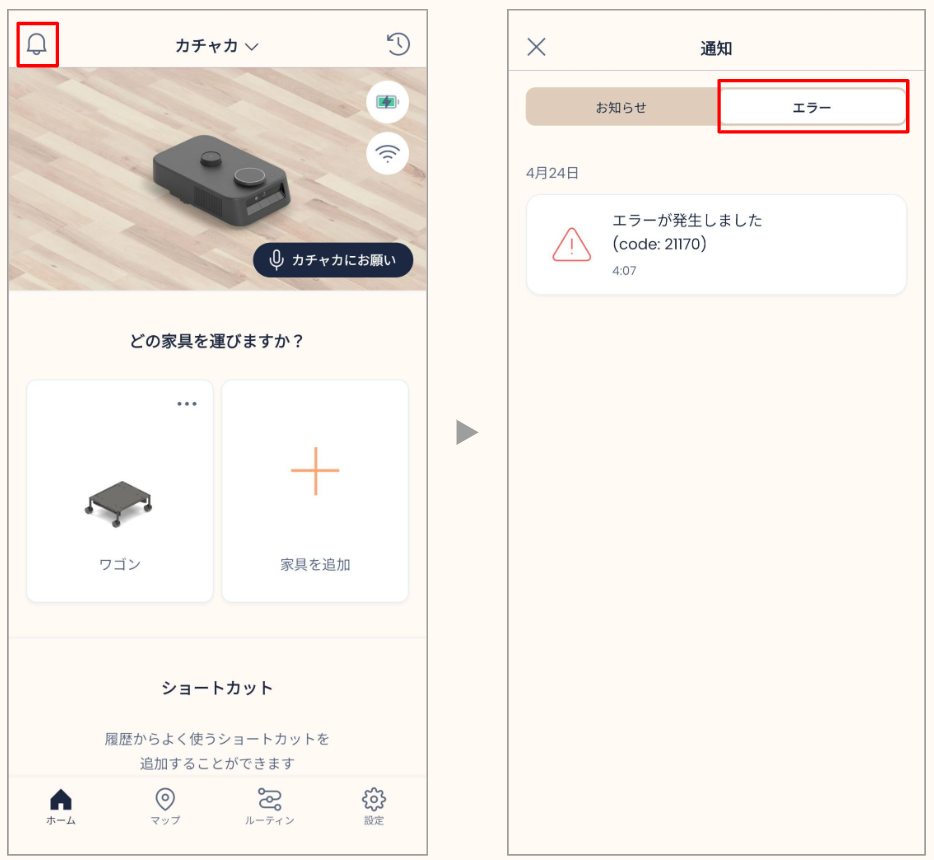
- Look it up in history: Past error notifications can be reviewed in the App — tap the notification icon at the top left, then switch to the “Errors” tab to see previous error records.
For common light and error states, you can first self-diagnose with the LED Status Light Reference; if that doesn’t resolve it, contact Sigma with the information above.
Getting Support
Repairs, warranty decisions, and follow-up are handled according to Sigma’s announcements in Taiwan. Once you’ve gathered the information above, contact Sigma — we’ll help identify the cause and arrange any repair or replacement.
Screens