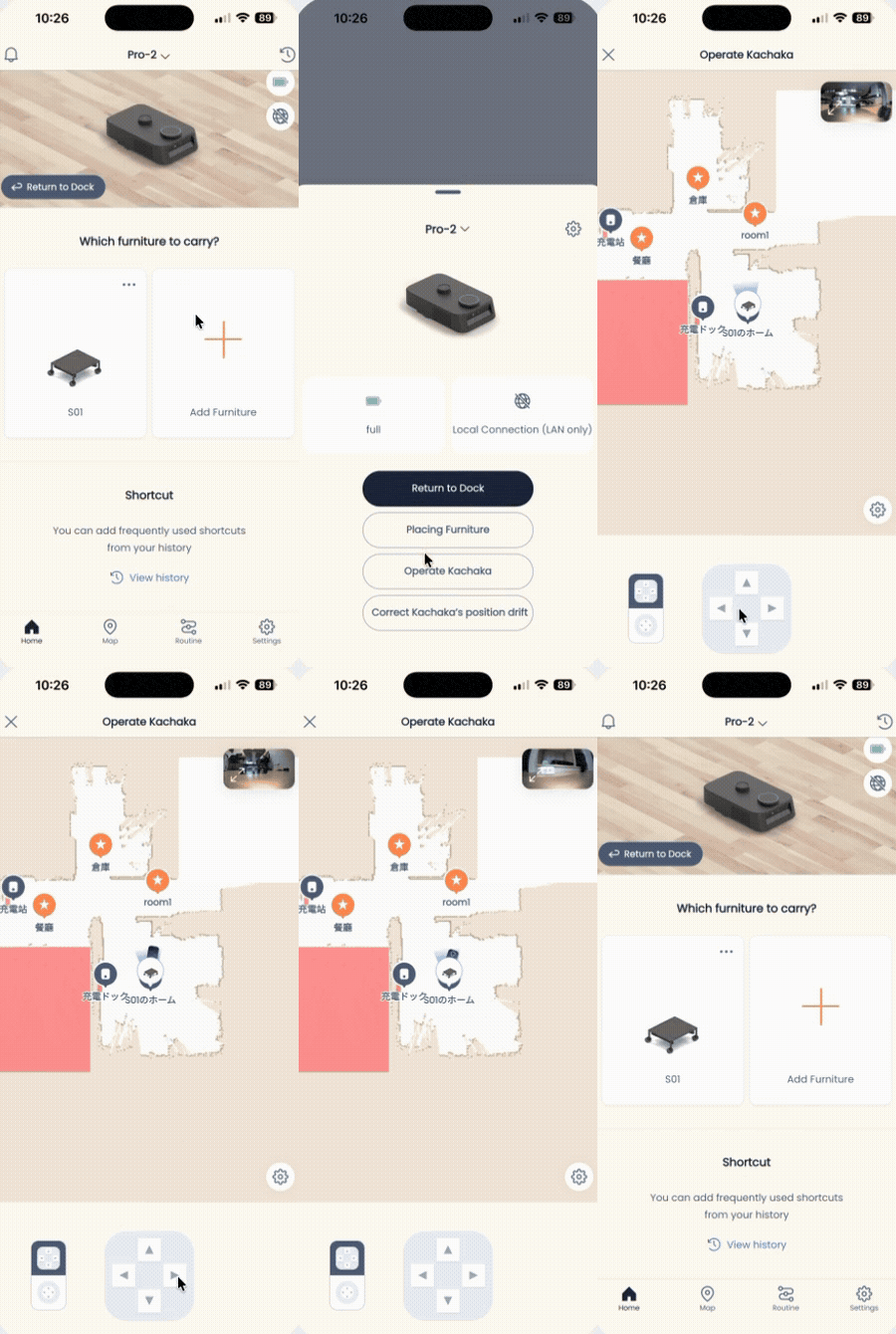
Manual Remote Control
Besides telling Kachaka to drive to a destination on its own, you can also steer Kachaka and Kachaka Pro directly from the app, like an RC car, using the on-screen directional pad. This is the most direct way to take over when the robot is too far away for your voice to reach it.
During manual control, the app shows a live feed from the robot’s front camera, so you can watch what’s ahead while you adjust direction.
Two Ways to Open Manual Control
The app offers two entry points to manual control. Use whichever is handier.
From the Home Status Screen
- Open the “Home” tab in the Kachaka app.
- Tap “Manual Control” near the bottom of the screen.
- A directional pad appears at the bottom of the app, and you can start steering.
From the Map Menu
- Open the “Map” tab in the Kachaka app.
- Tap the ”⋯” (more) menu in the top-right corner.
- Select “Manual Control”.
- A directional pad appears at the bottom of the app, and you can start steering.
Operating Tips
- Watch the front-camera feed in the app while you drive forward, back, and turn with the pad.
- To stop, simply release the pad. If the robot is running a task or you need it to stop right away, see Stopping and Pause Mode.
- For the full procedure on manually driving the robot back to its dock, see Manually Return Kachaka to the Dock.
Screens