Manually Return Kachaka to the Dock
When Kachaka (including Kachaka Pro) can’t return to its charging dock on its own — usually because position drift on the map has left it unsure where it is — you can bring it back manually using one of the three methods below. Pick the one that fits your situation, depending on how far it is from the dock and whether it’s currently moving.
Tip: If Kachaka frequently fails to dock on its own, the root cause is usually self-position drift or insufficient clearance around the dock. After handling the immediate situation, see Fails to Return to Charging Dock and Fixing Position Drift and Getting Lost to address it at the source.
Method 1: Drive It Back via the App
When Kachaka is still far from the dock, the easiest approach is to drive it close using the app’s manual control.
- Open the app, scroll to the bottom of the Home tab, and tap “Kachaka Manual Control”.
- Use the on-screen D-pad or joystick to steer Kachaka, watching the front-camera view, and bring it in front of the dock.
For full remote-driving instructions, see Manual Remote Control.
Method 2: Push It by Hand
When Kachaka is not in a move state — such as “carrying furniture” or “returning to dock” — you can simply push it across the floor by hand.
If it is currently moving, stop it first:
- Short-press the power button once to pause (LED ring turns yellow); or
- Tap “Stop” at the bottom-right of the app’s Home screen.
Once the move is interrupted, push Kachaka by hand back toward the dock. After it’s in position, short-press the power button once to release the pause (LED ring turns white), and Kachaka will re-detect the dock and start charging. For details on stopping and pausing, see Stopping and Pause Mode.
Method 3: Pause, Then Lift It With Both Hands
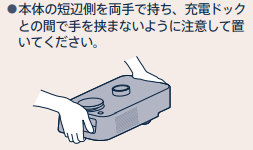
If you need to lift Kachaka and carry it to the dock, first short-press the power button once to put it into pause mode (LED ring turns yellow), then lift it by holding both short sides of the body with both hands.
When placing it back on the dock, take special care not to pinch your hands between the body and the dock. Once it’s set, short-press the power button once to release the pause (LED ring turns white) so Kachaka can start charging again.
Important Notes
- Don’t force-lift or force-push without pausing first. Moving it while it’s still in motion can trigger a safety mechanism or worsen its localization.
- Lifting can cause position drift. After you manually pick Kachaka up, its sense of where it is on the map may be thrown off. If the displayed position doesn’t match reality after you put it back, see Fixing Position Drift and Getting Lost to recalibrate.
- If Kachaka is already on the dock but not charging, that’s a different issue — see Placed on Dock but Not Charging.
Screens
The image below shows the “Kachaka Manual Control” entry at the bottom of the app’s Home tab. Tap it to drive Kachaka with the D-pad or joystick (corresponds to Method 1).