Moving the Charging Dock
When you need to relocate the charging dock to another spot in the room, you can’t just pick it up and set it down somewhere else. Kachaka remembers the dock’s coordinates on the map, so if you move the physical dock without updating the map to match, the robot will look for the dock in the wrong place when returning to charge — and it can even throw off the self-position across the whole map.
The correct method has two stages: first physically move the dock, then update its coordinates on the map. Throughout both stages, never lift the robot off the floor — the moment it leaves the ground, Kachaka instantly loses its self-position. The steps are the same for both Kachaka and Kachaka Pro.
Stage 1: Physically move the dock
- Leave the dock where it is for now. Park Kachaka on its current dock and let it enter charging mode.
- In the app, open manual remote control (the “Manual Control” option at the bottom of the home screen).
- Use the D-pad to drive Kachaka to a spot directly in front of the dock.
- Keeping the manual-control screen open, move the dock to its new location now. Do not plug the dock’s power cord into the outlet yet.
- Still using manual control, drive Kachaka over to the new dock location.
- To set the robot back onto the dock, push it by hand with its wheels on the floor — never lift it. If it leaves the ground, Kachaka loses its place on the map.
- To keep the auto-return-to-dock function from kicking in at this point, briefly press the power button once to enter pause mode (the LED ring turns yellow).
Stage 2: Update the coordinates on the map
Be sure to finish Stage 1 above before doing the following steps.
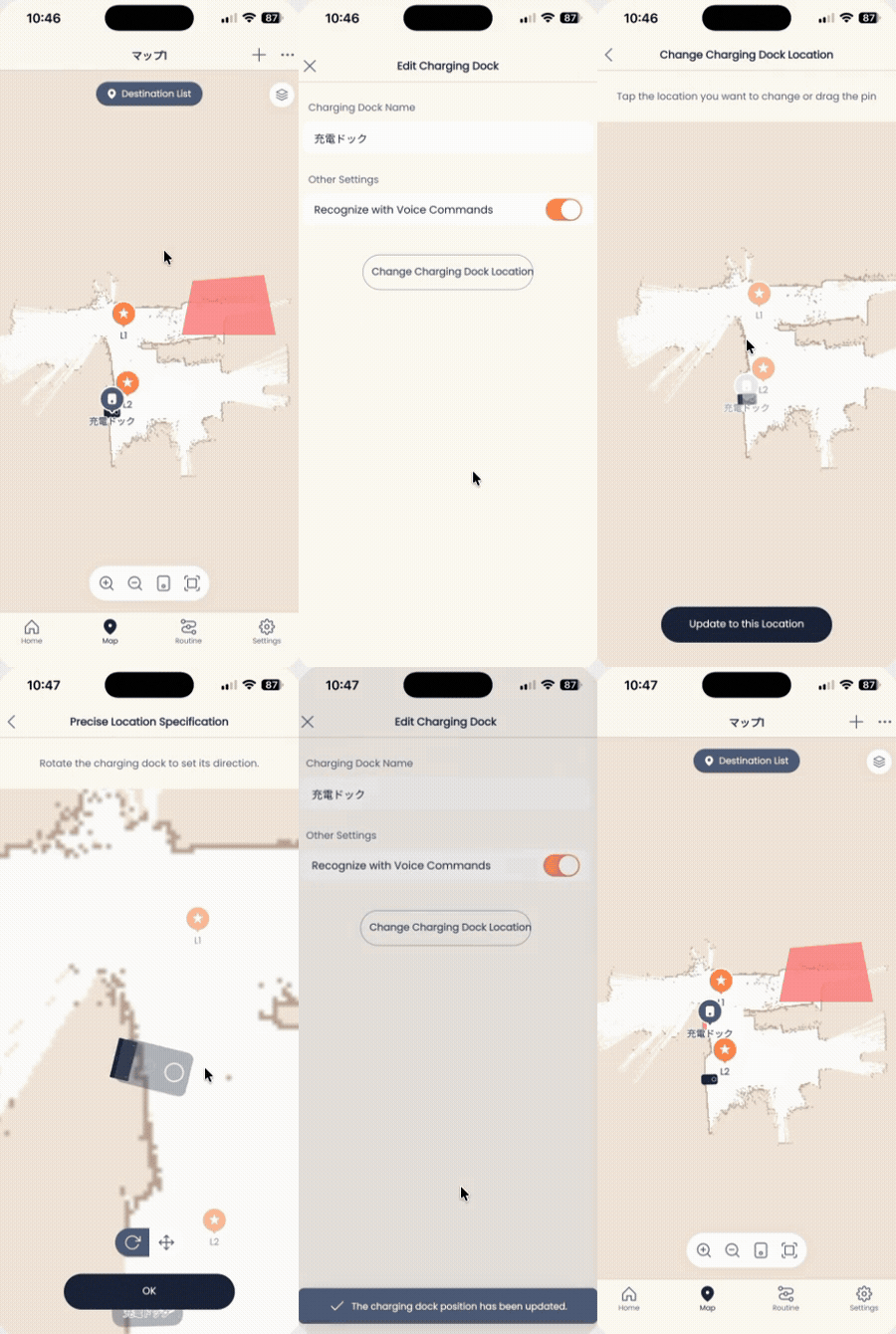
- Open the “Map” tab in the app.
- Tap the “Charging Dock” on the map.
- From the menu, tap “Edit Destination.”
- Tap “Change Destination Position” near the bottom of the screen.
- For the editing method, you can choose either “Drive the robot to set position” or “Set position on the map.” Since the robot is already physically parked on the new dock, we recommend “Drive the robot to set position” — updating directly from the current location is the most accurate. If you use “Set position on the map” instead, you’ll need to drag the dock pin to the matching spot by hand.
- Confirm the robot is sitting on the new dock location, then tap “Change to this position” (or, if you used the map method, confirm the position and save).
- Finally, plug the dock’s power cord into the outlet.
Once done, the dock’s coordinates on the map will match its actual location. If Kachaka later fails to return to the dock, see troubleshooting return-to-dock failures; to put the robot back on the dock by hand, see manually returning Kachaka to the dock.
Screens