Updating the Robot's Software (Manual, Automatic, and Notifications)
Robot software (firmware) updates fix issues and add new features, and apply to both Kachaka and Kachaka Pro. There are two ways to update — manual and automatic — and both are done through the Kachaka App.
Before you start, first update the Kachaka App on your phone to the latest version, then reconnect to your Kachaka so the update flow appears correctly.
Manual Update
Starting the update
Open the App and connect to your Kachaka. If a new version is available, an update prompt appears. Tap “Start update” on screen to begin downloading and installing.
Skip now, update later
If you don’t want to update right now, tap “Later” on the prompt and keep using Kachaka as usual. When you’re ready to update, bring the update flow back using either method below.
Method 1: Restart the App
- iPhone: Swipe up from the bottom of the screen (or double-press the Home button on models that have one) to show the app list, swipe the Kachaka App up to close it, then reopen it from the home screen.
- Android: Tap the task manager button at the bottom right to show the app list, swipe the Kachaka App up to close it, then reopen it from the home screen.
Method 2: From Settings
- Open the “Settings” tab in the Kachaka App.
- Under “Kachaka settings,” tap the relevant Kachaka.
- Tap “Software update available.”
- Tap “Update” to begin.
Automatic Update
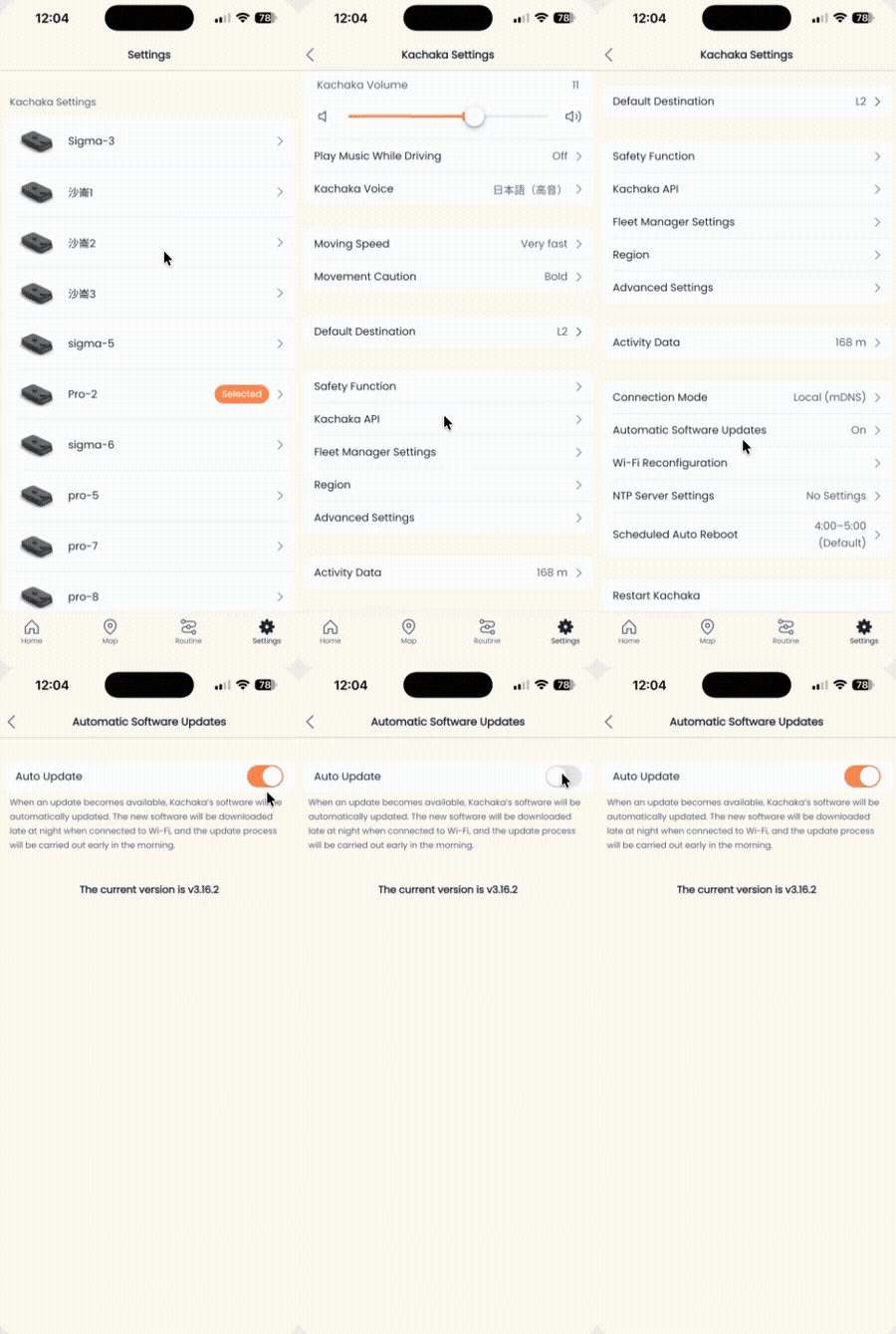
Once your software reaches version v3.4.7, “Automatic software update” is on by default. When a new version is available, Kachaka downloads it automatically late at night while connected to Wi-Fi, and installs it automatically in the early morning — no manual action needed.
Note: Kachaka also restarts itself once every early morning, and the update install usually happens during this window. See Early-Morning Auto-Restart and Position Reset.
To turn automatic update on or off:
- Open the “Settings” tab in the Kachaka App.
- Under “Kachaka settings,” tap the relevant Kachaka.
- Tap “Automatic software update.”
- Toggle “Automatic update”:
- On: updates automatically when a new version is available.
- Off: no automatic update — use the manual method above instead.
When No Update Notification Appears
If you never see an update prompt, or there’s no “Software update available” button in Settings, check these three things in order:
- The App is the latest version — an outdated App may not surface the update flow, so update the Kachaka App first.
- The robot is actually on an older version — if the robot is already up to date, there’s simply nothing to install. Check your App and robot software versions to confirm.
- The connection mode is “Internet connection” — the robot must be able to reach the internet to fetch updates. If a Kachaka Pro is switched to LAN-only offline mode, switch it back to internet connection first; see Kachaka Pro: Offline LAN-Only Control. Right after switching from offline back to online, the update notification may take a little while to appear.
If all three are fine and you still see no update, contact Sigma.
Screens