Furniture Storage Position: Wall Alignment and Reset
Every registered piece of furniture has a fixed “storage position” — the spot Kachaka returns it to when putting it away. The app calls this “Furniture Home”. This page covers two things: making furniture park with its back flush against the wall when stored, and resetting a furniture’s position back to its original Home after it has been moved.
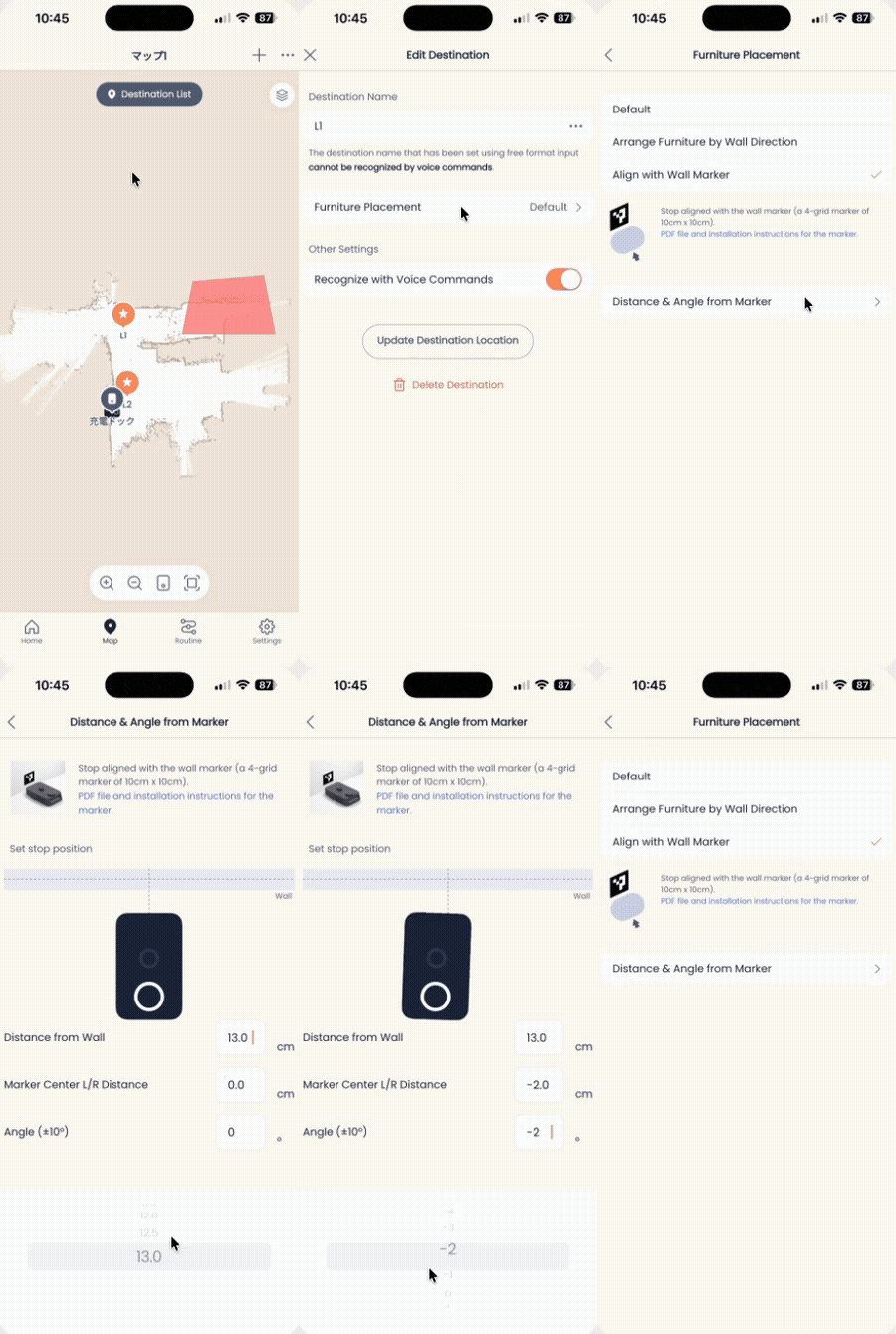
Turn On “Align Furniture Back to the Wall”
If a furniture’s storage position (Furniture Home) backs onto a wall, you can turn on alignment so that Kachaka parks the furniture with its back flush against the wall when storing it — tidier to look at and more space-efficient.
- In the app, tap the “Map” tab.
- Select that furniture’s “Furniture Home” destination (either tap the pin on the map directly, or tap “Destination List” first and choose it from the list).
- Tap “Edit Destination”.
- Tap “Furniture Placement”.
- Choose the wall-alignment option and save.
From then on, whenever Kachaka stores this furniture, it parks it with the back aligned to the wall.
“Furniture Home” is itself a destination, so its “Edit Destination” screen also includes destination settings such as skipping post-arrival position and orientation fine-tuning. For higher-precision wall docking, see precise docking against a wall marker (Kachaka Pro).
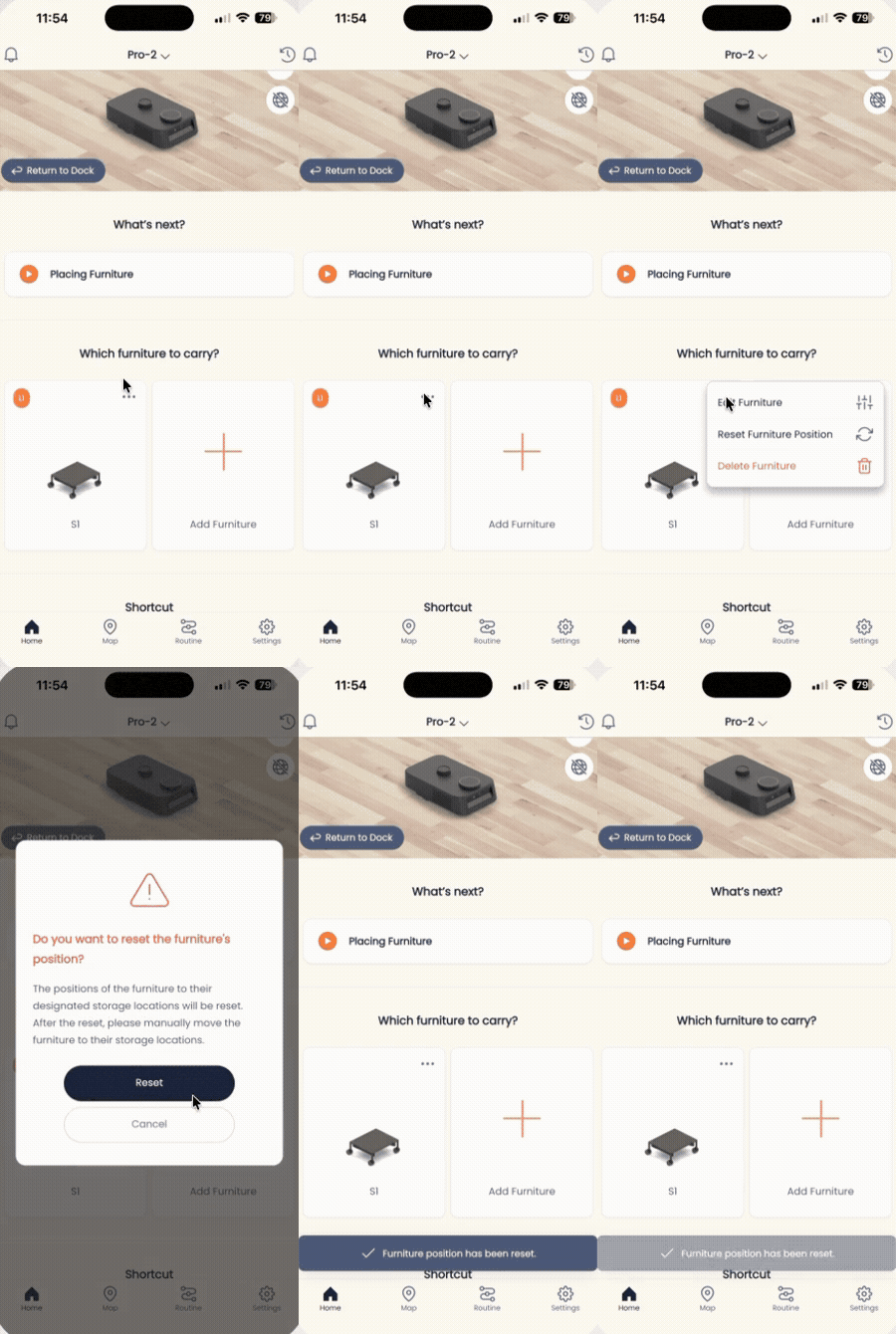
Reset Furniture Positions to “Furniture Home”
If a furniture has been moved by hand, or its position on the map no longer matches where it actually sits, you can reset it back to the originally registered “Furniture Home”. You can reset a single piece or all furniture at once.
Reset a Single Piece of Furniture
- On the app home screen, in the “Which furniture should I move?” section (or in the furniture list under the “Settings” tab), find the furniture you want to reset.
- Tap the “menu” icon (・・・) at the top right of that furniture’s card.
- Tap “Reset furniture position”, then tap “Reset” in the confirmation dialog.
Reset All Furniture
- In the app, tap the “Map” tab.
- Tap the “menu” icon at the top right of the screen.
- Tap “Reset all furniture positions”.
After resetting, check that the furniture has actually returned to its “Furniture Home” position.
When You Are Not Sure Where Home Is
If you no longer remember where “Furniture Home” was and cannot tell whether the reset worked, use this approach to restore the initial value instead: have Kachaka pick up the furniture, then give the “put the furniture away” command. Kachaka returns the furniture to its originally registered storage position, which resets the position back to its initial value.
Screens