Install the Kachaka App & System Requirements
Whether you have Kachaka (consumer) or Kachaka Pro (commercial), you must first install the dedicated Kachaka App on your device before you can use the robot. All of the robot’s setup and day-to-day operation happen inside the app, so this is the very first step.
What the App Does
The Kachaka App is your main interface for the robot and covers the following tasks:
- First-time setup: the connection and basic setup flow after powering on
- Registering dedicated furniture (shelves): add, name, and edit Kachaka shelves
- Managing destinations: add and edit the points the robot travels to
- Schedules and shortcuts: set tasks to run automatically at set times, or one-tap commands
- No-go zones: mark areas you don’t want the robot to pass through
- Robot settings: fine-tune volume, speed, safety detection, and more
Once the app is installed, the recommended next step is to create a Kachaka account so you can sign in and begin setup.
Recommended System Requirements
Make sure your device meets the recommended versions below for the best experience.
Smartphones and Tablets
- iOS: iPhone, iPad, iPod touch, running iOS 15.6 or later
- Android: phone or tablet, running Android 9.0 or later
Computers
- macOS: macOS 11.0 or later, on a Mac with an Apple M1 or newer chip
- Windows: Windows 10 or Windows 11
Windows App Limitations
The Windows app handles most operations, but the following features are not available on Windows:
- Apple / Google social login: if you previously registered with an Apple or Google account, switch to Email login instead. You can set an Email and password for the account via changing and setting your account password, then sign in.
- The “カチャカにお願い” voice recognition feature
- Map zoom gestures: use the ”+” and ”-” buttons at the bottom of the map instead.
- Setting up the Button Hub from the app: follow the steps shown on the Button Hub’s own screen rather than using the app.
How to Download and Install
Choose either of the following methods.
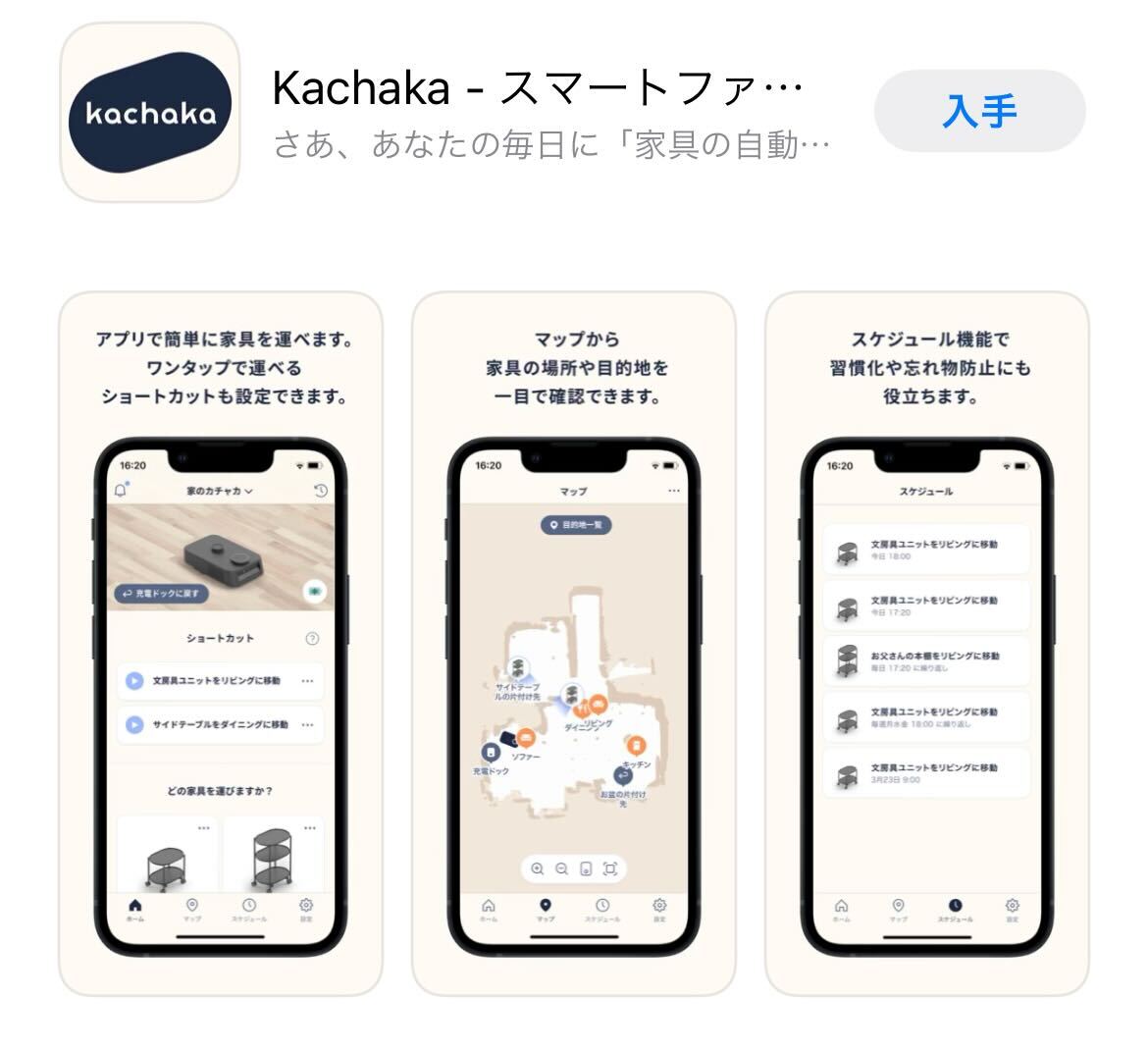
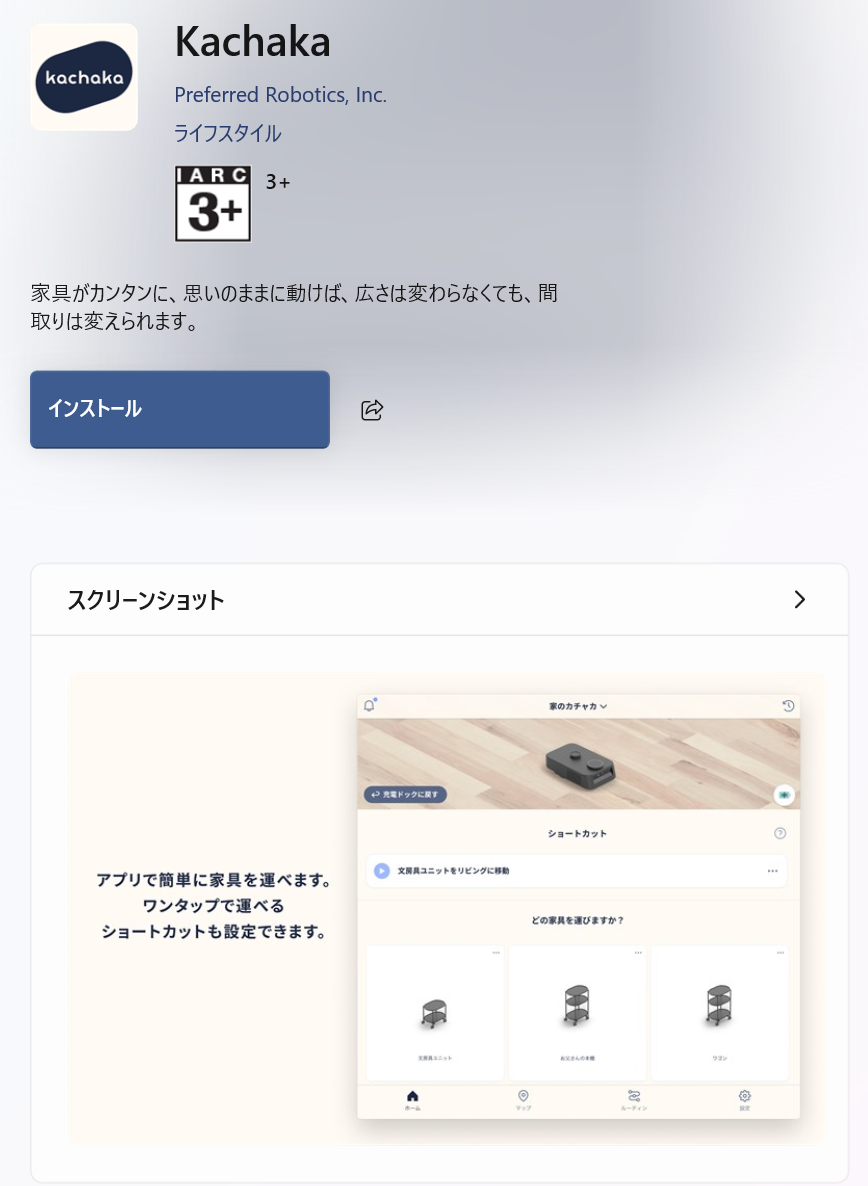
- Search and download directly: search for “Kachaka” in the App Store, Google Play, or the Microsoft Store on Windows, then download and install.
- Install from the store listing: find the Kachaka App in your platform’s app store and install it.
If the Windows version won’t install, first confirm that the Microsoft Store app on your PC is up to date, then search for “Kachaka” directly in the Microsoft Store app on your Windows PC rather than using a web-based installer.
For how to obtain Kachaka or Kachaka Pro in Taiwan, subscription plans, and related matters, please contact Sigma. This page covers only app installation and system requirements.
Screens