Changing and Setting Your Account Password
Your Kachaka account is what you use to sign in to the app and operate the robot. Whether you want to change your password or have forgotten it and can’t get in, everything is done on the Kachaka account website (account.kachaka.life). It has nothing to do with the robot itself, and you don’t need the robot connected.
There are two paths, depending on whether you can currently sign in.
Method 1: Reset before login (forgot password)
Use this when you’ve forgotten your password and can’t sign in, to set a brand-new one.
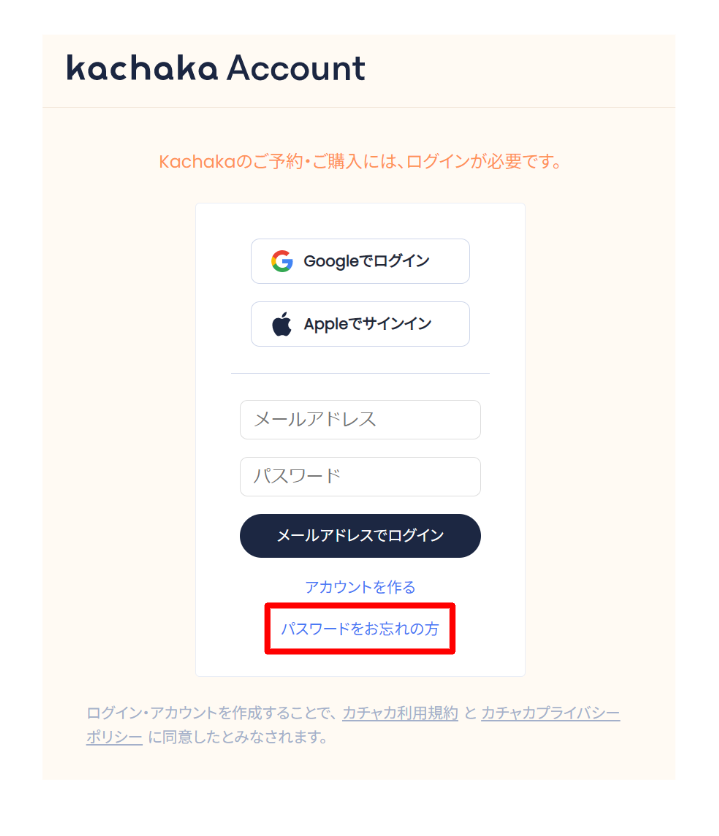
- Open the Kachaka account login page: account.kachaka.life/user/login.
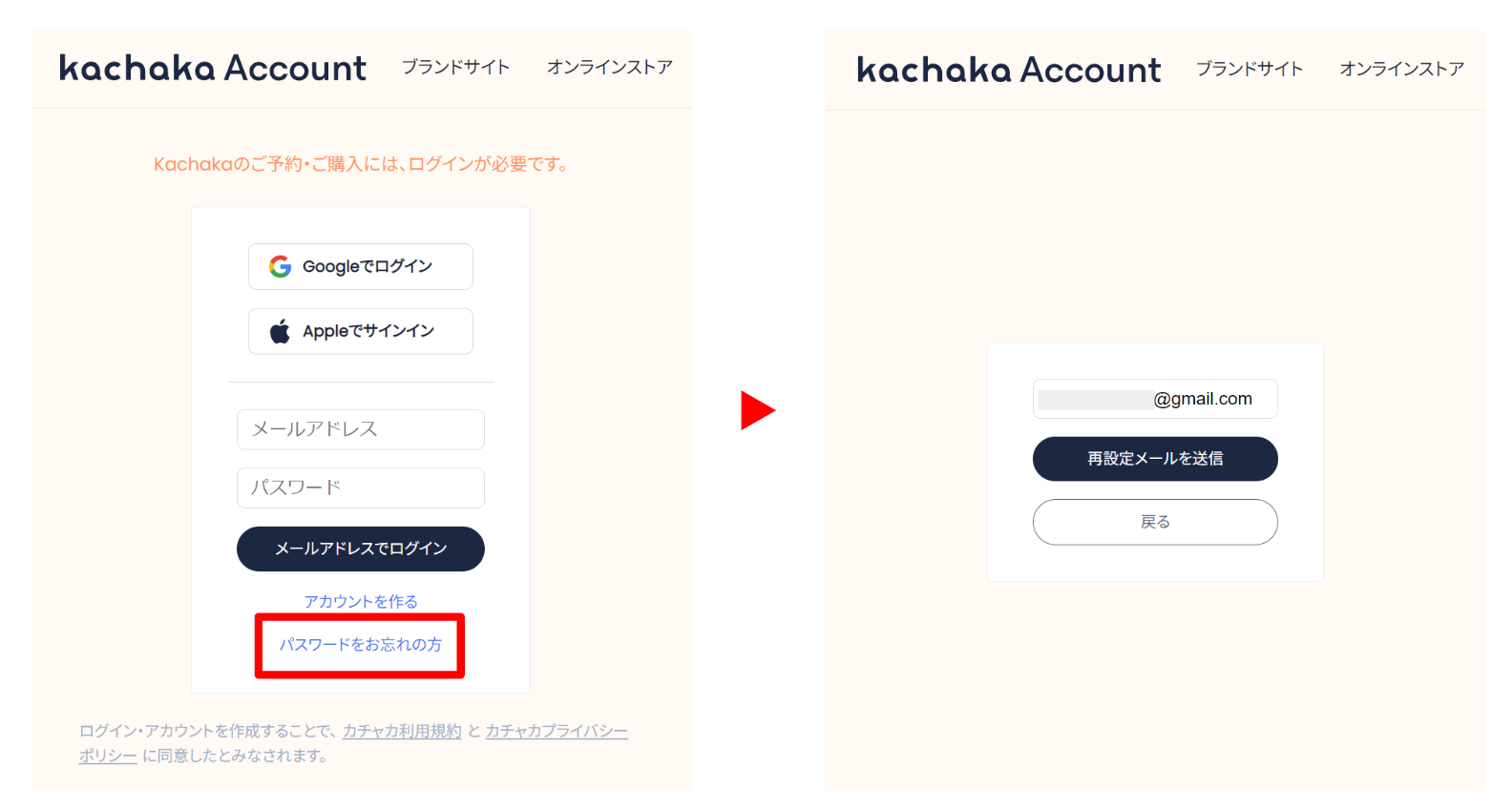
- Select “Forgot your password?” near the bottom of the page.
- Enter the email address you registered with and send the reset email.
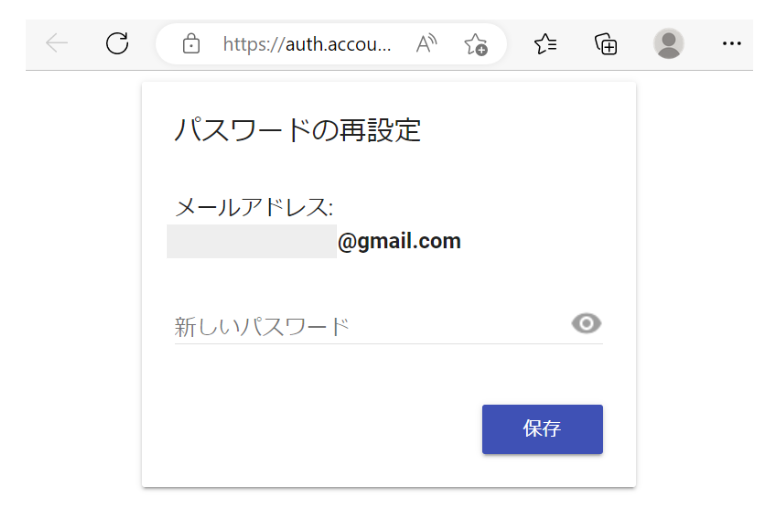
- Open the link in the email, enter a new password, and save.
Method 2: Change after login (account info page)
Use this when you still remember your current password and just want to switch to a new one.
- Sign in to the Kachaka account website: account.kachaka.life/user/login.
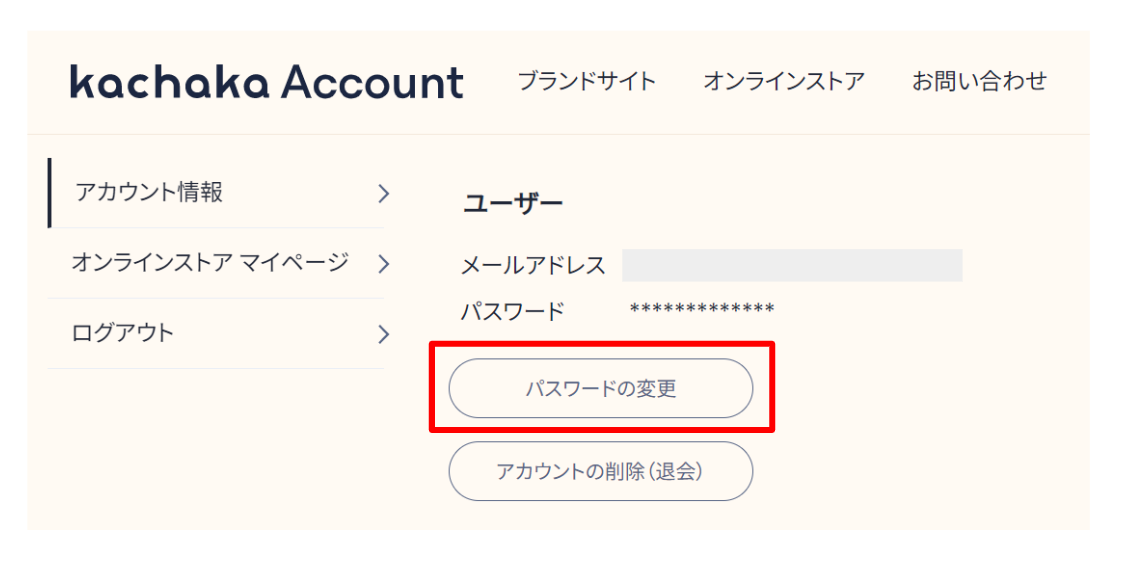
- After signing in, go to the “Account Information” page.
- Select “Change Password”, enter a new password, and save.
Accounts created with Google / Apple can add a password
If you originally created your Kachaka account through social login (a Google account or Apple ID), you can still add an “email + password” sign-in method while keeping all your existing account data. After that, both methods will work.
- Open the Kachaka account website: account.kachaka.life/user/login.
- Select “Forgot your password?” near the bottom of the page.
- Enter the email address tied to that social account (Google or Apple ID) and select “Send reset email”.
- Look for an email titled “Reset your Kachaka account password”, sent from
@account.kachaka.life. - Open the link in the email, enter a new password on the “Reset Password” screen, and save.
Once done, you can sign in to the app with this email and password, and your original social login will still work too.
Not receiving the email, or still can’t sign in?
If you requested a reset but no email arrives, check your spam folder first and add @account.kachaka.life to your trusted senders. For more on verification emails, Apple ID not showing your address, and similar issues, see Login Troubleshooting (Verification Email and Apple ID).
Screens