Set Region & Time Zone
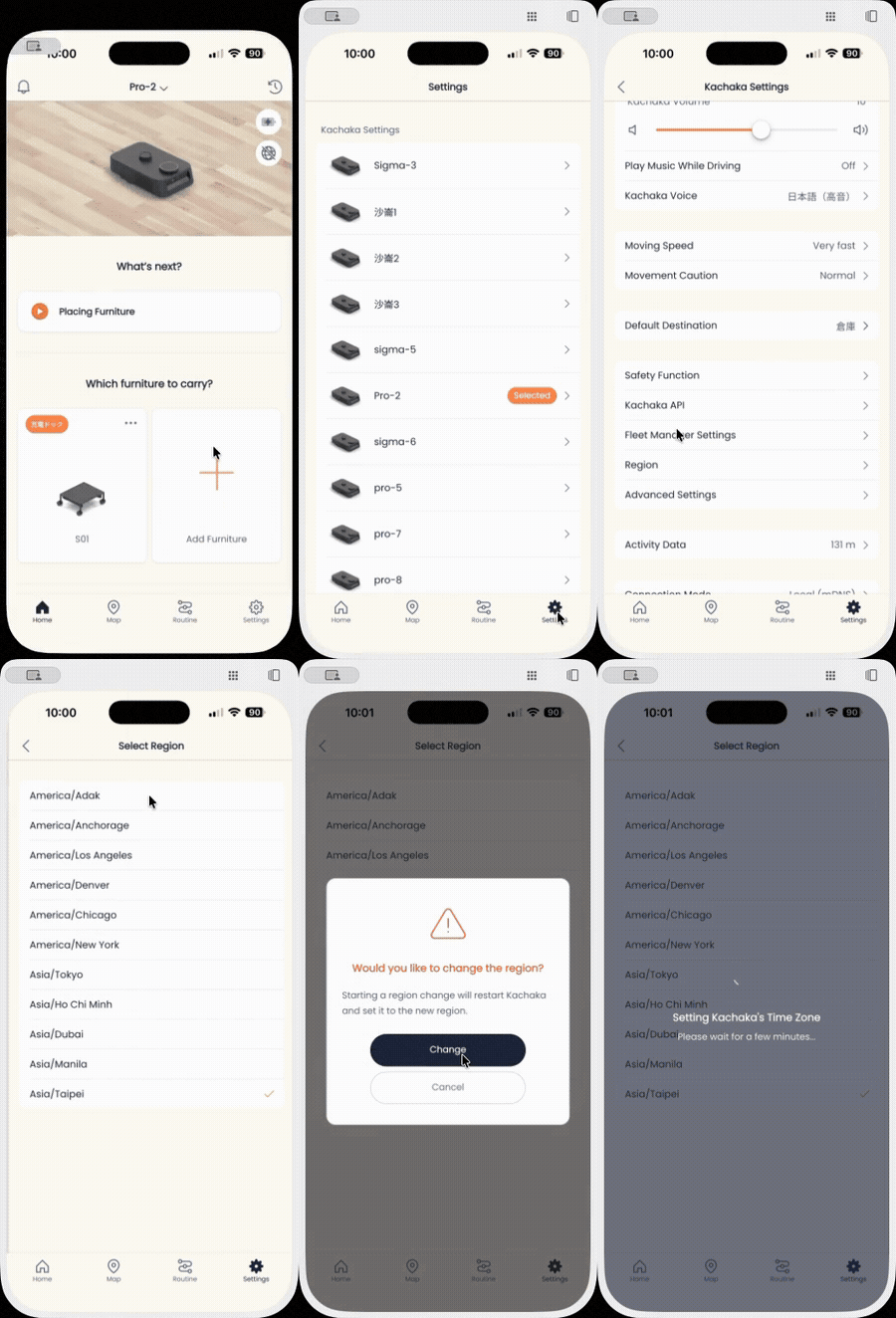
The clock on Kachaka and Kachaka Pro is driven by the Region setting. Set the region to where the robot actually is, and its time zone and clock will follow — so scheduled deliveries and other time-based routine automations fire at the right moment. In Taiwan, choose the Asia time zone that corresponds to UTC+08:00.
Steps
- Open the Kachaka App and go to the Settings tab.
- Under Kachaka Settings, tap the Kachaka you want to configure.
- Find “Region” in the middle of the screen and open it.
- Tap the currently shown region field to expand the region list.
- Select the region that matches your location.
- A message such as “Setting Kachaka’s time zone” will appear — wait until it finishes and the change is applied before leaving the screen.
Once done, the robot’s clock switches to the time zone of the region you picked.
If the change doesn’t take effect
- Make sure your phone and the robot are on the same home Wi-Fi and connected, so the setting can be written to the robot.
- The region choices in the App depend on the robot’s software version. If your region isn’t listed, update the robot’s software first, then try again.
- If schedules still run at the wrong time after the change, double-check that you selected the correct UTC+08:00 time zone.
Screens