Login Troubleshooting (Verification Email and Apple ID)
Logging into the Kachaka App requires a Kachaka account. If your email and password are correct but login keeps failing, or you never received the verification email when creating your account, work through the checks below. The login flow is the same for both Kachaka and Kachaka Pro.
Login fails despite correct email and password
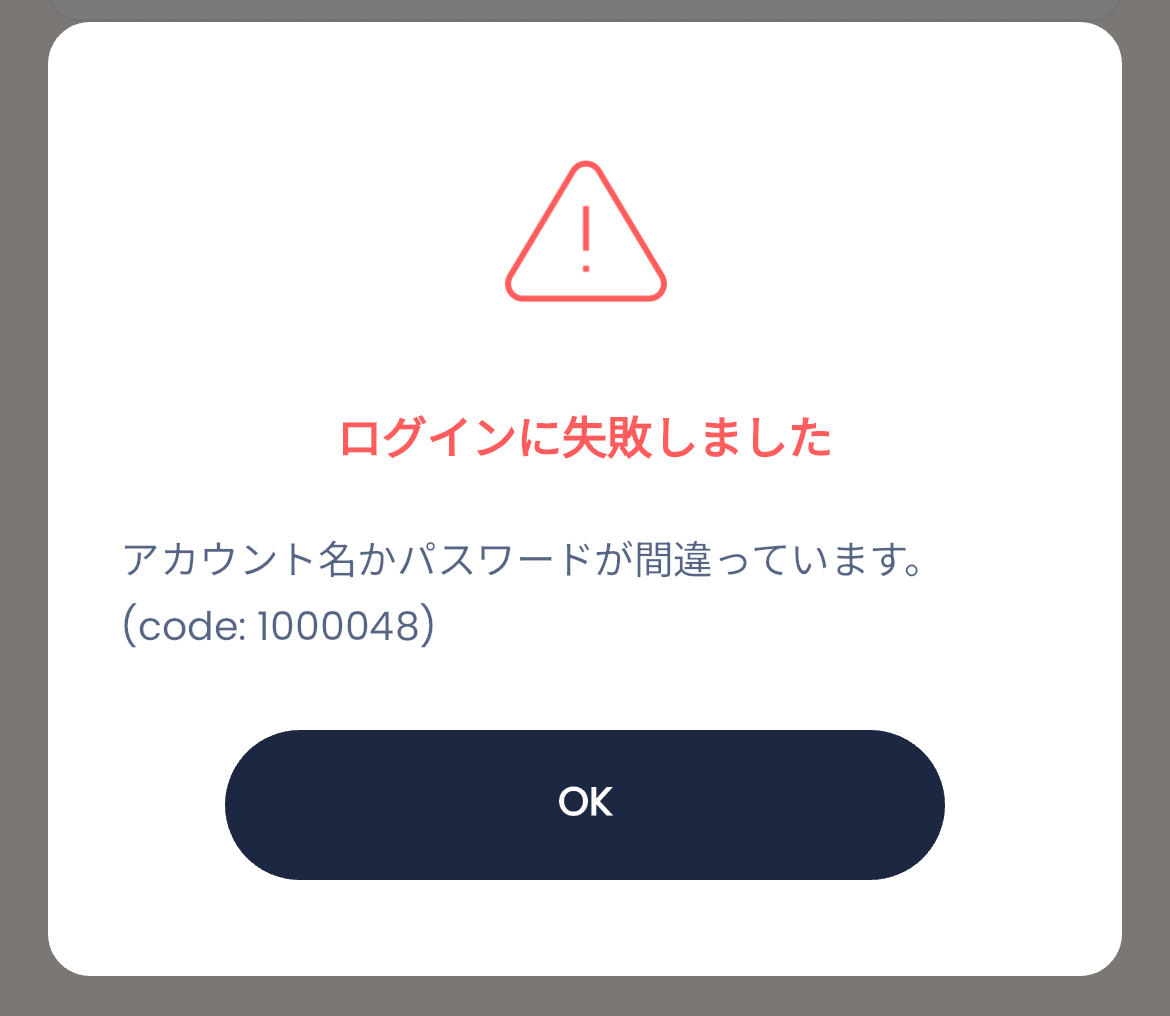
When you enter the correct email and password but the App still shows “Login failed,” check the following four points in order.
1. Confirm your email has been verified
After creating an account, you must open the link in the verification email to activate it. If you skipped that step, login will fail. See Create a Kachaka Account to confirm the whole sign-up flow was completed. If the verification email never arrived, see “Not receiving the verification email” below.
2. Confirm you are entering the right details the right way
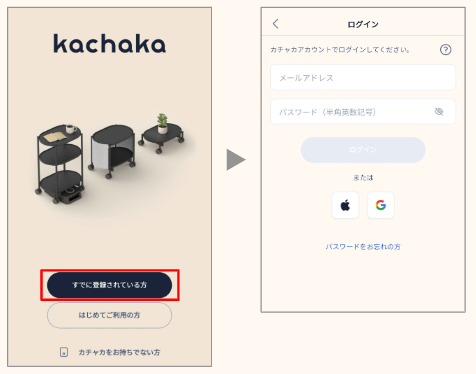
- Open the Kachaka App and tap “Already registered (Log in).”
- Enter the email and password you registered with, then tap “Log in.”
Watch for typos such as wrong case, full-width characters, or stray spaces.
3. Test login on the web
If the App refuses to log in, try the Kachaka account login page in a desktop or mobile browser instead. If web login succeeds, your account itself is fine and the problem is App-side, so return to the App and try again. Use the login URL provided in Sigma Taiwan’s official notice.
4. Reset your password and retry
If login still fails, the password is likely mis-remembered. Reset it via the “Forgot password” flow:
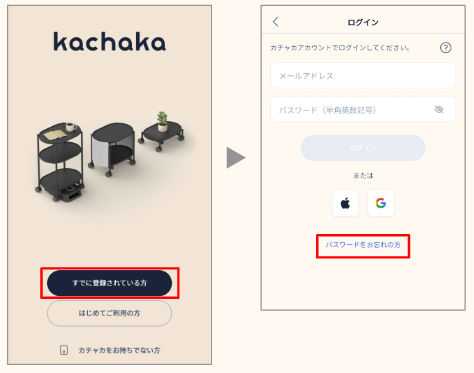
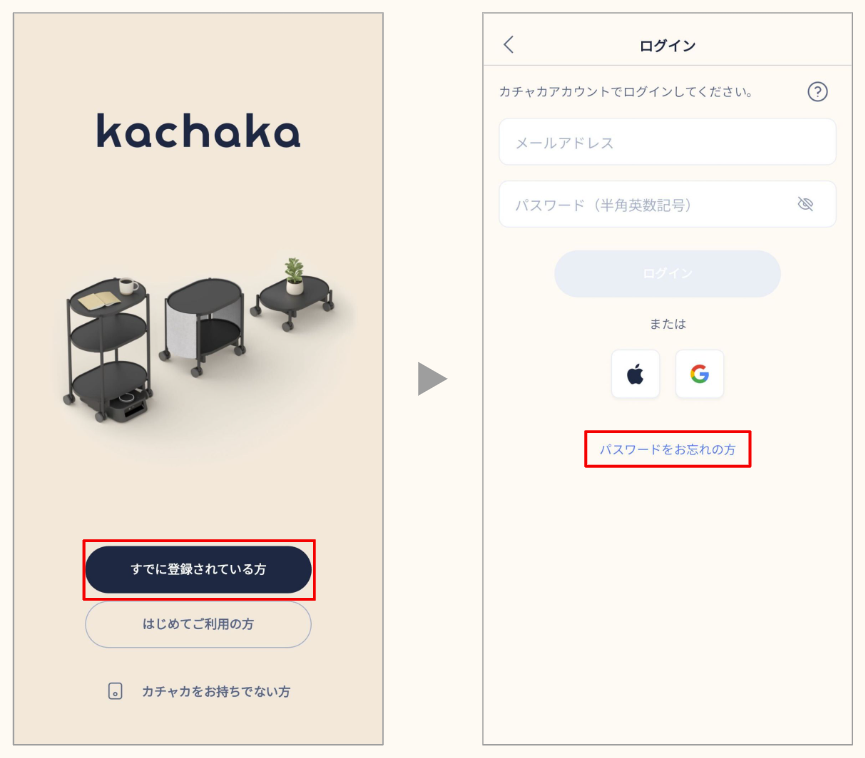
- Open the Kachaka App and tap “Already registered (Log in).”
- Tap “Forgot password” at the bottom of the screen.
- Enter your registered email and tap “Send reset email.”
- Open your inbox, tap the link in the reset email, and set a new password.
Then return to the App and log in. For full details, see Changing and Setting Your Account Password.
Not receiving the verification or password-reset email
If the email never arrives when creating an account or resetting a password, it has usually been filed as spam, or your inbox has a domain allowlist blocking external mail.
- Check the spam folder first. Many such emails get auto-sorted into “Junk” or “Promotions.” Look there before anything else.
- Add the sender domains to your allowlist. If your inbox uses a “specified-domain receiving (allowlist)” anti-spam rule, external mail is blocked and never arrives. Add these sender domains to the allowed list and try again:
@account.kachaka.life(account emails)@kachaka.life(customer support emails)
- Resend the email. To receive it again, run the “Forgot password” flow from the login screen; the system will send a fresh message.
If it still does not arrive after adjusting the allowlist, create the account with a different email address, or contact Sigma for help.
Logging in with Apple ID but no email is shown
If you created the account with Apple ID inside the App but no email appears after login, the Apple ID’s authorization for Kachaka has usually been disabled. On an iPhone you can check the authorization status under Settings > your name > Sign-In & Security > Sign in with Apple > Kachaka.
The fix is to recreate the account through a browser (using a browser avoids this issue even with the same Apple ID):
- If Kachaka is already set up, remove the robot from your account first. Leftover data on the account will prevent you from setting up the same robot under a different account. Removal resets it to factory state; see Resetting Kachaka to Factory State (this erases the map and usage history and cannot be undone).
- Recreate the account from the Kachaka account website in a desktop or mobile browser. The steps match Create a Kachaka Account.
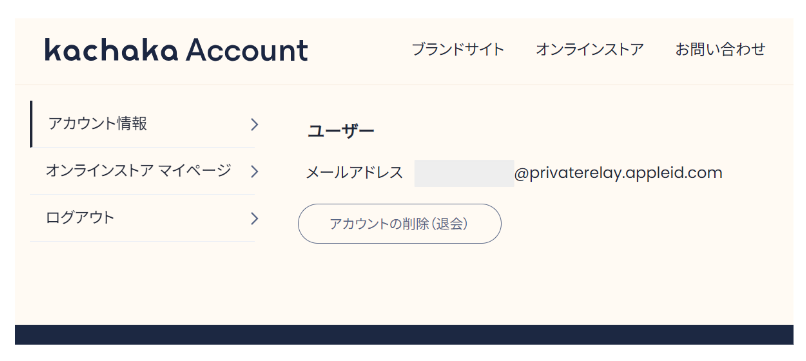
- Return to the account login page and choose “Sign in with Apple.” Confirm your user details load correctly and the email displays. If you set your email to private on Apple’s side, a relay address from Apple will appear, which is normal.
Use the account website URL from Sigma Taiwan’s official notice.
If login still fails after all of the above, contact Sigma for assistance.
Screens