
Kachaka Pro: Offline LAN-Only Control
This feature is available on Kachaka Pro only. The consumer Kachaka does not have this option.
When to use this
Factories, server rooms, and closed intranets often have no outbound internet, yet the local network (router) still works. As long as your Kachaka Pro has completed its initial setup, you can still operate it from the phone app through the router, even when the Wi-Fi it is on cannot reach the internet.
Two things to know up front:
- Initial setup must have internet access. The very first setup registers a certificate and retrieves license information over the internet, which cannot be done offline. For the full first-time flow, see Setting Up and Changing the Wi-Fi Connection.
- App control still needs the LAN. Even offline, the phone and the robot must sit under the same router to talk to each other. There is no direct phone-to-robot mode without a router.
Setup steps
1. Connect Kachaka to the offline Wi-Fi
- Using the Wi-Fi reconfiguration flow, connect the robot to the Wi-Fi that has no outbound internet. The procedure is the same as any Wi-Fi change; see Setting Up and Changing the Wi-Fi Connection.
- Once the robot announces that Wi-Fi setup is complete and restarts, continue to the next step.
- After the restart the app screen does not advance on its own — manually return to the app home screen.
2. Turn on Local Connection (LAN-only) in the app
The path differs slightly by app version:
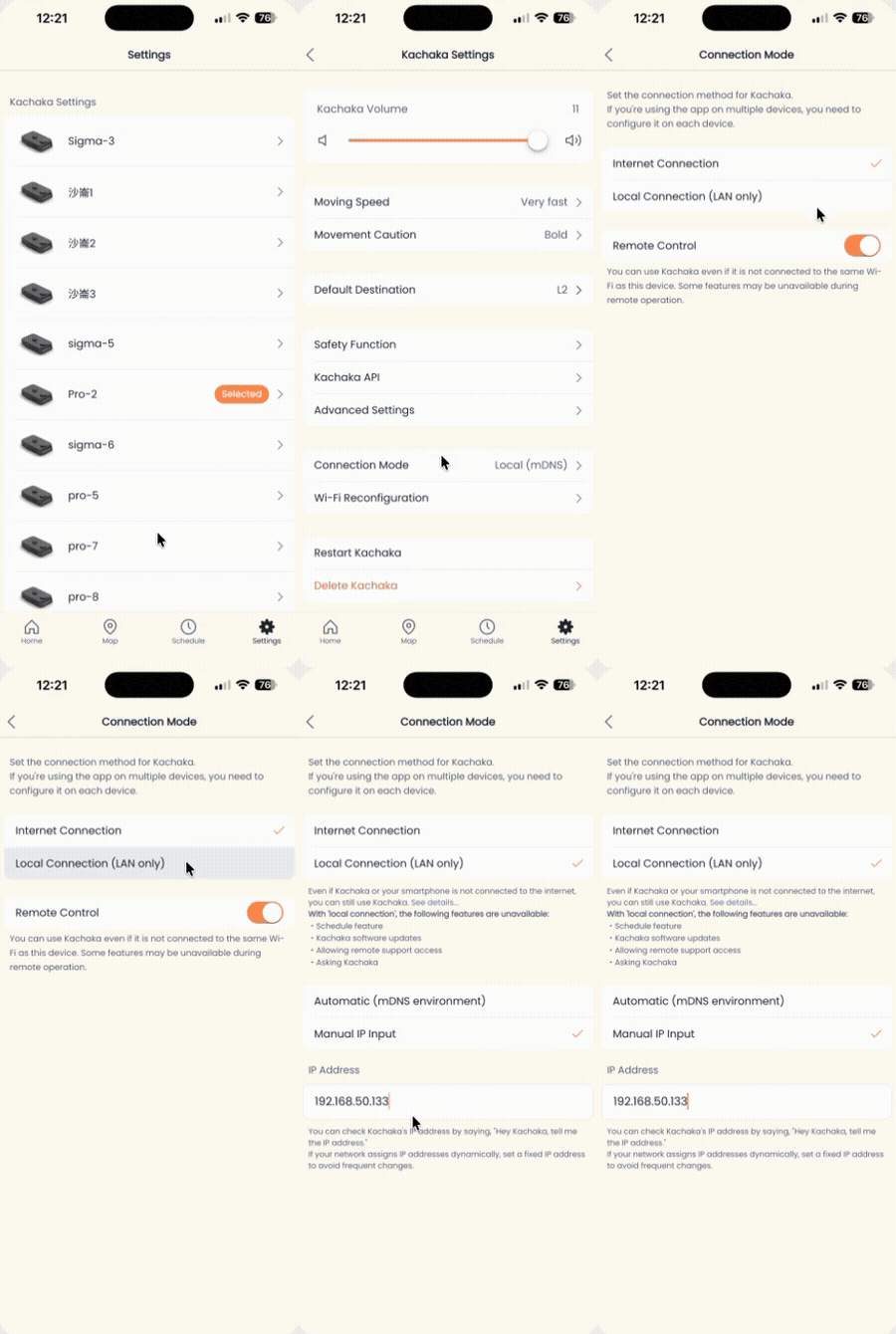
App ver 2.22 or later
- Open the “Settings” tab.
- Select the Kachaka you want to configure.
- Tap “Connection Mode”.
- Choose “Local Connection (LAN connection only)”.
- Specify the robot’s address for your environment (see “Specify the robot address” below).
App ver 2.21 or earlier
- Open the “Settings” tab.
- Under the “Settings / Info” category, tap “Other Settings”.
- Switch “Use LAN only” to ON.
- Enter an address in the text box below the toggle (see “Specify the robot address” below).
3. Specify the robot address
The address is not filled in automatically — you must enter it manually. Choose one of:
- mDNS-capable environment (recommended)
- ver 2.22+: tap “Automatic (mDNS environment)”.
- ver 2.21 or earlier: enter
kachaka-SERIAL.localin the text box, replacing SERIAL with the robot’s actual serial number (see Finding Your Robot’s Serial Number). - Note: some network configurations, or Android phones on older OS versions, may not support mDNS.
- Other environments (manual IP)
- First get the robot’s IP: say to Kachaka “ねぇカチャカ、IPアドレスを教えて”, and it will read out its current IP.
- ver 2.22+: tap “Manual IP entry” and type the spoken IP into the text box.
- ver 2.21 or earlier: type that IP directly into the text box.
- For other ways to find the IP, see Finding and Fixing IP / MAC Addresses.
4. Return home and confirm the connection
- Tap the ”<” back arrow at the top left.
- Open the “Home” tab.
- A “Local Connection Mode” icon appears, indicating you have switched to offline mode.
- Once it shows it is connected to the robot, setup is complete.
Limits of offline mode
After switching to Local Connection (LAN-only), some features that require internet access become unavailable (as of v3.6):
- Routine (schedule) function
- Robot software updates
- Granting remote support access
- The “Kachaka Onegai” generative AI assistant
Also, if the router has Privacy Separator (client isolation) or similar enabled, it blocks phone-to-robot communication and offline mode will not work. For how to check and disable it, see Router Privacy Separator Blocking & Ping Test.
Troubleshooting
- Suddenly can’t connect to the robot. Say “ねぇカチャカ、IPアドレスを教えて” to get the current IP, then check it matches the address entered in the app (DHCP can change the IP).
- Can’t rename the robot. Renaming is not possible while offline. Instead, log in to the app on a phone that does have internet, and rename the robot while online and not connected to that robot.
- Update notifications don’t appear even after going back online. As long as Local Connection (LAN-only) stays ON, no update notification will appear even in an environment with internet. To update, switch this toggle OFF first, then follow Updating the Robot’s Software.
- The “Local Connection (LAN-only)” option isn’t shown in the app. First confirm the unit is a Kachaka Pro. The app needs to fetch the Pro model info from the cloud once, so connect the phone to a network with internet, restart the app, and check again (internet is needed only the first time).
- The robot is muted, so you can’t ask for the IP by voice. Find the robot’s IP from the router’s admin page — look for a “connected devices list” or “DHCP client list” and identify it by MAC address; or just fix the robot’s IP so it stays constant, see Kachaka Pro: Static IP Address (Manual IPv4).
Screens
Related
- Setting Up and Changing the Wi-Fi Connection
- Kachaka Pro: Static IP Address (Manual IPv4)
- Finding and Fixing IP / MAC Addresses
- Router Privacy Separator Blocking & Ping Test
- Finding Your Robot’s Serial Number
- Updating the Robot’s Software (Manual, Automatic, and Notifications)
For availability, specifications, and warranty terms, refer to Sigma Taiwan’s announcements or contact Sigma directly.