Finding and Fixing IP / MAC Addresses
When setting up a Button Hub, connecting over the open API, or reserving a fixed address for your Kachaka on the router, you usually need to know the robot’s IP or MAC address first. This page covers three ways to look them up, plus what to do when the IP keeps changing so your connection stays stable.
Finding the IP Address
There are three ways to check the current IP address — any one will do.
Option 1: Ask by voice
Say to your Kachaka: “ねぇカチャカ、IPアドレス教えて”. Once it recognizes the command, Kachaka will read out the current IP address.
Option 2: Check in the app
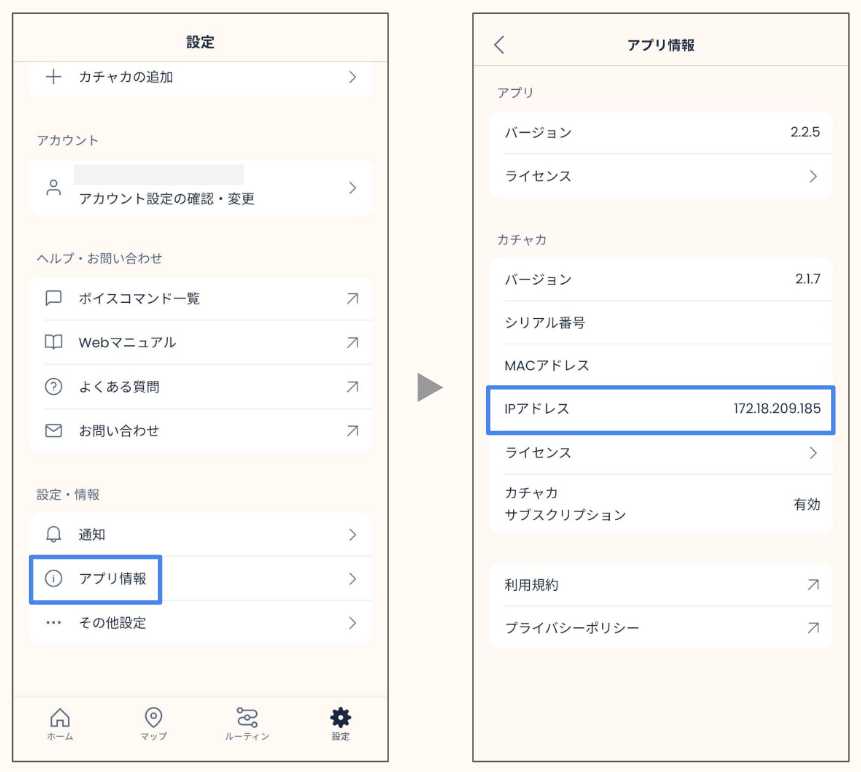
- Open the “Settings” tab in the app.
- Under the “Settings & Info” category, tap “App Info”.
- Under the “Kachaka” category, find the “IP Address” field to see the current IP.
Option 3: Check from your router
- Log in to your Wi-Fi router’s admin page.
- Look for an item like “Connected Devices”, “Client List”, or “DHCP Client List”.
- The page lists every device currently connected to that Wi-Fi.
- Find Kachaka in the list to see its IP address.
Finding the MAC Address
You’ll need the MAC address to reserve a fixed IP by MAC binding on your router, or to set up a MAC allow list:
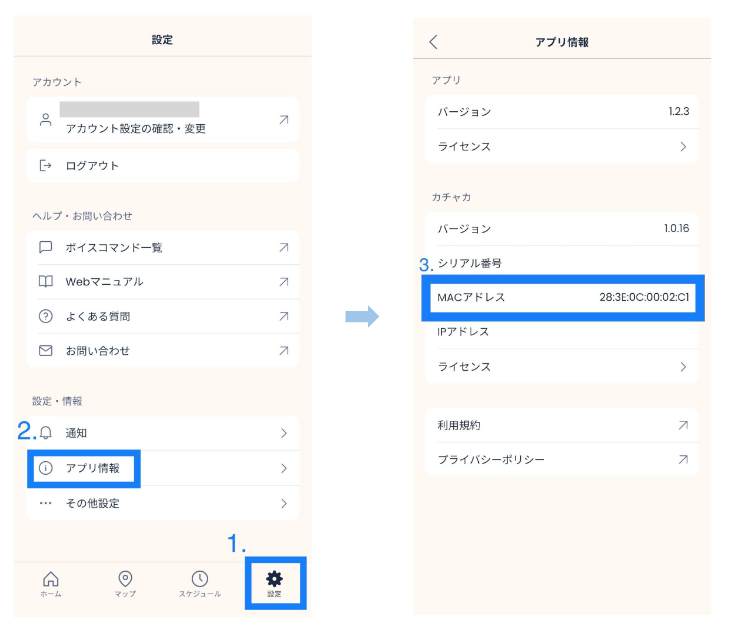
- Open the “Settings” tab in the app.
- Tap “App Info” under the “Settings & Info” category.
- Find the “MAC Address” field under the “Kachaka” category.
Checking the IPv4 Configuration
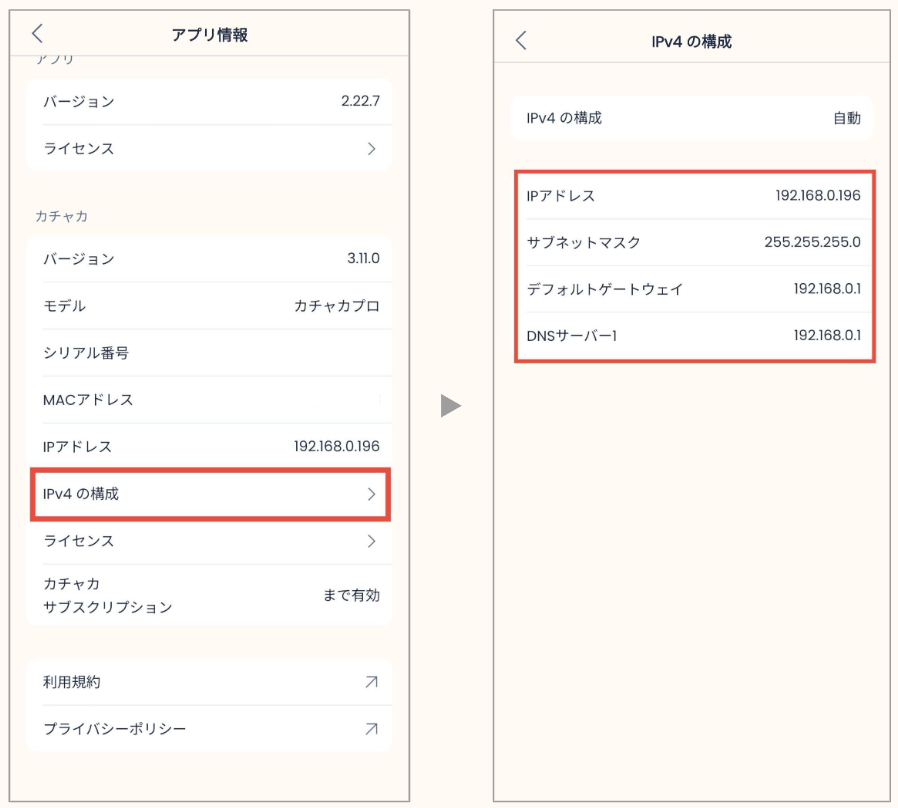
To review the full IPv4 settings — subnet mask, gateway, DNS (for example, to note the current values before switching to a static IP):
- Open the “Settings” tab in the app.
- Tap “App Info” under the “Settings & Info” category.
- Tap “IPv4 Configuration” under the “Kachaka” category.
- The screen that opens shows the full IPv4 parameters.
What to Do When the IP Keeps Changing
This is normal. The router (the network side) assigns addresses automatically via DHCP, so the IP you get can differ each time it connects. If you want a stable, fixed IP for long-term use (for the API or a Button Hub, for example), you have these options:
- Fix it on the router: In your router settings, look for an item like “Fixed IP Address” or “DHCP Reservation” and bind Kachaka’s MAC to a fixed IP. Follow the manual for your specific Wi-Fi device (download it from the maker’s site if you don’t have it on hand).
- Fix it on Kachaka (Kachaka Pro): Pro units can specify an IPv4 address manually right in the Wi-Fi settings. See Kachaka Pro: Static IP Address (Manual IPv4).
Connect by Serial Number to Avoid IP Drift
If you’d rather not deal with a fixed IP, you can connect using the robot’s serial number instead — it never changes, so it’s more reliable than an IP. To find it, see Finding Your Robot’s Serial Number.
For the Button Hub, enter the value according to its firmware version:
- v1.0.0:
kachaka-<serial>.local, e.g.kachaka-bkp12345z.local - v1.1.5 and later: just the
<serial>, e.g.bkp12345z(the older format is still supported)
For the Kachaka API, the connection address is:
http://kachaka-<serial>.local:26501/, e.g.http://kachaka-bkp12345z.local:26501/
Screens