Windows App Login Fails
If signing in to the Windows Kachaka App fails with “Login failed” and error code 1000055 or 1000110, the cause is usually not a wrong email or password. It is almost always an outdated app version or a network that is blocking the sign-in. Work through the two steps below.
Step 1: Make sure the app is up to date
This problem mostly appears on app versions before 2.20. Update to the latest version via the Microsoft Store:
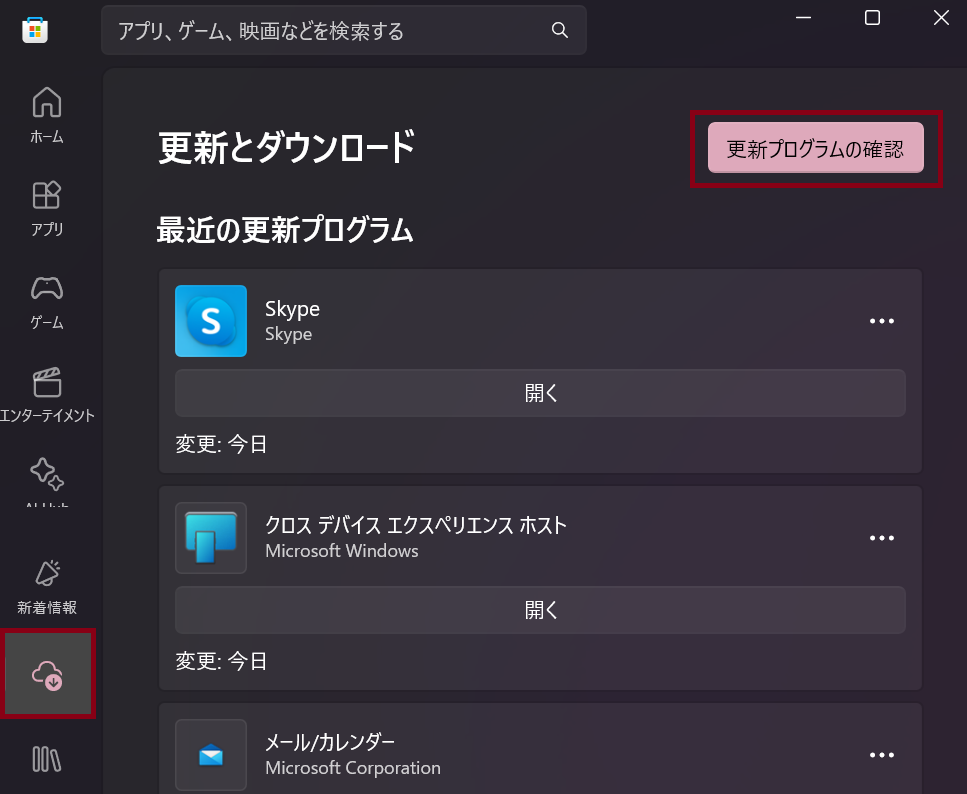
- Open the Microsoft Store app.
- Click the “Downloads / Library” tab at the bottom left.
- Click “Get updates” at the top right to check for available updates.
- If an “Update” button appears next to “Kachaka App” in the list, click it to update.
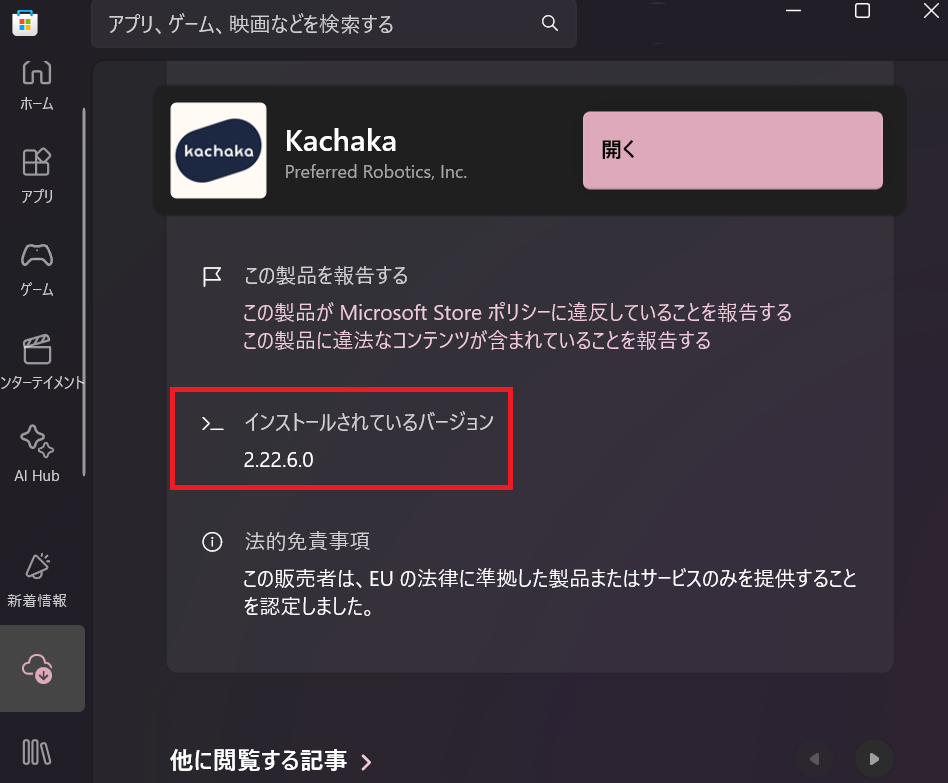
After updating, reopen the app and sign in again. To check your current version first, open “Kachaka App” from the same Downloads tab and look at the installed version near the bottom of the page.
For install steps and system requirements on each platform, see Install the Kachaka App & System Requirements.
Step 2: Test whether the network is blocking sign-in
If the login still fails after updating, your network (for example a corporate or institutional firewall) may be blocking the connection that sign-in needs. Test it on the same Windows PC:
- In the PC’s browser, open this URL:
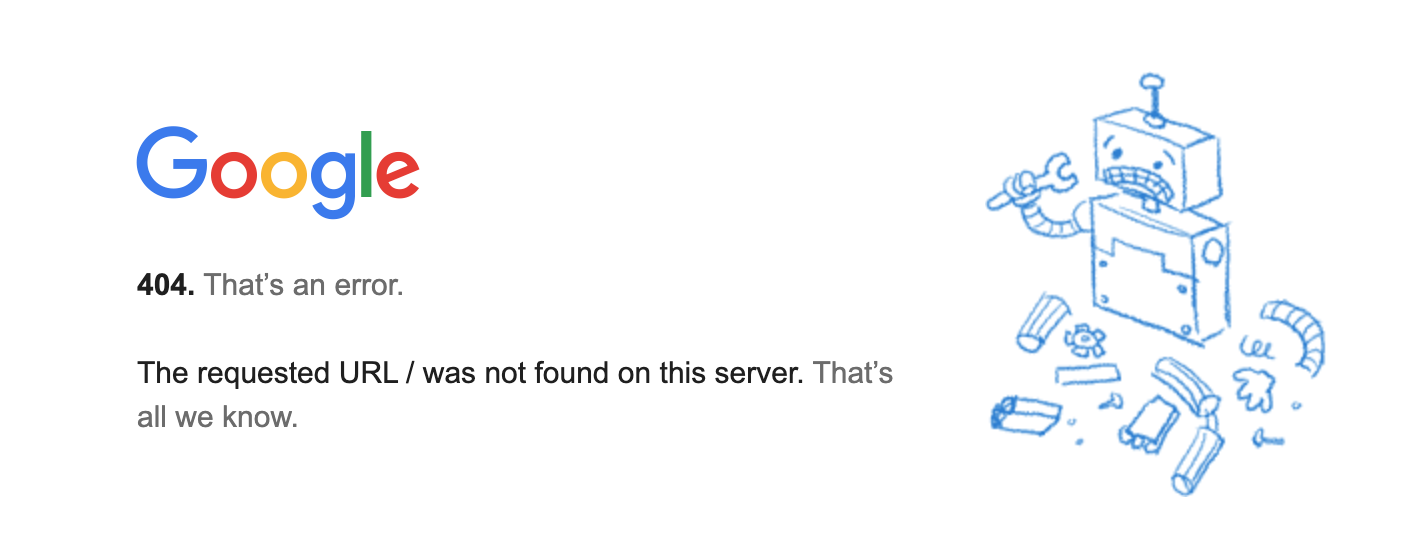
https://identitytoolkit.googleapis.com/ - If a page of JSON text loads normally, the connection is open.
- If the page won’t load, is blocked, or times out, the network is likely the cause. Switch to a different Wi-Fi environment (such as your phone’s hotspot) and try signing in again.
If sign-in works on the other network, you’ve confirmed the original network is the problem, and can dig into its firewall or proxy settings.
Still can’t sign in
- If both steps don’t help, the issue may be with the account itself. See Login Troubleshooting (Verification Email and Apple ID).
- If the connection itself is unstable or keeps dropping, see Wi-Fi Setup Fails or Cannot Connect After Setup.
- If you still can’t resolve it, contact Sigma for assistance.
Screens