Wi-Fi Setup Fails or Cannot Connect After Setup
Kachaka connects to Wi-Fi by scanning a QR code generated in the app. Setup usually stalls in one of two stages: it fails during setup (the QR code won’t scan, or the robot speaks an error message), or it finishes setup but the app then shows “Cannot connect.” Work through the stages below.
For the full Wi-Fi setup procedure, see Setting Up and Changing the Wi-Fi Connection. For connectivity specs, supported bands, and the firewall allowlist, see Network Architecture & Wi-Fi Connectivity Specifications.
Stage 1: Setup fails right away
The QR code won’t scan
Wake the robot with “ねぇカチャカ,” then give the Wi-Fi setup command. The robot replies “Please show me the QR code” and enters scan mode. Hold your phone’s QR code about 10 cm in front of the front camera and re-align it so the robot can read it.
The robot speaks an error message
If the connection fails after the QR code is read, the robot announces the reason. Match the wording you hear:
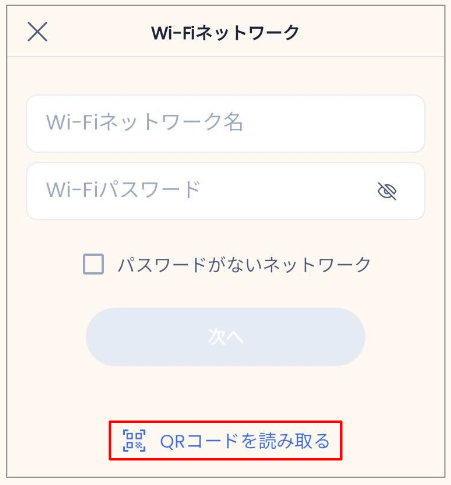
- “The password may be incorrect.” The robot found the router for that SSID, but the Wi-Fi password is wrong. Recheck the password’s case and characters. Using the app’s “Scan QR code” feature to fill in the Wi-Fi details reduces typos. If the password is definitely correct but it still errors, the router’s DHCP may be failing to hand out an IP address — check your router’s DHCP settings.
- “Connection failed. The Wi-Fi signal is weak or the network name is wrong.” The robot couldn’t reach the router. Four common causes: (1) the signal is too weak (the robot is out of Wi-Fi range) — move the robot and router closer, away from walls, and retry; (2) the SSID (Wi-Fi name) was entered wrong — verify it; (3) an unsupported channel — Kachaka does not support 2.4 GHz channels 12–14, so set the router to channels 1–11; (4) an unsupported authentication type — Kachaka supports only WPA/WPA2, so check the encryption type.
- “Cannot connect to the internet. Check the access point settings.” The robot reached the router, but the router itself isn’t online (for example, the router’s Internet light is off). Confirm the router actually has internet access.
- “An error occurred. Please restart.” or “Failed to communicate with the server. Please try again later.” The robot connected to the router, but something went wrong during first-time or account setup. Contact Sigma for help.
Stage 2: “Cannot connect” after setup
If the app shows “Cannot connect” after the QR-code setup, first check the robot’s LED ring, then act accordingly. For what each pattern means, see the LED Status Light Reference.
LED slowly blinks/rotates white for over 5 minutes
Restart the robot:
- Press and hold the power button for about 3 seconds until the LED ring rotates counterclockwise, then release to power off.
- Once the LED ring goes dark, press and hold the power button again for about 3 seconds until the LED lights up to power back on.
For details, see Power On and Off.
LED blinks white
Check the following three items in order.
1. Restart the app. A connection glitch may be on the app side. Swipe the Kachaka app closed and reopen it.
- iPhone: Swipe up from the bottom of the screen to show the app switcher (or double-press the Home button on models that have one), swipe the Kachaka app up to close it, then reopen it from the home screen.
- Android: Open the recent-apps list, swipe the Kachaka app up to close it, then reopen it.
2. Check router settings. Kachaka talks to your phone over Wi-Fi through the router, so any “isolation” feature on the router will block the connection. Make sure the following are turned off:
- Guest Wi-Fi
- Privacy Separator
- Remote-work Wi-Fi / network isolation features
If you suspect the router, set Kachaka up via phone tethering to isolate whether the router is the cause, or use the Ping test in Router Privacy Separator Blocking & Ping Test to confirm two-way communication. Mobile Wi-Fi hotspots (pocket Wi-Fi) usually enable Privacy Separator by default, so check those carefully.
3. (iOS only) Allow local network access. iPhone must allow the Kachaka app to “connect to devices on your local network” to reach the robot. In iPhone Settings, enable the “Local Network” permission for the Kachaka app.
4. (iOS only) Hotspot limitations. When using an iPhone Personal Hotspot, some models, carriers, or OS versions force on a Privacy-Separator-like blocking feature that users can’t turn off, preventing a connection. In that case, use a different iPhone’s hotspot or a regular Wi-Fi network instead.
If none of the above resolves it, contact Sigma for help.
Screens