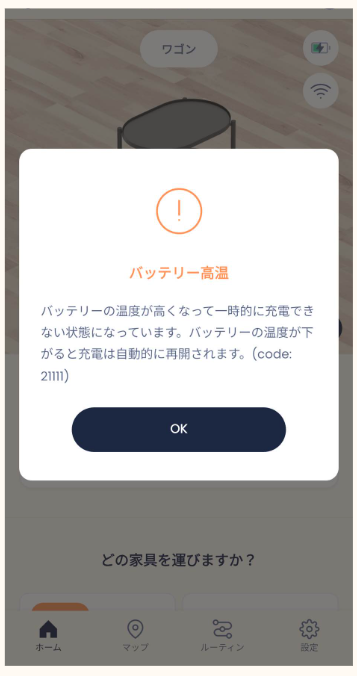
Battery Overheats and Won't Charge (Code 21111)
When the battery temperature rises, Kachaka activates a safety mechanism that automatically stops charging and reports error code 21111. This is normal protective behavior, not a fault — charging resumes once the battery cools down.
How to tell it’s battery overheating
If you see any of the following, the cause is most likely an elevated battery temperature:
- Kachaka has been sitting on the dock for a long time, but the charge level isn’t increasing.
- The app shows a battery overheating error notification (code 21111).
- The robot is powered off, and when you press the power button the LED ring lights up rotating yellow but won’t power on.
To confirm what an LED state means, see the LED Status Light Reference. If Kachaka is on the dock but shows no overheating signs and still isn’t charging, the cause may be different — see Placed on Dock but Not Charging.
Common causes
- High room temperature: When the surrounding temperature is high, the battery is more prone to overheating. For Kachaka’s recommended operating temperature and other environment conditions, see Environment Requirements: Temperature, Floor Heating & Unsuitable Locations.
- Prolonged heavy loads or driving on carpet: Carrying heavier items, or driving for long periods on surfaces such as carpet that add load to the wheels, raises the battery temperature.
What to do
To resume charging, you first need to bring the battery temperature down. If you’re in a hurry, try either of the following:
- Power off the robot and leave it to cool naturally for a while.
- Aim a circulation fan (or similar) at the rear of the body to speed up heat dissipation.
Once the temperature has dropped, place it back on the dock and charging will resume.
In addition, if the robot has been idle for a while and you expect long operation the next day, we recommend charging it fully the day before, so a last-minute charge doesn’t run into overheating and leave it unready.
If code 21111 keeps recurring even after the robot has cooled down thoroughly, gather the serial number and related details as described in Reporting Faults and Providing Investigation Info, then contact Sigma.
Screens