LED Status Light Reference
The LED ring on top of Kachaka and Kachaka Pro is the fastest way to read your robot’s status. One glance at the color and motion tells you whether it’s running normally, paused, low on battery, updating, or in an error state. This page collects every light pattern into a single reference table, with what to do for each.
Note: the behaviors below are the default light patterns. If you enable “Warning Light Display” on Kachaka Pro, the moving and stopped colors differ — see the last section.
Quick Reference
| Light | Status | What to do |
|---|---|---|
| Solid white | Running normally (idle or moving) | Nothing needed |
| Solid yellow | Paused | Press the power button once to release |
| Yellow blinks 3 times, then off | Battery too low to start | Dock and charge ~30 min, then start again |
| Yellow rotating, then off | Low battery + battery overheated | Let it cool, then charge ~30 min |
| Blinking purple | No internet at startup, clock sync failed | Restart where internet is available |
| Solid blue | Software update in progress | Wait about 17–30 minutes |
| Solid red | An error has occurred | Restart; if it persists, contact Sigma |
| Blinking red, then off | Battery or similar issue, won’t start | Retry power on; if it keeps blinking, contact Sigma |
| Turns off ~1 min into charging | Normal by design | Nothing needed |
| Fast-rotating green (Pro warning light) | Moving | Nothing needed |
| Blinking green (Pro warning light) | Stopped or charging | Nothing needed |
Green only appears on Kachaka Pro after “Warning Light Display” is enabled, so the robot is easier for people nearby to notice. Kachaka and any Pro without this setting on will not show green. See the last section, “Kachaka Pro: Warning Light Display.”
White: Running Normally
A steady white ring means Kachaka is idling or driving normally. This is the most common state and needs no action.
Yellow: Paused or Low Battery
Yellow has three cases — be sure to check whether it is steady, blinking 3 times, or rotating:
- Solid yellow: the robot is in pause mode, with motion and voice recognition both stopped. Press the power button once to release it and return to white. See Stopping and Pause Mode.
- Yellow blinks 3 times, then powers off: the battery is too low to start. Place the robot on the charging dock, charge for about 30 minutes, then power on again.
- Yellow rotating, then powers off: this means the battery is both low and overheated, so a double safeguard prevents startup. Let the robot cool down thoroughly first, then dock it, charge for about 30 minutes, and try again. If this recurs, the cause is usually a hot environment or prolonged heavy loads — see Battery Overheats and Won’t Charge (Code 21111).
If the robot still won’t start after charging, it may be faulty — please contact Sigma.
Blinking Purple: No Internet, Clock Sync Failed
If there is no internet connection at the moment of startup, the LED blinks purple. This means Kachaka couldn’t sync its clock over the network, so the time isn’t set correctly and scheduling features won’t work.
Restart the robot somewhere with a working internet connection — as long as it’s online at startup, Kachaka syncs the clock automatically. If the connection itself is the problem, see Setting Up and Changing the Wi-Fi Connection.
Solid Blue: Software Update in Progress
A steady blue ring means a robot software update is running. Depending on network conditions it takes about 17–30 minutes to finish; this is normal, so please wait.
If blue persists, open the App and match the on-screen state:
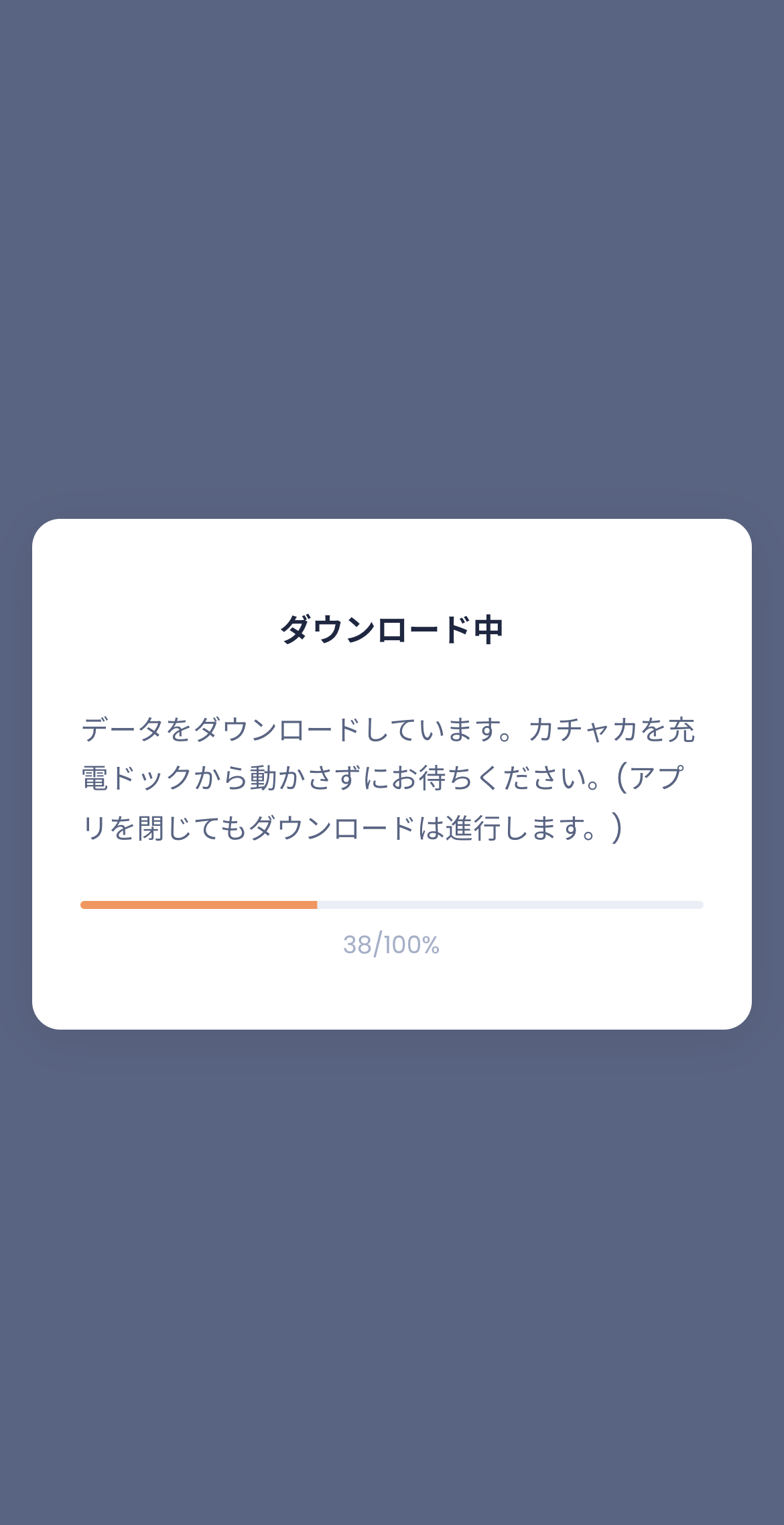
- Stuck on “Downloading”: the percentage doesn’t advance, usually because Wi-Fi briefly dropped and interrupted the download. Restart the robot, confirm the Wi-Fi signal is stable, and try the update again.
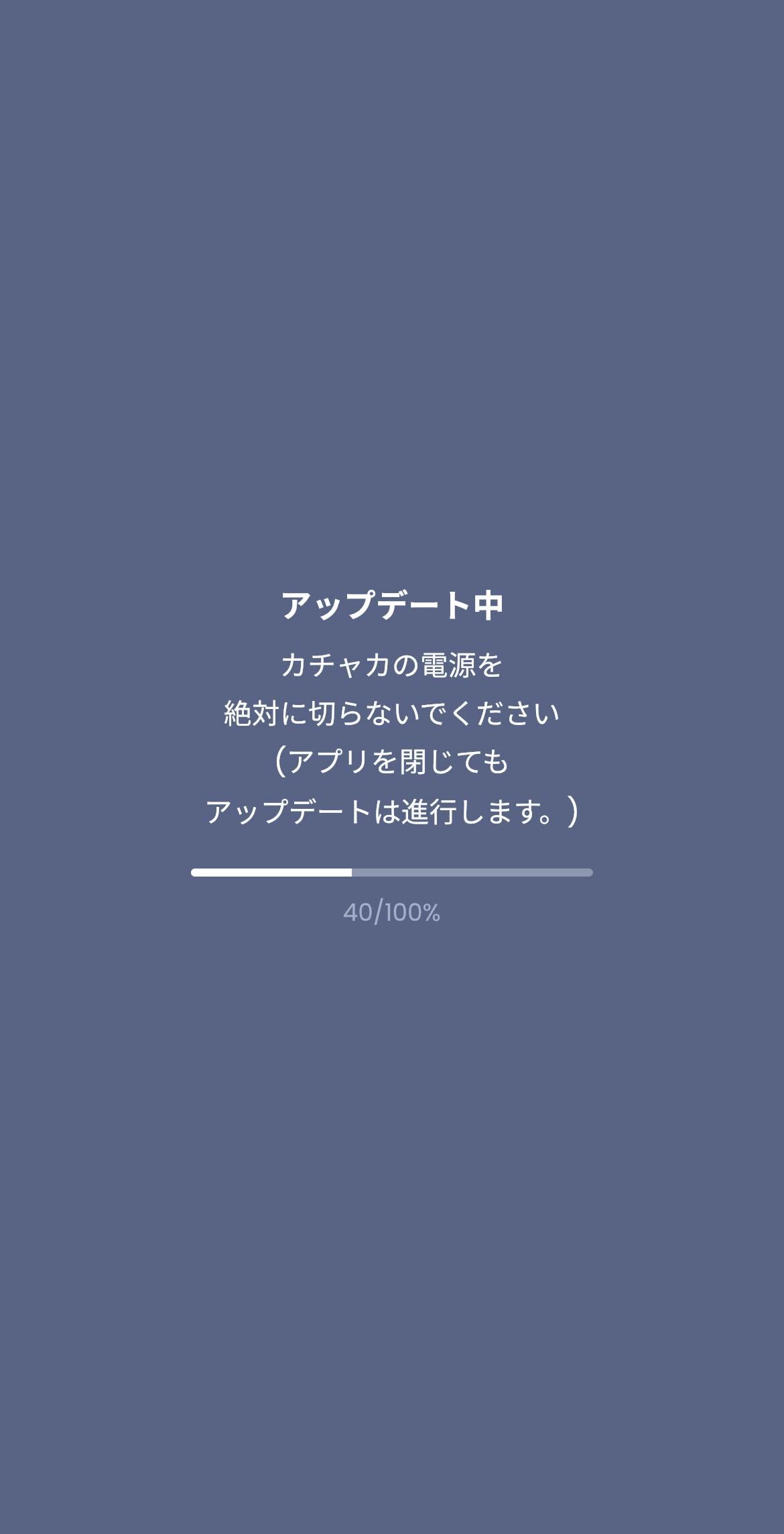
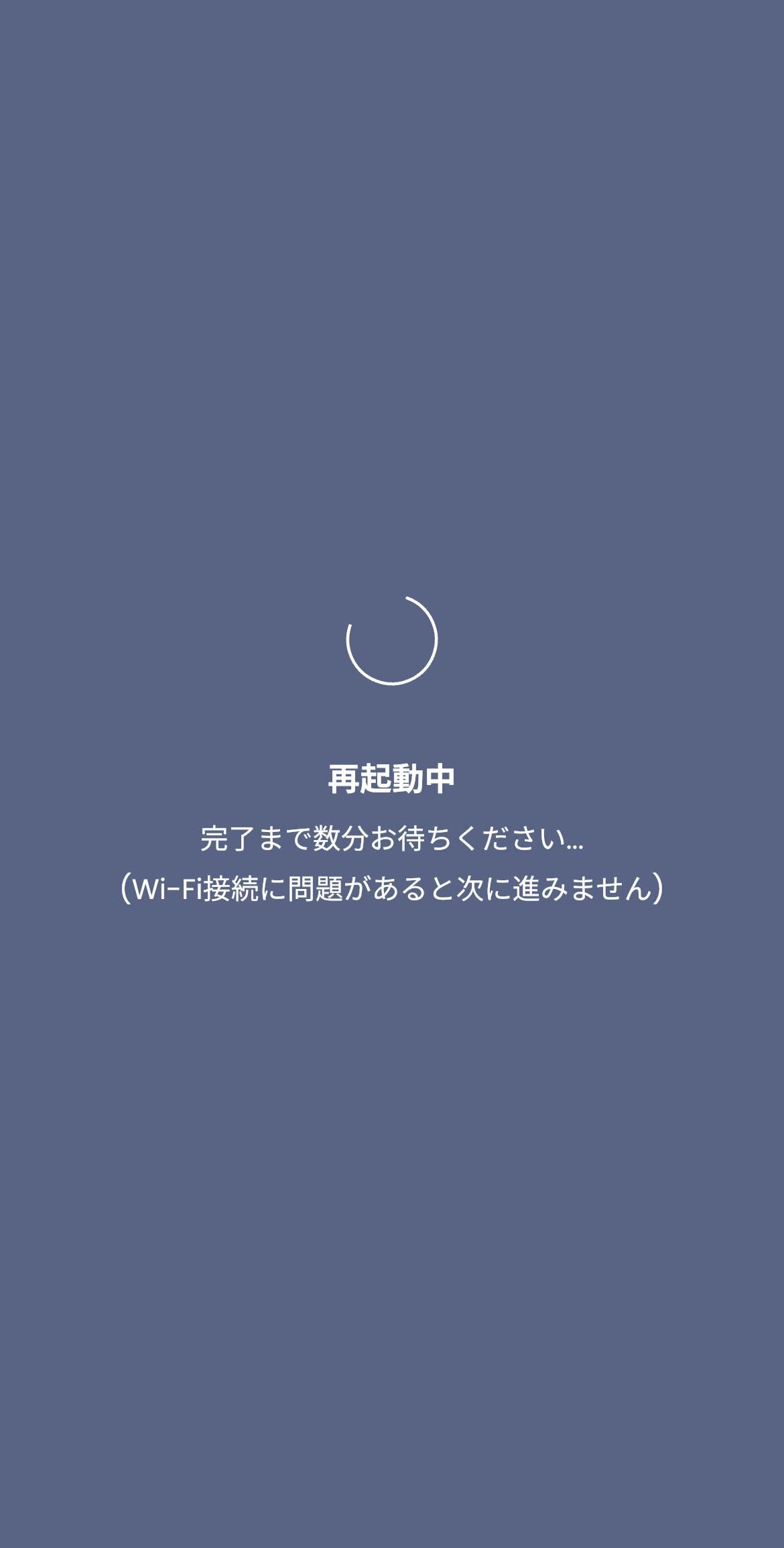
- Stuck on “Updating” for over 10 minutes with no restart: the update may have failed. Restart and run the update once more.
- Phone and robot on different Wi-Fi: the update is interrupted when the robot is offline. Make sure your phone is on the Wi-Fi network Kachaka normally uses, then restart and retry.
If the update fails repeatedly, contact Sigma. For how updates work, see Updating the Robot’s Software (Manual, Automatic, and Notifications).
Red: Error or Battery Problem
Red signals an issue that needs attention, in two forms:
- Solid red: an error has occurred. Restart the robot (long-press the power button to turn off, then long-press again to turn on). If restarting doesn’t help, contact Sigma. For power steps, see Power On and Off.
- Blinking red, then powers off and won’t start: this may be a battery or similar issue. First try powering on once (see Power On and Off); if it starts normally, you can keep using it. If red keeps blinking on the next attempt, remove Kachaka from the dock and contact Sigma.
Turns Off ~1 Minute Into Charging: Normal
About a minute after Kachaka is placed on the dock, the LED ring turns off. This is not a fault — it’s the default behavior, so the light won’t disturb you in places like a bedroom.
If you’d rather have the ring stay lit or blink while charging, you can switch this in the App. See Set Charging LED Ring to Blink or Turn Off.
Kachaka Pro: Warning Light Display
Kachaka Pro can set the ring to a fast-rotating green while driving, making the robot easier for people nearby to notice; when off, it drives with a steady white ring. Path: App “Settings” tab → “Kachaka Settings” → select the robot → “Advanced Settings” → toggle “Warning Light Display.”
Once enabled, the lights map as follows:
| Action | LED display |
|---|---|
| Moving | Fast-rotating green |
| Stopped or charging | Blinking green |
| Low battery | Blinking yellow |
Pause (solid yellow) and error displays stay as they are, unaffected by this setting. This feature requires software version v3.10.6 or later.
Screens