Deleting Your Kachaka Account
Deleting your Kachaka account removes the account itself. This action is irreversible — once deleted, the account cannot be restored, so confirm before you proceed.
First: deleting an account is not resetting the robot
These two are easy to confuse. Make sure you know which one you actually want:
- Deleting the account (this page): removes the Kachaka account you use to log in to the app — an operation at the level of the person.
- Resetting the robot: wipes the map, usage history, and other data on a specific Kachaka unit and returns it to factory state — an operation at the level of the machine. If you only want to clear data on the robot (for example, before handing it on or reconfiguring), see Resetting Kachaka to Factory State instead; you do not need to delete your account.
If you are simply stuck signing in or have forgotten your password, you do not need to delete the account — see Login Troubleshooting or Changing and Setting Your Account Password.
Before you start
- If your plan or contract is still active, any related subscription and contractual matters follow whatever Sigma Taiwan announces. Please contact Sigma to confirm before closing the account.
- Account deletion is permanent. Once done, the account and its linked data cannot be recovered.
Steps
- Open a browser, go to the Kachaka account website (https://account.kachaka.life/user/login), and log in.
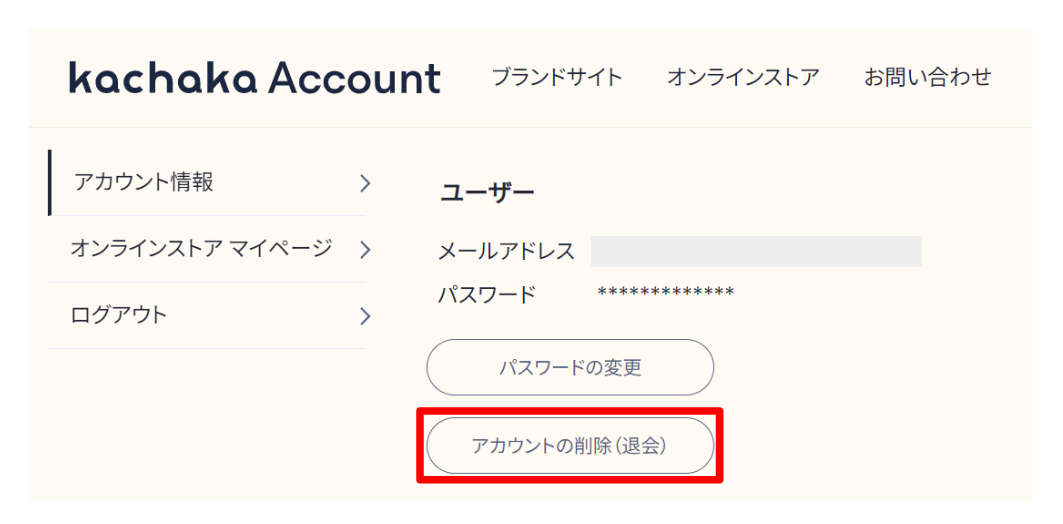
- After logging in, open the “Account Information” page (https://account.kachaka.life/user) and choose “Delete account.”
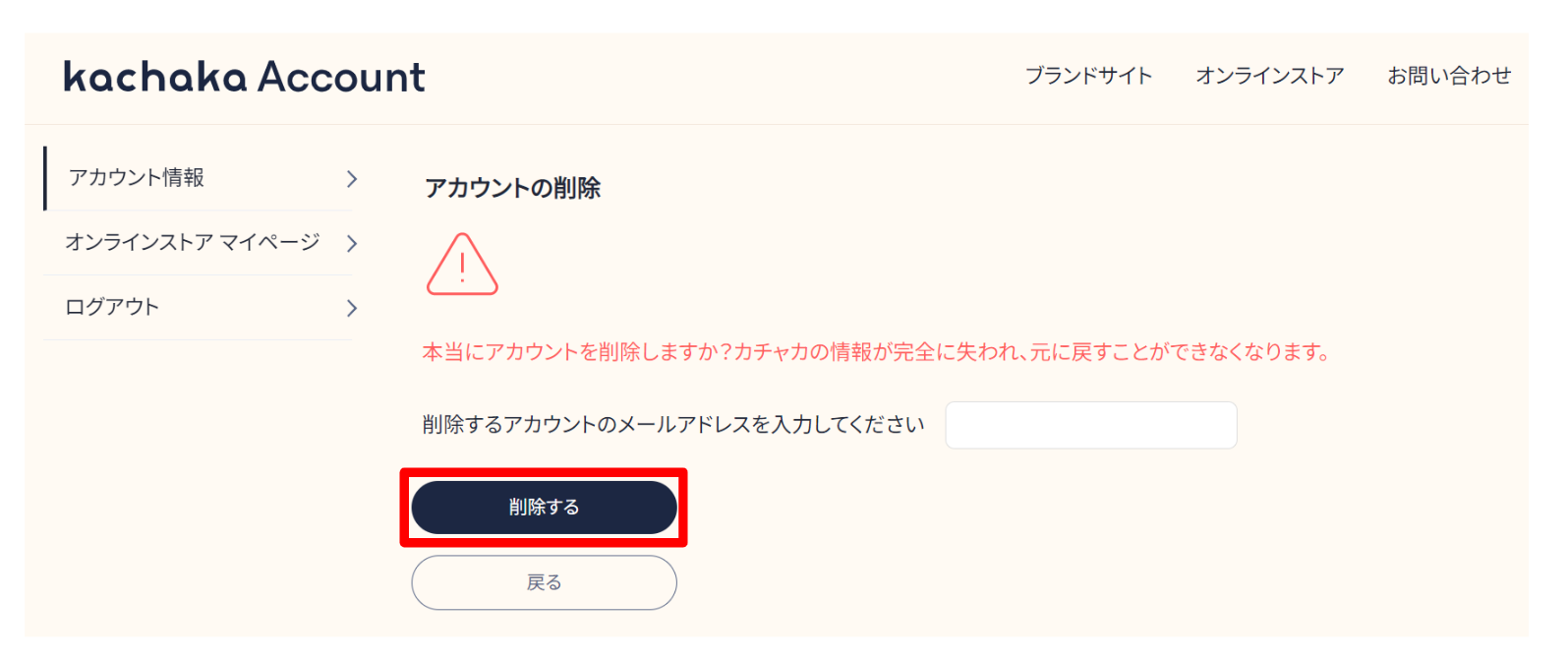
- On the deletion screen, enter the email address of the account you want to delete, then click “Delete.”
- If your account was created via social login (Google account or Apple ID), a login pop-up will appear — follow the prompts to complete verification with that social account.
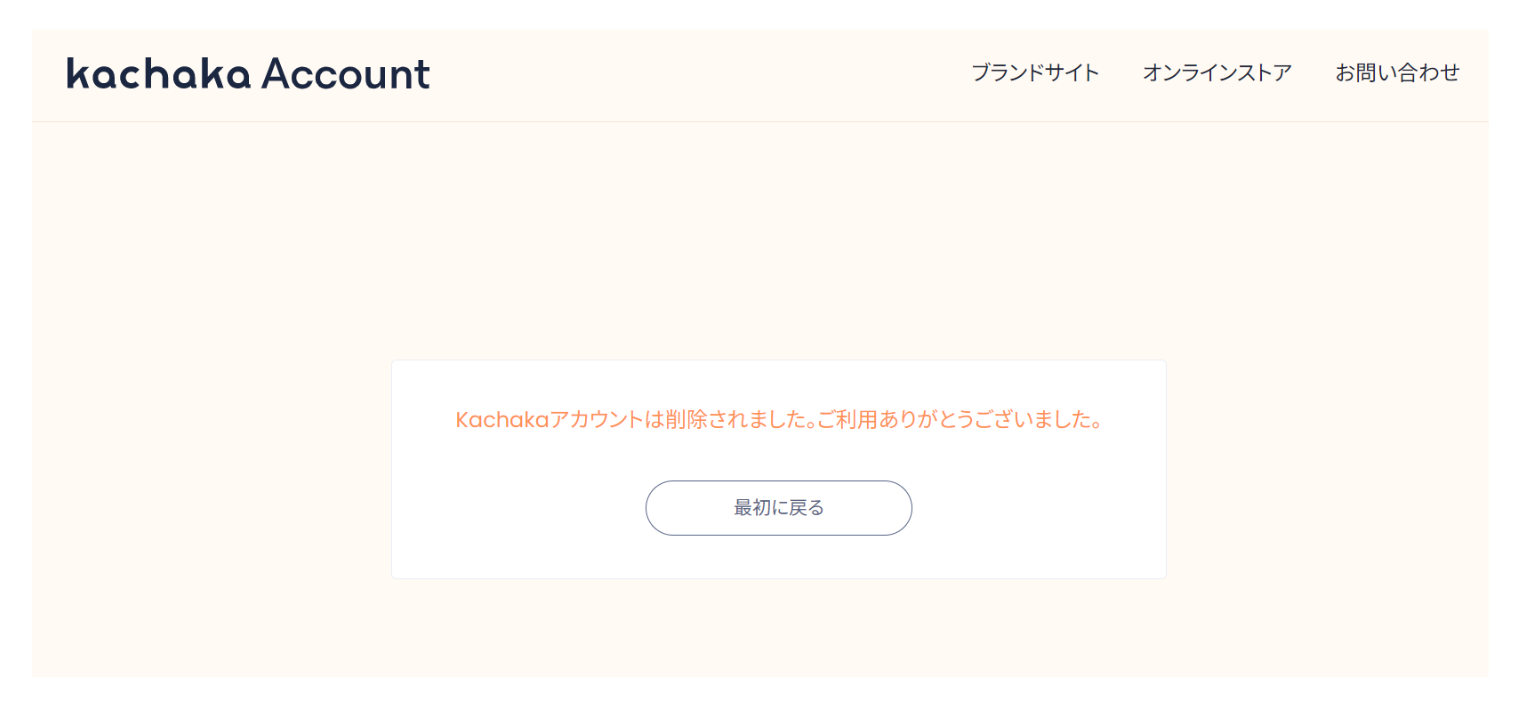
- When the message “Your Kachaka account has been deleted” appears, the account closure is complete.
Screens