
Deleting Kachaka: Resetting to Factory State
“Delete Kachaka” fully resets the robot to its factory state: its account binding, map, destinations, registered furniture, routines, and usage history are all cleared. You’ll use this when handing the robot to someone else, setting it up in a brand-new location, or when support asks you to “reset and try again.”
When you need a reset
- Handing the robot to someone else or moving to a brand-new site: clear the old map and settings so the new user starts from a clean slate.
- Settings are a mess and you want to start over: re-register the map, destinations, and furniture from scratch.
- Support asks you to reset: a last-resort troubleshooting step. Before resetting, consider uploading your logs to the manufacturer first via Uploading Debug Logs and Remote Support (Pro).
Before you reset
The reset is irreversible. Be sure to confirm the following first:
- The map and destinations are gone for good. If you’ll want the same map later, consider exporting it first via Importing and Exporting Maps (Kachaka Pro) before resetting, then re-import afterward.
- Usage history and mileage are wiped too. If you want to keep those figures, note them down first under View Activity Data (Mileage).
- The robot must stay online (on the same Wi-Fi as the app, with a stable connection). Forcing a delete while offline clears the data on the account side, but the data inside the robot itself can’t be cleared, leaving you in a state that’s hard to recover from — see the caution below.
Steps
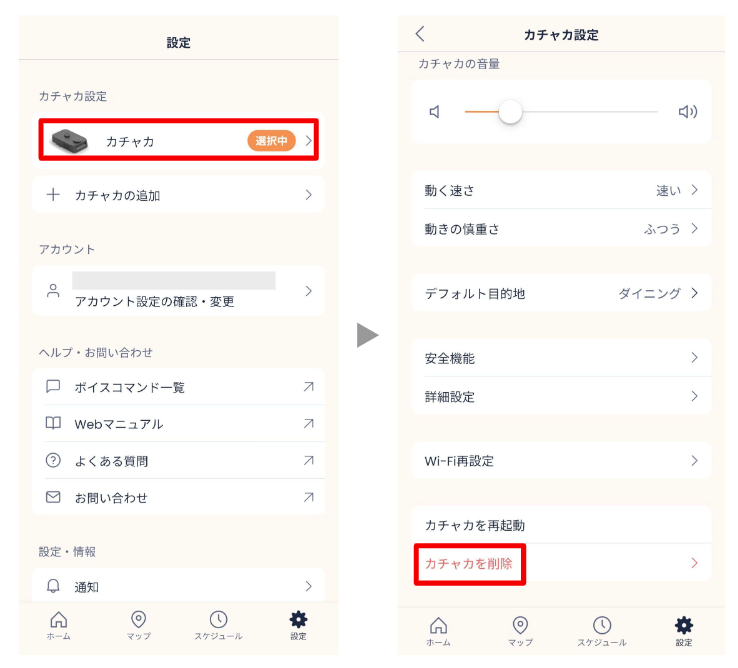
- Open the Kachaka app and go to the “Settings” tab.
- Under the “Kachaka Settings” category, tap the Kachaka you want to delete.
- Scroll to the very bottom of the screen and tap “Delete Kachaka.”
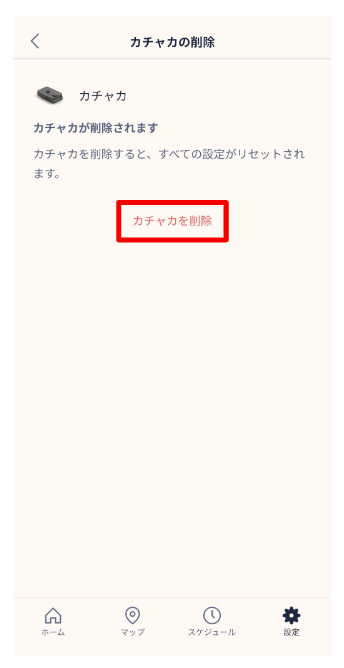
- Read the message on the delete screen carefully, then tap “Delete Kachaka” again to confirm.
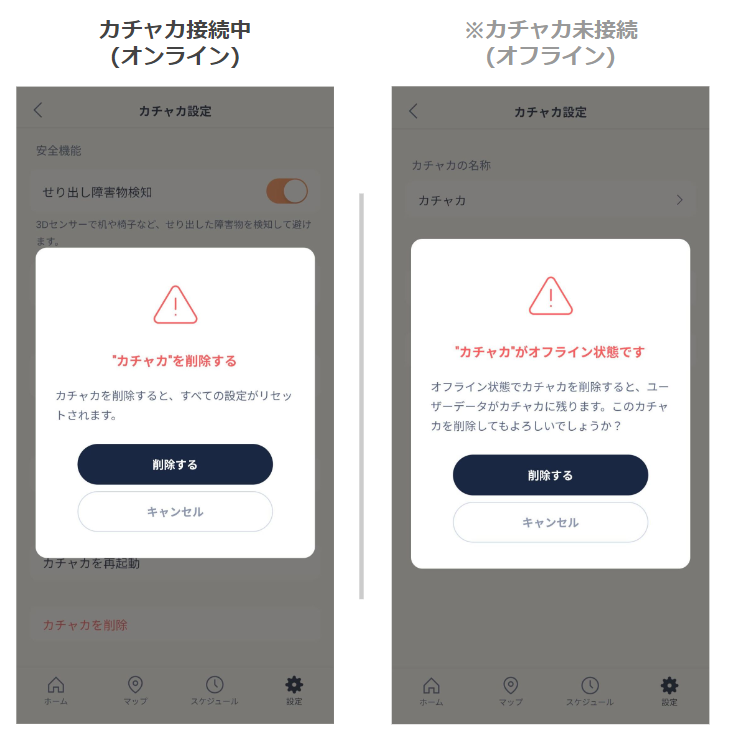
- When the dialog appears, confirm the details are correct and tap “Delete” to proceed.
Once done, the robot returns to its factory state. To use it again, follow First-Time Setup, Start to Finish to power on, connect Wi-Fi, create a map, and register furniture.
Important: don’t delete while offline
If step 5 shows a dialog saying ”‘(robot name)’ is currently offline,” hold off on deleting. If you delete anyway in that state:
- the data on your phone (the account side) is cleared;
- but the data inside the robot itself cannot be cleared, leaving it stuck in a half-finished state that’s hard to clean up afterward.
Bring the robot back online first. If it won’t connect, troubleshoot using App Cannot Connect to Kachaka. Only proceed with the delete once the robot is confirmed online and the app is connected normally.
How this differs from removing an account binding
A reset wipes the entire robot back to factory state. If you only want to change who manages it, or to handle multi-device sharing, see Account Sharing, Multiple Devices, and the One-Account-Per-Robot Rule — a full factory reset may not be necessary.
Screens
Related
- Uploading Debug Logs and Remote Support (Pro)
- Importing and Exporting Maps (Kachaka Pro)
- View Activity Data (Mileage)
- App Cannot Connect to Kachaka
- First-Time Setup, Start to Finish
- Account Sharing, Multiple Devices, and the One-Account-Per-Robot Rule
For repairs or unit replacement, please contact Sigma.