Network & Connectivity Not on home model
Kachaka Pro: Fleet Manager Setup
Fleet Manager is a Kachaka Pro-only feature for managing multiple robots. Before you can enable it, you must register a passcode for the robot in the Kachaka app. The fleet management side then uses this passcode to bring the robot under management. This page walks through registering that passcode.
This feature is supported on Kachaka Pro (commercial model) only. It is not available on the home model.
Before you start
- Make sure the app can already connect to the robot you want to set up. If you are having connection issues, first work through Network Architecture & Wi-Fi Connectivity Specifications.
- During passcode setup the robot restarts automatically. The app will be temporarily unable to connect during this time, which is normal. Do not power off or unplug the robot while this happens.
- You choose the passcode yourself. Write it down and keep it safe, as the fleet management side will need it when bringing the robot under management.
Registering the passcode
- Open the Kachaka app and tap the “Settings” tab at the bottom.
- Under “Kachaka Settings,” tap the Kachaka you want to set up.
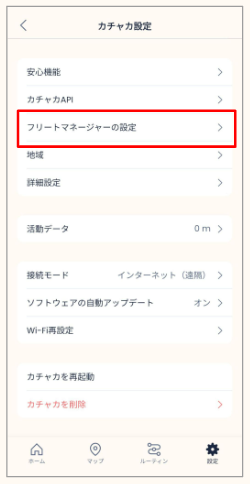
- In the center of the screen, tap “Fleet Manager Setup.”
- Find the “Passcode” field and tap the item showing “Not set >.”
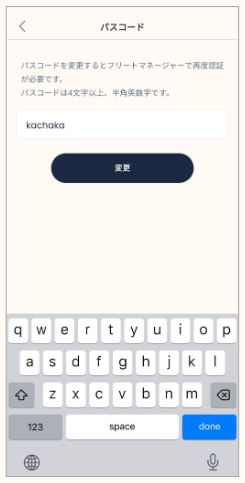
- Enter any passcode you like, then tap “Change.”
- The screen turns blue while the setting is applied. The robot restarts at this point, so please wait patiently.
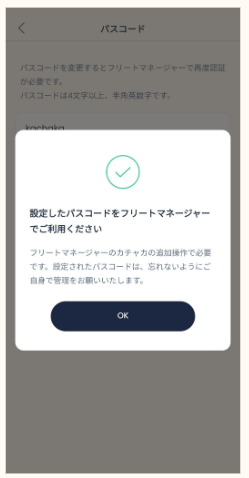
- When setup is complete, a confirmation notice appears. Tap “OK” to close it.
Once finished, the robot has its passcode registered and can be brought under management from the fleet management side using that passcode.
FAQ
- The screen is stuck on blue. The blue screen means the robot is restarting to apply the setting. Please wait a few minutes; the app being unreachable during this time is normal. If it does not recover after a long while, check the robot’s power and Wi-Fi, then try again.
- Forgot the passcode you set? Return to the same screen (steps 1-3) and change the “Passcode” field again.
- Managing multiple robots? Repeat the steps above on each robot to register its own passcode.
To obtain Kachaka Fleet Manager, or for multi-robot deployment and enterprise network integration, please contact Sigma.
Screens