
Network Architecture & Wi-Fi Connectivity Specifications
This page summarizes the network architecture options for Kachaka and Kachaka Pro, the Wi-Fi connectivity specs, and the hosts and ports you need to allow when configuring a router or firewall on a corporate or institutional network. For your first connection, follow Setting Up and Changing the Wi-Fi Connection first; use this page to decide which architecture to use and what the network needs to permit.
Three Network Architectures
Kachaka can run under any of the three architectures below. Choose based on your site and requirements.
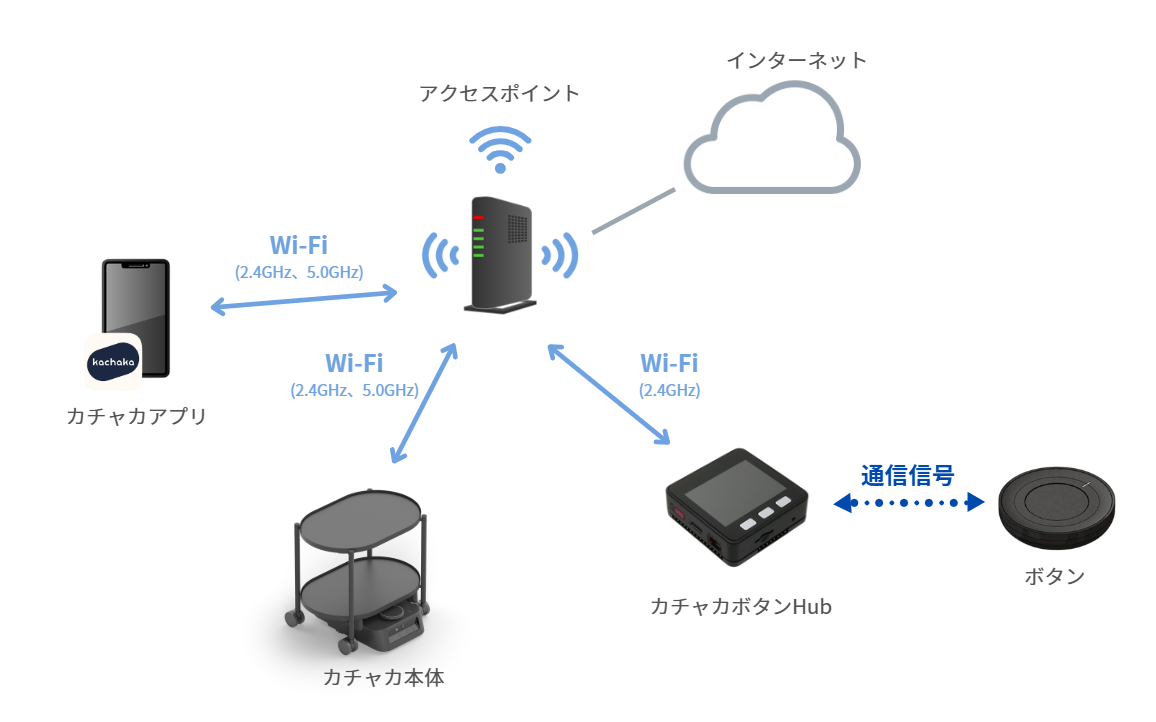
1. Internet, Same Network (Recommended)
Your phone and Kachaka connect to the same Wi-Fi that has internet access. This is the only architecture that unlocks every feature — mapping, real-time control, schedules, voice, and the Kachaka Onegai assistant all work.
Because the phone and the robot reach each other over Wi-Fi, the router’s “Privacy Separator” (AP Isolation) must be disabled; otherwise devices on the same Wi-Fi cannot talk to each other. See Router Privacy Separator Blocking & Ping Test for how to check this.
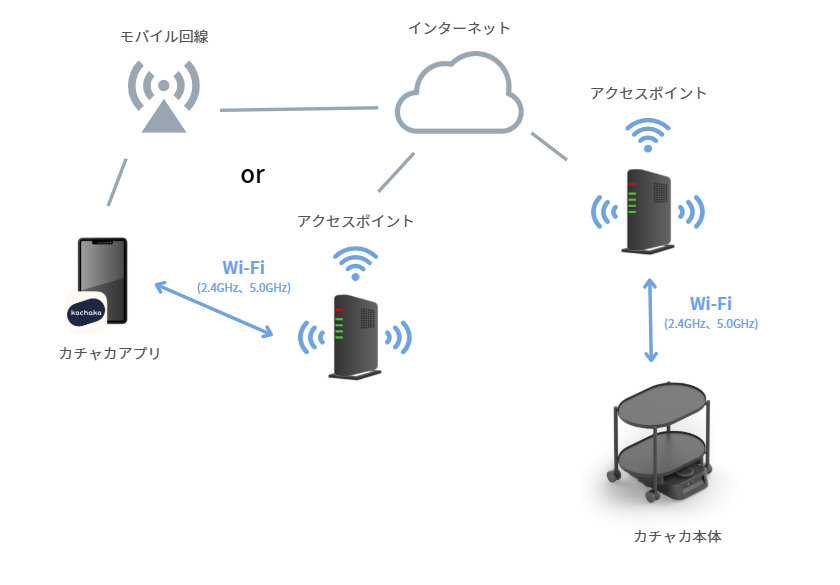
2. Internet, Different Networks (Remote Control)
Your phone and Kachaka are on separate networks (for example, you are out while the robot is at the office). You can still send transport and move commands from the app, but some features that need direct access to the robot are restricted:
- Stopping during movement and manual remote control
- Changing robot settings
- Map features (create, view, switch, edit) and furniture registration
- Kachaka Onegai
For the full list of supported and unsupported features, plus safety notes for when no one is present, see Remote Control: Operate Away From Home Wi-Fi.
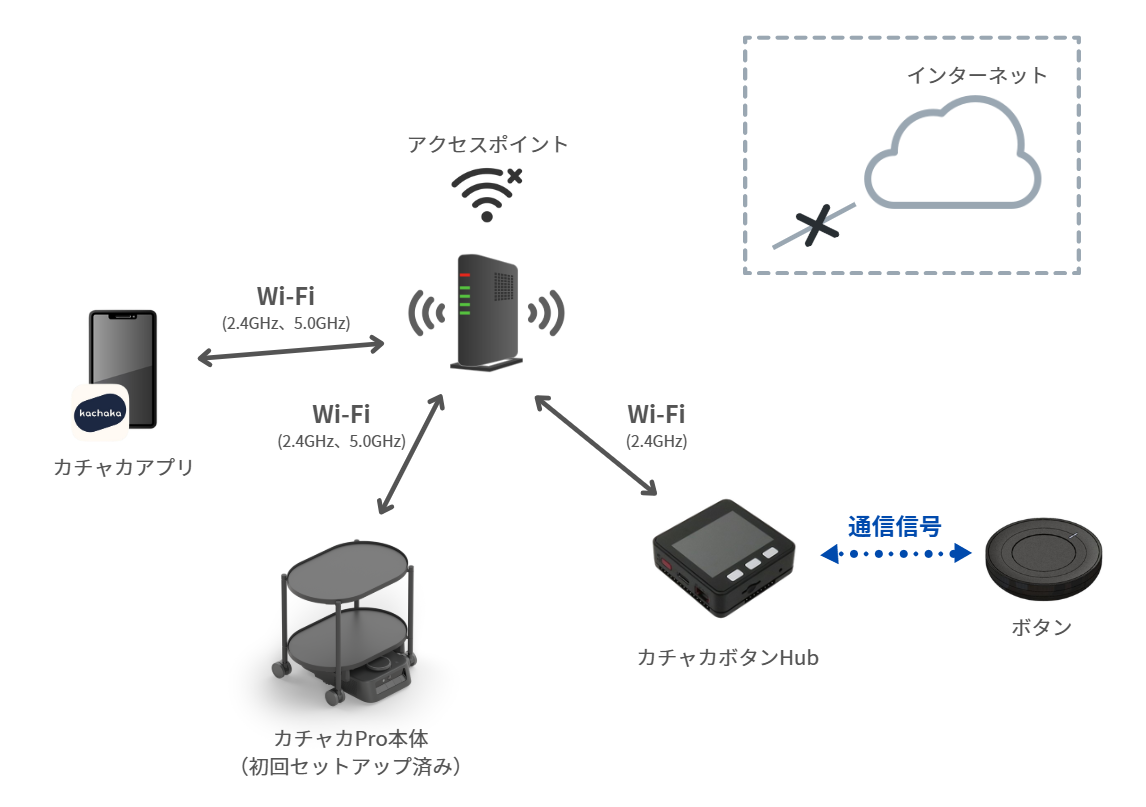
3. Offline Local Network (Kachaka Pro Only)
Supported on Kachaka Pro only. After initial setup is complete, the robot can run on a pure LAN with no internet access — ideal for factories and facilities with isolated networks. Features that require internet are unavailable, including:
- Adding a new robot and robot software updates
- Schedules and Kachaka Onegai
- Remote support
As with architecture 1, the router’s Privacy Separator must also be disabled. For switch-over steps, see Kachaka Pro: Offline LAN-Only Control.
Wi-Fi Connectivity Specs
Bands and Channels
- Supports 2.4GHz and 5GHz (IEEE 802.11a/b/g/n/ac); Wi-Fi 6 is not supported.
- 2.4GHz: channels 1–13 (channels 12–13 require robot software v2.1.7 or later; older versions support only 1–11).
- 5GHz: W52 / W53 / W56, where W52 / W53 are indoor-only and W56 channel 144 is not supported.
- The Kachaka Button Hub does not support 5GHz — keep the hub on 2.4GHz.
Authentication and Encryption
- Supports WPA-PSK and WPA2-PSK; both CCMP (AES) and TKIP encryption are accepted.
- Not supported: WPA3-based authentication, and WEP.
- Kachaka Pro additionally supports WPA/WPA2-EAP-TLS enterprise authentication (requires robot software v3.10.6 or later). See Kachaka Pro: Connecting to WPA/WPA2 Enterprise Wi-Fi for the setup steps.
Signal Strength and Other Limits
- Recommended signal strength is -70dBm or stronger; a weaker signal causes unstable connections or dropouts.
- The router’s Privacy Separator must be disabled.
- Proxy is not supported — provide an internet environment without a proxy.
- The robot’s MAC address can be checked through the app; see Finding and Fixing IP / MAC Addresses.
- If your router does not run DHCP (cannot assign IPs automatically), Kachaka Pro can use a Kachaka Pro: Static IP Address (Manual IPv4).
Hosts and Ports to Allow Outbound
On corporate, hospital, or factory networks with a firewall, confirm that the following outbound (toward the internet) traffic is not blocked by the router or firewall. The hosts, protocols, and ports Kachaka uses are:
| Host | Protocol / Port | Purpose |
|---|---|---|
*.amazonaws.com | TCP 80, 443 | Various features |
*.pfroboticsapis.com | TCP 80, 443 | Various features |
time.aws.com | UDP 123 | Robot time sync |
*.googleapis.com | TCP 80, 443 | App authentication, etc. |
| Dynamic (no fixed hostname) | TCP 22 | Only when remote support is enabled in settings; OFF by default |
- Normal operation requires allowing outbound connections to these four hosts:
*.amazonaws.com,*.pfroboticsapis.com,time.aws.com, and*.googleapis.com. If some of this traffic is blocked, features such as schedules and remote control are limited, but Kachaka’s basic functions still work without internet (you cannot send commands from the phone in that case, but the Kachaka API and voice commands still work). - For initial setup and software updates, the outbound connections to the four hosts above must be allowed, or setup/update cannot complete. For robot updates, see Updating the Robot’s Software (Manual, Automatic, and Notifications).
- If you are unsure how to configure this, ask your network administrator or contact Sigma for help.
Taiwan NCC Certification
This product is type-certified by Taiwan’s NCC:
- Kachaka (home, model B1T01): CCAM25LP1971T5
- Kachaka Pro (model B2T01): CCAM25LP1970T3
Low-power RF notice: For low-power RF equipment that has obtained type approval, no company, firm, or user may, without authorization, change the frequency, increase the power, or alter the original design characteristics or functions. Use of such equipment must not affect flight safety or interfere with lawful communications; if interference is found, operation must cease immediately and may resume only after the interference has been eliminated. Low-power RF equipment must accept interference from lawful communications or from industrial, scientific, and medical (ISM) radio-wave radiating equipment.
Screens
Related
- Setting Up and Changing the Wi-Fi Connection
- Router Privacy Separator Blocking & Ping Test
- Finding and Fixing IP / MAC Addresses
- Remote Control: Operate Away From Home Wi-Fi
- Kachaka Pro: Offline LAN-Only Control
- Kachaka Pro: Connecting to WPA/WPA2 Enterprise Wi-Fi
- Kachaka Pro: Static IP Address (Manual IPv4)