Kachaka Pro: Connecting to WPA/WPA2 Enterprise Wi-Fi
Corporate and institutional networks often use WPA/WPA2 Enterprise authentication. Instead of one shared password for everyone, each user or device is verified individually by an account, password, or certificate. Kachaka Pro can connect to this kind of enterprise Wi-Fi. The consumer Kachaka does not support this feature.
Two prerequisites
- This is a Kachaka Pro-only feature. Consumer models do not have this option.
- Robot software must be v3.10.6 or newer. On older versions the enterprise option will not appear, so first check your current version, and if it is too old, update the robot software before continuing.
One important note: enterprise Wi-Fi cannot be set up by scanning a QR code. The standard Wi-Fi setup flow has the robot scan a QR code generated by the app, but enterprise authentication requires the manual-entry path described below. Before you start, make sure both your phone and the Kachaka Pro are within reach of the target Wi-Fi.
What to have ready
Ask your network administrator for the following; you will need them during setup:
- Wi-Fi network name (SSID)
- Username (account)
- Client certificate: must be in PKCS#12 format (
.p12extension), together with a “client certificate password” - CA certificate: must be in DER format (
.derextension)
Copy both certificate files onto the phone or device running the app beforehand, so you can select and upload them during setup.
Setup steps
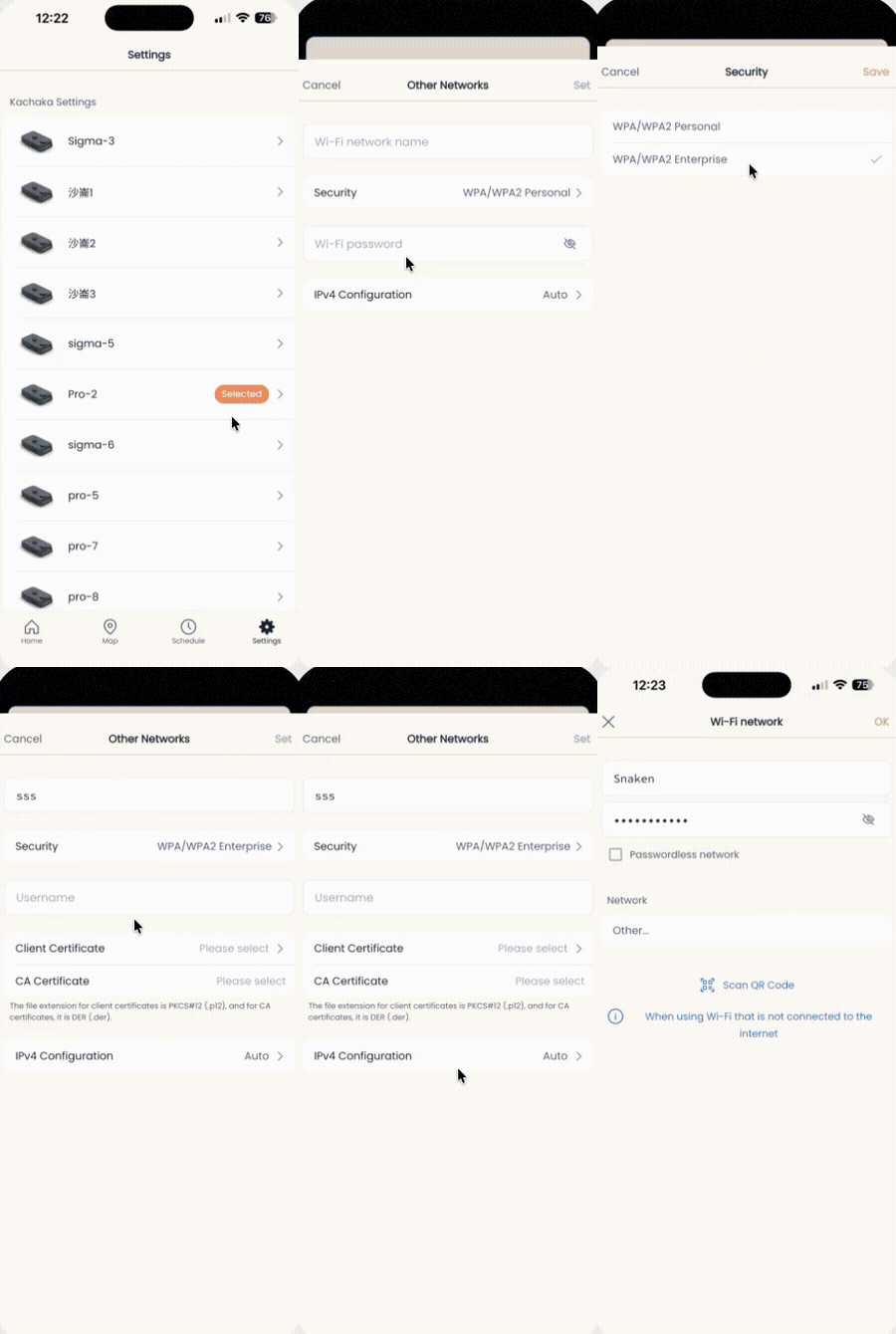
- Open the Kachaka app and go to the Settings tab.
- Under “Kachaka settings,” tap the Kachaka Pro you want to configure.
- Tap “Reconfigure Wi-Fi” near the bottom of the screen.
- On the QR-code scan screen, tap “Skip” in the top right.
- Tap “Other…” in the middle of the screen.
- Tap “Security,” choose “WPA/WPA2 Enterprise,” then tap “Set” in the top right.
- Fill in the required fields below, then tap “Set” in the top right:
- Wi-Fi network name
- Username
- Client certificate (select the
.p12file and enter the client certificate password) - CA certificate (select the
.derfile)
- Wait for the Kachaka Pro to announce that Wi-Fi setup is complete and that it will restart, which confirms the settings were saved.
- Wait for the robot to finish restarting (the app will be temporarily unreachable during the restart, which is normal).
- Reconnect your phone to the same enterprise Wi-Fi, then return to the Kachaka app and confirm it can connect to the robot.
If the app still cannot connect after the restart, the cause is usually an incorrect certificate format or credentials. Recheck each field above, and if needed ask your network administrator to reissue the certificates. To understand the overall network requirements and the connections that may need to be allowed, see the network architecture and Wi-Fi connectivity overview.
Taiwan NCC Certification
This product has obtained Taiwan NCC type approval — Kachaka (consumer, model B1T01): CCAM25LP1971T5; Kachaka Pro (model B2T01): CCAM25LP1970T3.
Without prior approval, no company, firm, or user may alter the frequency, increase the power, or change the original design characteristics or functions of an approved low-power radio-frequency device. Its use must not affect flight safety or interfere with lawful communications; if interference is found, the user must immediately stop using the device and may not resume until the interference has been eliminated. Such low-power radio-frequency devices must accept interference from lawful communications or from industrial, scientific, and medical (ISM) radio-wave-emitting equipment.
Screens