Router Privacy Separator Blocking & Ping Test
Wi-Fi all looks connected, yet right after you set up Wi-Fi the app shows “Cannot connect to Kachaka”? More often than not this is not a signal problem — your router or mobile Wi-Fi hotspot has “Privacy Separator” turned on, which isolates devices on the same network from each other. This page explains how to track down that setting and how to use a Ping test to confirm whether your phone and Kachaka can actually reach each other.
What Privacy Separator does
Kachaka talks to your phone through your router (or mobile Wi-Fi hotspot), and the two must be able to communicate within the same Wi-Fi network.
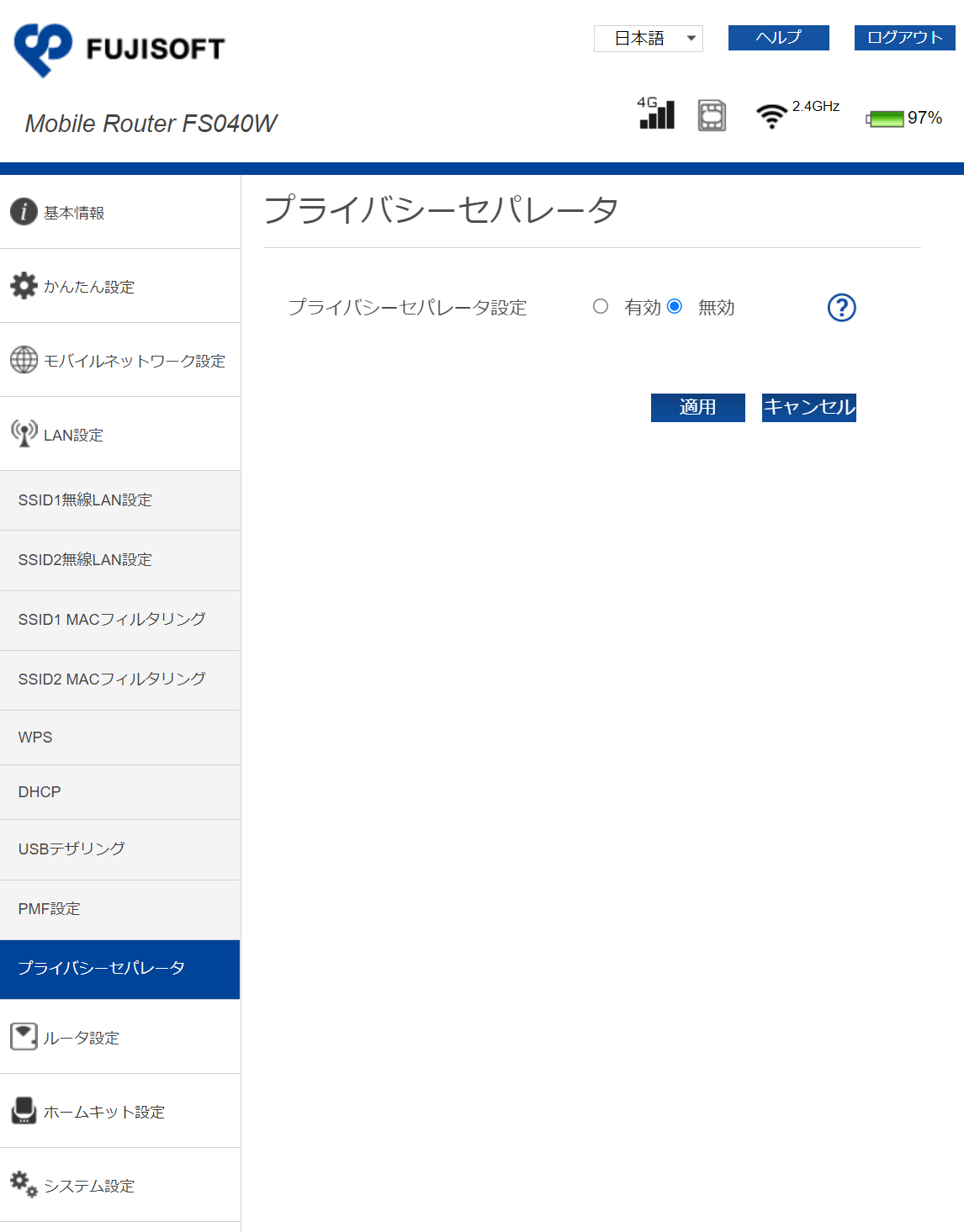
Privacy Separator is a security feature that isolates devices on a network so they cannot see one another. Once it is on, the app can no longer find Kachaka and you cannot control the robot. Three settings commonly cause this:
- Privacy Separator (called “AP Isolation” or “Network Separation” on some models)
- Guest Wi-Fi
- The network-isolation feature on some enterprise / remote-work Wi-Fi setups
This is especially common on mobile Wi-Fi hotspots — many ship with Privacy Separator enabled by default, and you have to turn it off manually.
How to turn it off
Where the toggle lives varies by brand and model. Use these principles to find it:
- Check the manual for your router or mobile Wi-Fi hotspot for a “Privacy Separator” item (if you no longer have the manual, download it from the maker’s website).
- On many models this item does not appear in the device’s own on-screen menu — you have to log in to the router’s admin page from a PC or phone browser (enter the router’s admin IP in the address bar, for example
192.168.100.1) for the option to show up. - Once found, switch Privacy Separator from on to off and save; restart the router if needed.
- If you are on a guest network, switch to the main Wi-Fi (not the guest SSID) and try again.
After turning it off, set up or recheck the Wi-Fi connection, then go back to the app to see if it connects.
Verify two-way communication with a Ping test
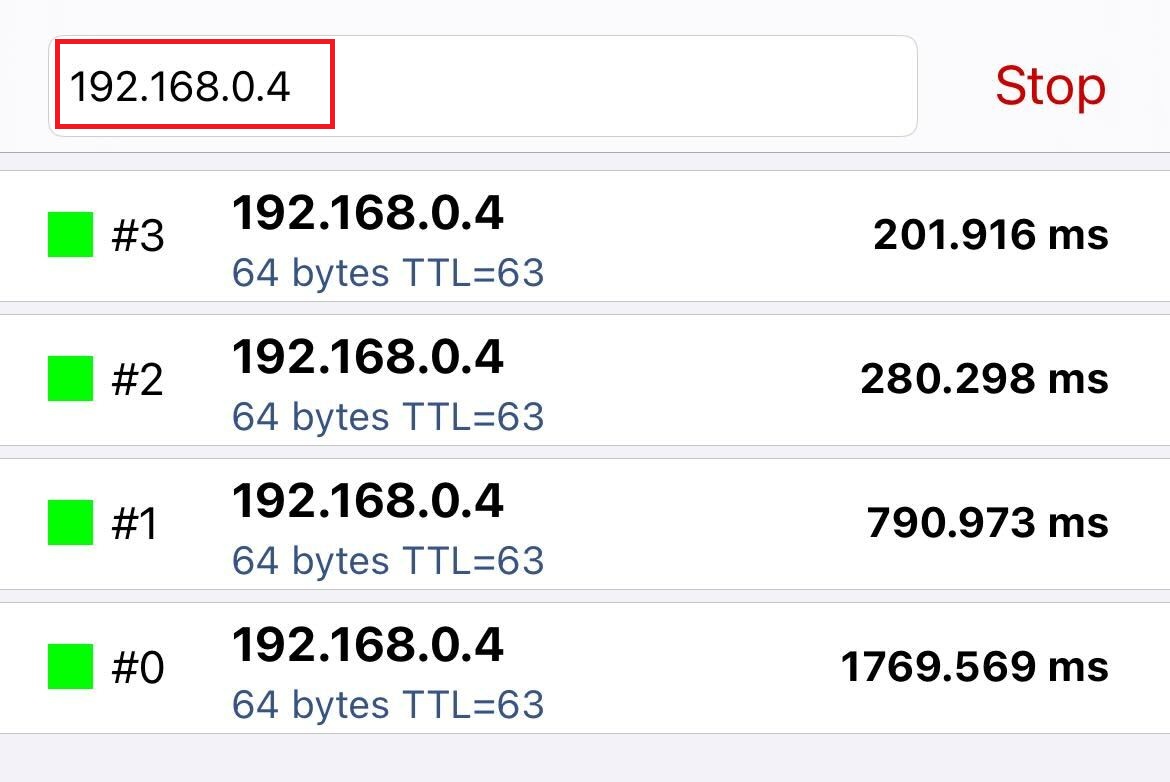
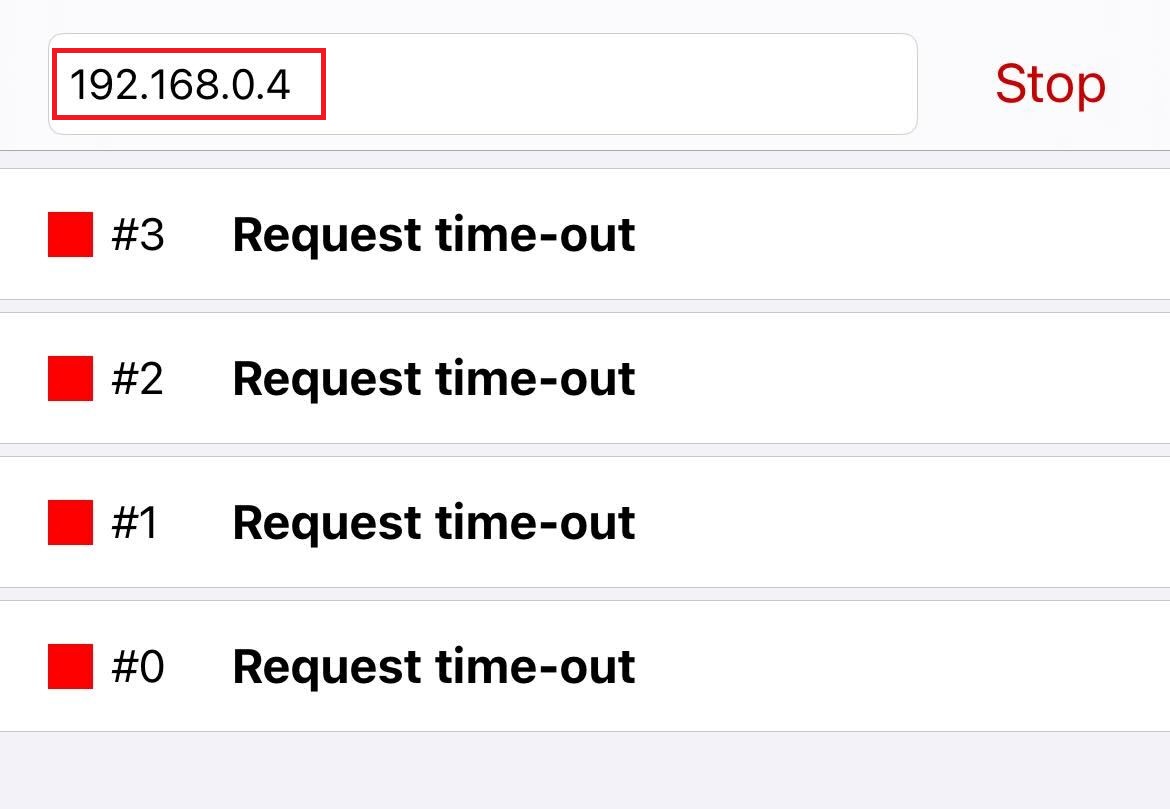
If you are not sure the problem really is Privacy Separator, a Ping test tells you whether your phone and Kachaka can reach each other. A successful ping means the two are communicating fine at the network level; a failed ping strongly suggests Privacy Separator, a guest network, or a similar blocking setting is in the way.
First, ask Kachaka for its IP address
- Make sure the device running Ping is on the same Wi-Fi as Kachaka.
- With Kachaka connected to Wi-Fi, say to it: “ねぇカチャカ、IPアドレス教えて”. (Note: voice commands are currently Japanese-only.)
- Kachaka will read out its current IP address aloud — write that number down (for example
192.168.100.2).
For other ways to find the IP, see Finding and Fixing IP / MAC Addresses.
iOS (iPhone / iPad)
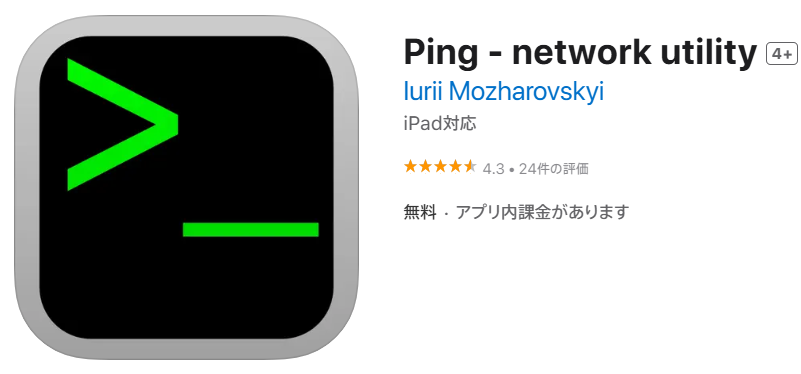
- Install any network-utility app that can run Ping from the App Store.
- Open it and enter the Kachaka IP address you just obtained in the input field.
- Tap “Ping” to start. Steady replies = OK; constant timeouts / no response = NG.
Android
- Install any network-utility app that can run Ping from Google Play.
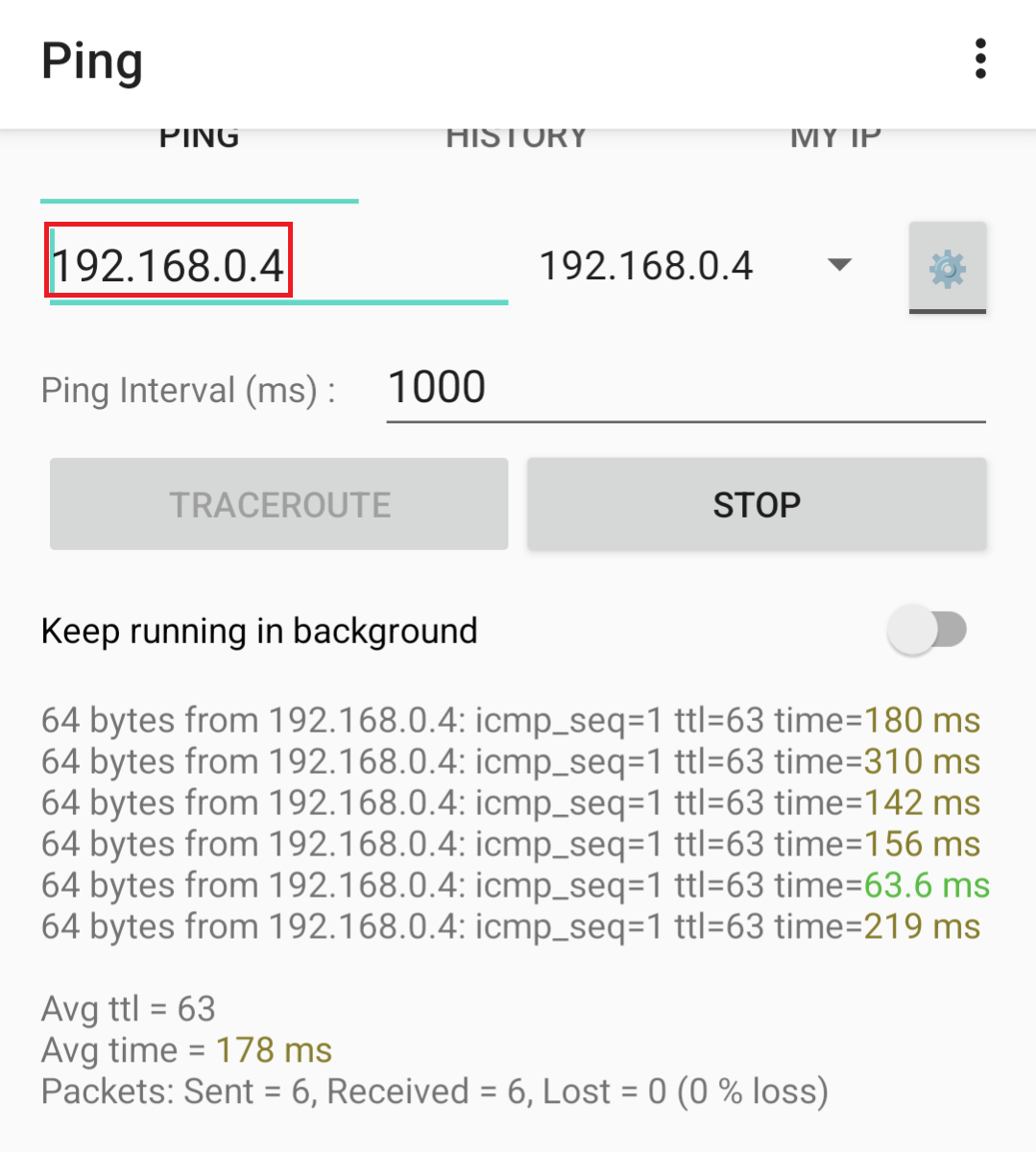
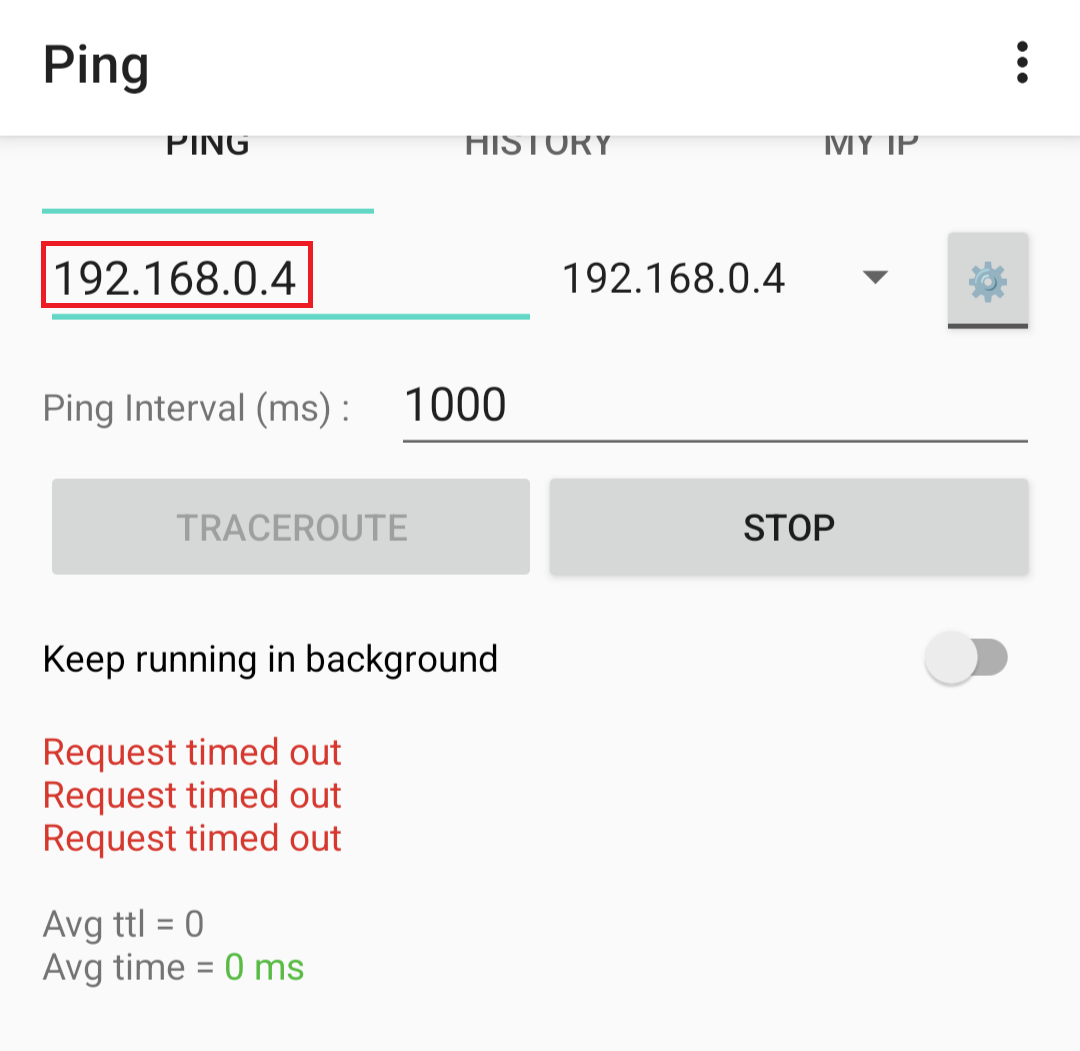
- Open it and enter Kachaka’s IP address in the input field.
- Tap “PING” to start. Replies = OK; timeouts with no response = NG.
Windows
- Open Command Prompt.
- Type
pingfollowed by Kachaka’s IP address and press Enter, for example:ping 192.168.100.2 - If you see a reply such as “Reply from 192.168.100.2: bytes=32 time<1ms TTL=254”, communication is working.
- If instead you get an error like “Request timed out”, a setting such as Privacy Separator that restricts communication may still be enabled — go back to the steps above, disable it, and test again.
Still cannot connect
- If the ping fails, double-check that Privacy Separator and any guest network are off, and switch to the main Wi-Fi.
- To temporarily rule out router settings using your phone’s data, see Setting Up Kachaka via Phone Tethering.
- If you have checked the settings and still cannot connect, or are unsure how to disable Privacy Separator on your model, note your router / mobile Wi-Fi hotspot model number and contact Sigma for help.
Screens