
App Cannot Connect, Unstable Connection & Disconnection Troubleshooting
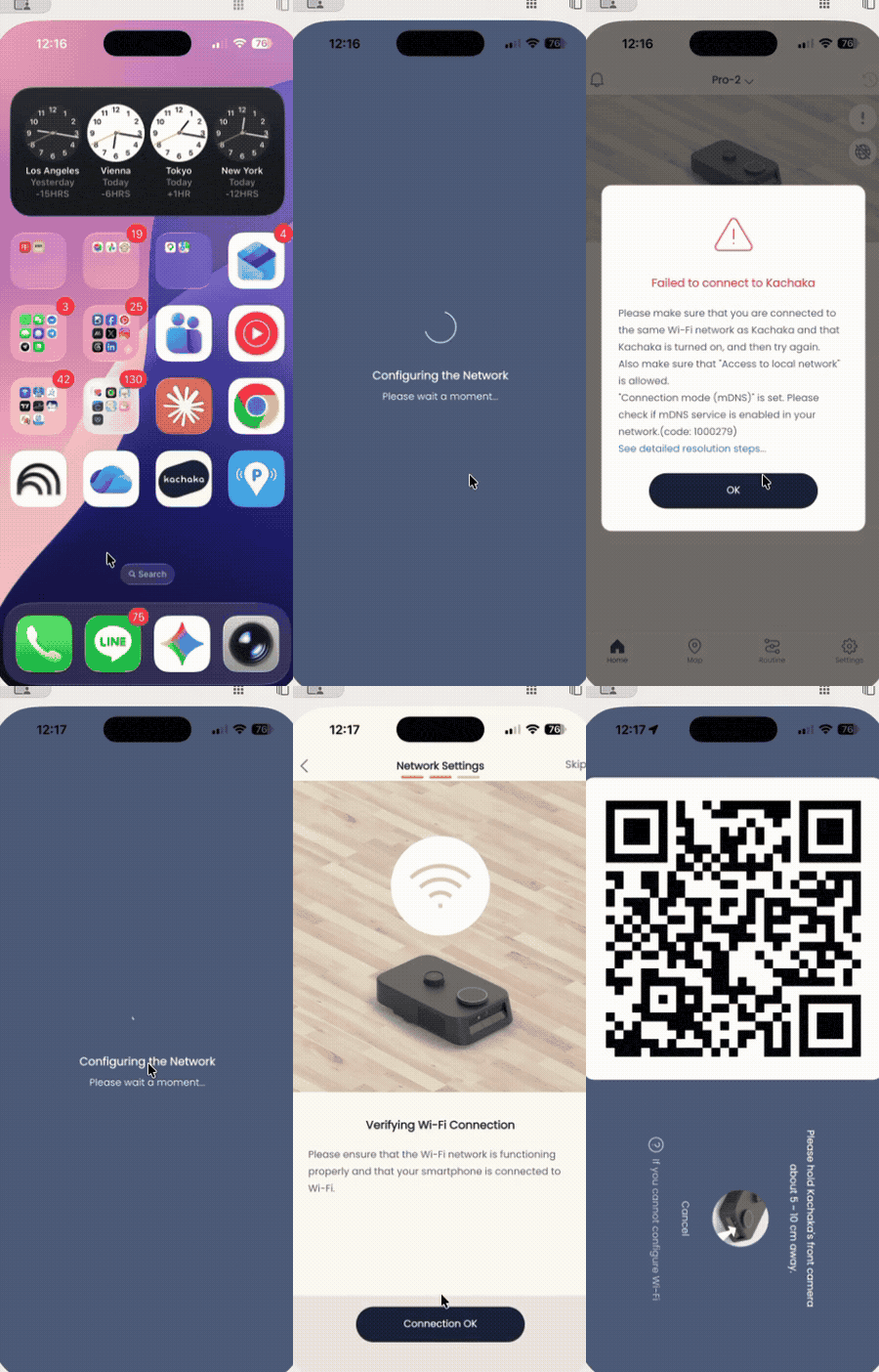
When the Kachaka app shows “Cannot connect to Kachaka,” the cause is almost always the network: the phone and the robot are on different Wi-Fi networks, the Wi-Fi signal is unstable, or a router setting is blocking communication between the two. This page walks you through three layers of checks, starting with the most common cause. The steps are the same for both Kachaka and Kachaka Pro.
Step 1: Confirm the phone and robot are on the same Wi-Fi
Kachaka communicates with the app over Wi-Fi, through your router. If the two end up on different networks — say the phone on 5GHz and the robot on 2.4GHz, or one of them on a guest network — the app cannot reach the robot.
Start by asking the robot which Wi-Fi it is on. Say “ねぇカチャカ、ネットワークの診断” (network diagnosis) to Kachaka, and it will announce its current connection status by voice. For how to read the results, see Voice Network Diagnosis & “Internet Connection Failed” Errors.
- It reports “Normal, connected to ○○○”: Note the Wi-Fi name (SSID) the robot speaks, then open your phone’s Wi-Fi settings and confirm the phone is on the exact same SSID. If they match, the problem is most likely a router setting — skip to Step 3.
- It reports “Error, not connected to Wi-Fi”: The robot cannot reach the router. See Step 2.
Step 2: The robot cannot connect, or the signal is unstable
If the robot is not on the Wi-Fi you set up, the signal is usually unstable. Try these in order:
- Switch between 2.4GHz and 5GHz. The two bands behave differently, and switching often restores the connection. 5GHz is faster but penetrates walls poorly; 2.4GHz is more stable with wider coverage.
- Move the robot closer to the router. Walls, appliances, and metal shelving all weaken the signal. Bring the robot near the router to confirm whether it connects, then judge whether distance is the issue.
- Check the router’s connected-device count. Every router has a maximum number of simultaneous devices; once it is reached, new devices cannot join. Check your router’s documentation for the limit.
If the robot still will not connect, redo the Wi-Fi setup near the router. See Setting Up and Changing the Wi-Fi Connection; if setup itself fails, see Wi-Fi Setup Fails or Cannot Connect After Setup.
Step 3: Same Wi-Fi, but still cannot connect
When the phone and robot are confirmed to be on the same Wi-Fi yet still will not connect, work through these:
- Restart the app. Fully close the app, then reopen it.
- Enable Local Network permission on iOS. iPhone and iPad must allow the app to connect to devices on the local network; otherwise it cannot find the robot on the same subnet. In iOS, go to Settings → Kachaka and confirm this permission is on.
- Restart the robot and the router. If restarting the app does not help, power-cycle both the robot and the router. For how to power the robot off and on, see Power On and Off.
- Compare router settings for changes. If it used to connect and suddenly does not, the router was likely replaced or reconfigured. Check it against the blocking settings below.
Router settings that block app-to-robot communication
Because Kachaka talks to the phone through the router, settings that isolate devices on the same network will keep the app from finding the robot:
- Guest Wi-Fi: If either the phone or the robot is on a guest network, it is isolated. Put both on the main network.
- Remote-work Wi-Fi (network isolation feature): Some enterprise-grade or dual-band routers offer a “work network isolation” feature that moves specific devices onto a separate subnet, so Kachaka and the phone cannot reach each other.
- Privacy Separator: Mobile Wi-Fi hotspots and some routers enable this by default; it blocks devices on the same network from reaching each other.
Turning these off usually means logging into the router’s web admin page. For detailed troubleshooting and how to verify two-way communication with a Ping test, see Router Privacy Separator Blocking & Ping Test.
If you have tried all of the above and still cannot connect, please contact Sigma for assistance.
What happens if Wi-Fi drops mid-task
Kachaka navigates to its destination on its own, using the map data stored on board. So if Wi-Fi drops while a task such as moving furniture is in progress, the running task still finishes — it will not stop partway. During the outage, though, two limits apply:
- You cannot operate it from the app: Everything that relies on the app to check the robot’s status or send commands — including viewing the map — is temporarily unavailable.
- Remote control will not run: Remote control, which is used when you are not on the same Wi-Fi, stops working.
That said, no Wi-Fi does not mean you cannot operate Kachaka at all. As long as your furniture and destinations are registered under their default names, you can still operate the robot by voice (freely entered names cannot be called by voice). On Kachaka Pro, to use voice in an offline environment, first make sure voice recognition is turned on.
Same Wi-Fi, but stuck in “remote control” mode
When Kachaka and the phone are on the same Wi-Fi, the app should start in “Wi-Fi connection” mode, with full functionality. Occasionally, though, the two are clearly on the same network yet the app unexpectedly switches to “remote control” mode and will not switch back. When this happens, try these in order:
- Pull to refresh. On the app home screen, press and hold, drag down, and release. A loading icon appears and the home screen refreshes; in most cases this switches back to Wi-Fi connection mode.
- Restart the app. If pull-to-refresh does not work, fully close the app and reopen it (on iPhone, swipe up from the bottom of the screen to bring up the app switcher and swipe the app away; on Android, open the recents list and swipe it away), then open it again.
- Still not recovered: If neither step works and you have confirmed the Wi-Fi connection itself is fine, restart the robot, then open the app on the same Wi-Fi to check whether it has recovered.
Screens
Related
- Voice Network Diagnosis & “Internet Connection Failed” Errors
- Setting Up and Changing the Wi-Fi Connection
- Wi-Fi Setup Fails or Cannot Connect After Setup
- Router Privacy Separator Blocking & Ping Test
- Remote Control: Operating from Away & Things to Note
- Network Architecture & Wi-Fi Connectivity Specifications