Kachaka Pro: Multiple Charging Docks and Wrong-Dock Correction
In large spaces such as factories or office floors, a single charging dock may not be enough — the robot can run low on battery while it is far from home. Kachaka Pro lets you register multiple charging docks on the same map so the robot can top up at a nearby one. This feature is Pro-only and is not available on the home model.
Adding a charging dock
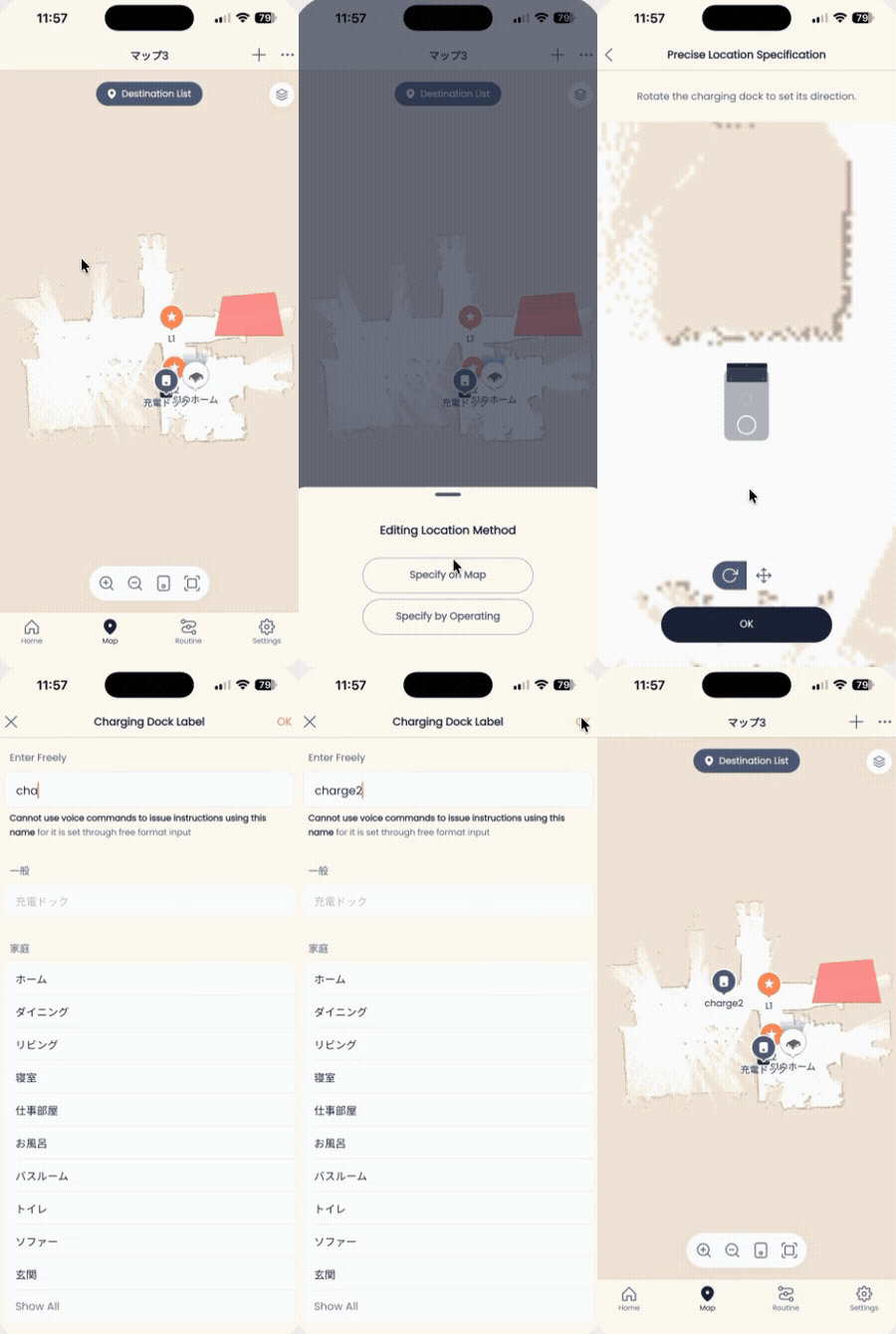
- Open the “Map” tab in the app.
- Tap the ”+” in the top-right corner.
- Choose “Add charging dock” from the menu.
- Pick an editing method and set where the dock goes:
- Place it by tapping a position on the map, or
- Drive the robot to the dock and set the position there.
An added dock is not labeled “charging dock”; it appears under the destination name you set for it in the app. Give it a recognizable name (for example “East Dock”) so you can call it later by destination.
Placement notes
- Keep docks at least 3 m apart so the robot does not confuse them.
- When creating the map, start scanning from the dock you want to use as the base point.
- When extending an existing map (Kachaka Pro), begin with the robot placed on the original dock.
- After switching maps, or after lifting the robot onto a dock by hand, the robot shown on the map may not line up with the correct dock. If that happens, follow the “Correcting a wrong-dock return” section below.
Which dock does auto-return use
When the robot returns to charge on its own — for example after putting furniture away — it does not head to the nearest dock. It always returns to the first dock you registered.
If you want the robot to charge at a different dock, give it a “move to that destination” command (call it by that dock’s destination name) so it travels to the dock you want.
Correcting a wrong-dock return
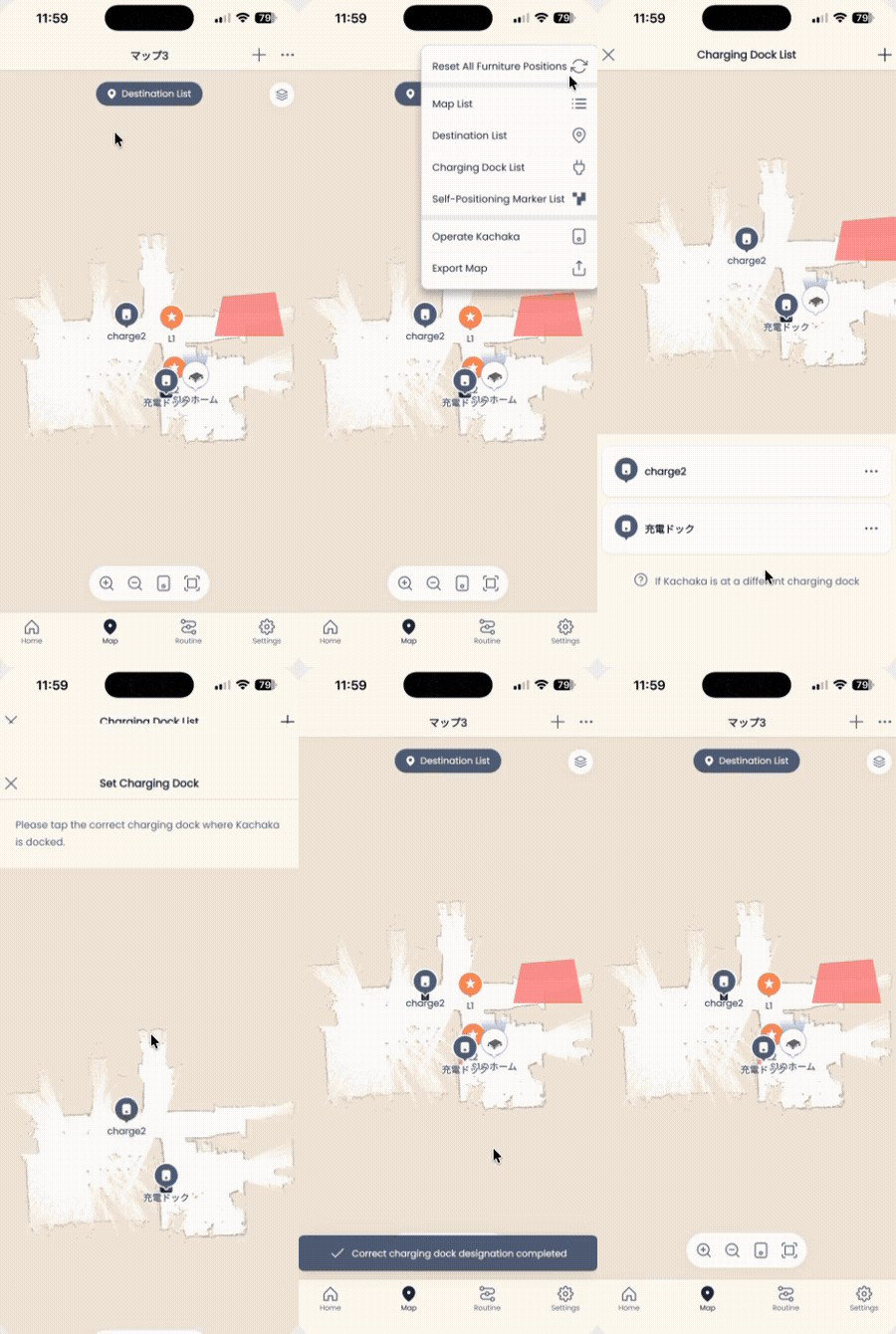
When several docks are registered and the robot’s self-position drifts, it can mistake the dock it is actually parked on for a different one. Use these steps to reset it to the correct dock:
- Open the “Map” tab in the app.
- Tap the menu (”…”) icon in the top-right corner and choose “Charging dock list”.
- Scroll the dock list at the bottom all the way down and tap “If Kachaka is on a different dock”.
- Select “Correct to the right dock”.
- Choose the dock the robot is actually docked at.
- Confirm that the robot’s position on the map has moved to the correct dock.
Screens