Extending an Existing Map (Kachaka Pro)
This feature is Kachaka Pro only.
When you first build a map, there are often corners that were blocked by boxes or clutter at the time, or rooms you deliberately skipped because you had no immediate use for them. When you later want to bring those areas in, there’s no need to rebuild the whole map. Kachaka Pro can append an unscanned area straight onto your existing map while keeping all of your furniture, destinations, no-go zones, and every other setting intact.
Before You Start
Extending a map re-aligns localization from the charging dock, so get these prerequisites right first:
- Seat the robot snugly against the dock. Follow the on-screen guidance to align Kachaka tightly with the charging dock. If there’s an offset at the start, the layout of the newly scanned furniture and destinations will be shifted by the same amount.
- If your map has more than one dock (see Multiple Charging Docks), start from the dock you registered first — don’t begin the extension from a dock you added later.
- Before you begin, prepare the site as in Map Prep and Accuracy Tips — clear the floor, open doors, keep it well lit — so the extension scan comes out clean.
New App Flow
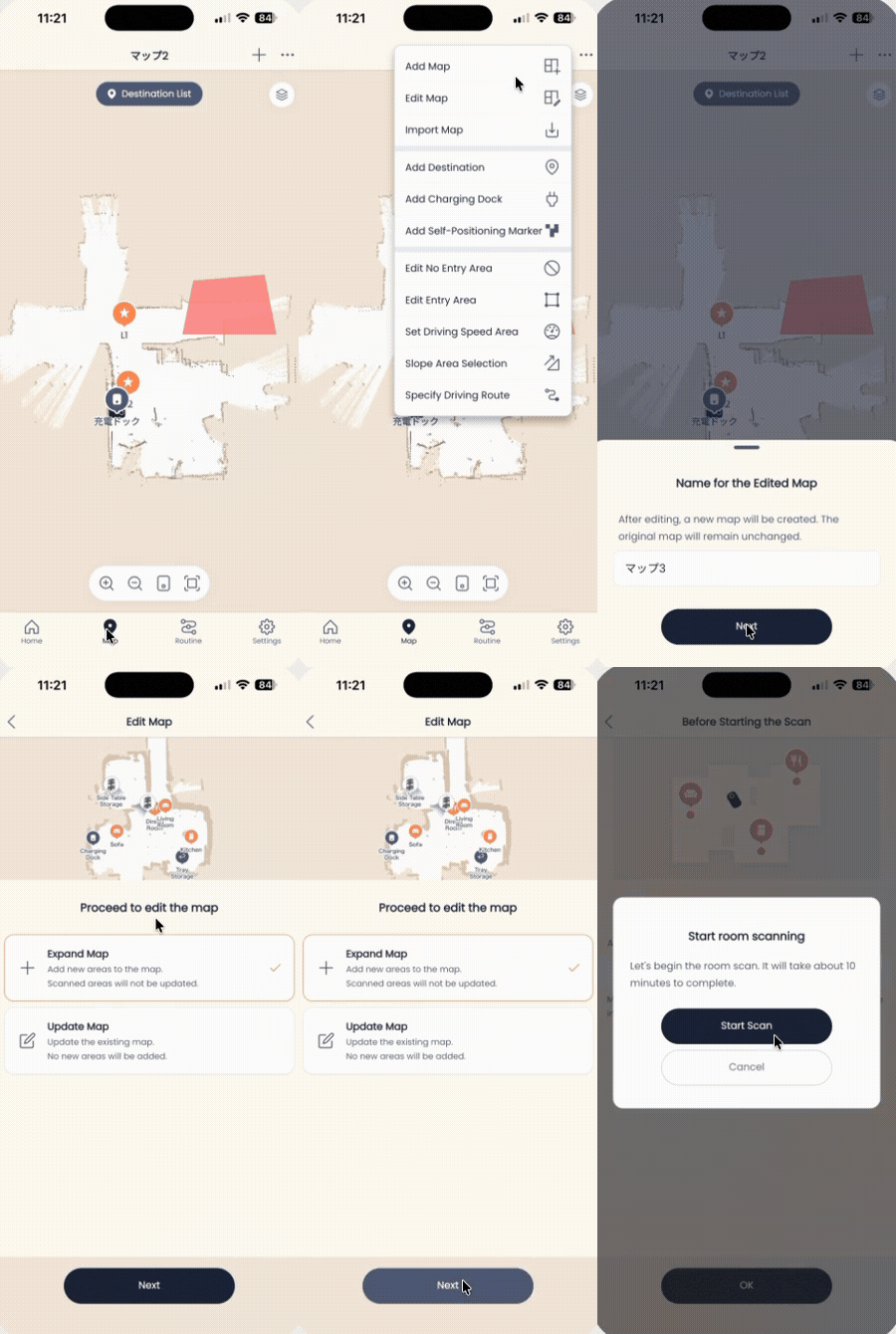
How to tell if you’re on the new version: open the Map tab and tap the + at the top right. If the dropdown menu shows Edit Map, you’re on the new version.
- Open the Map tab in the App.
- Tap the + at the top right.
- Choose Edit Map from the menu.
- Enter a name for the edited map.
- Tap Next.
- Confirm the robot is seated on the dock, then tap the Placement OK button at the bottom of the screen.
- Select Extend Map.
- Tap Next.
- Tap OK.
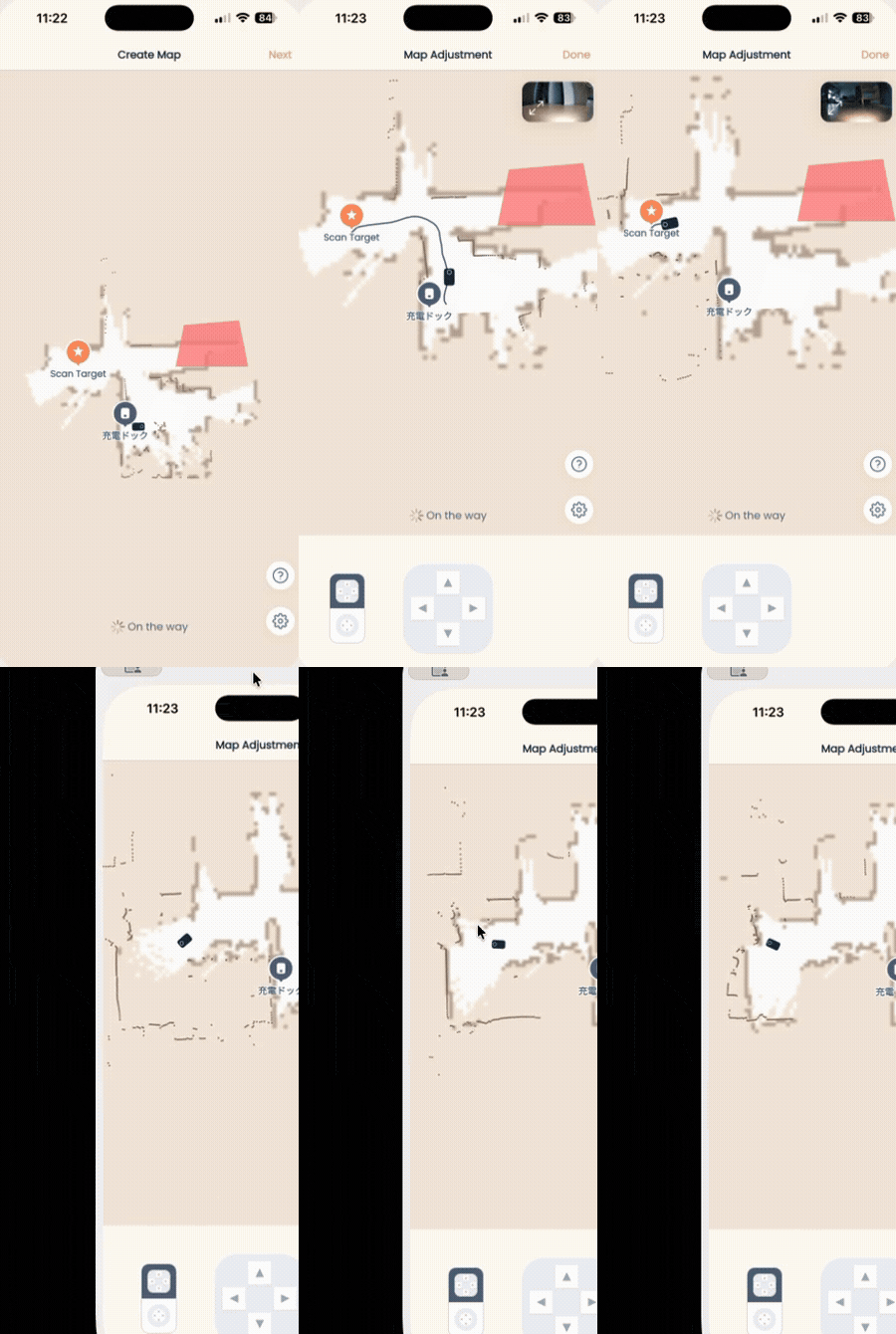
- Tap Start Scan. You’ll move into the manual-control screen — drive Kachaka into the area you want to add and scan it. When done, tap End at the top right and wait for the map to finish saving.
Older App Flow
How to tell if you’re on the old version: open the Map tab and tap the + at the top right. If the dropdown menu shows Add Map (rather than Edit Map), you’re on the old version.
- Open the Map tab.
- Tap the + at the top right.
- Choose Add Map from the menu.
- Tap Create with current settings.
- Enable Include the already-scanned map.
- Tap Next.
- Confirm the robot is seated on the dock, then tap the Placement OK button in the confirmation dialog at the center of the screen.
- Tap OK.
- Tap Start Scan.
- Once you’re in the manual-control screen, drive Kachaka into the area you want to extend and scan it.
- Tap End at the top right.
- Wait for the map to finish saving.
For how to drive during the scan and other tips, see Map Prep and Accuracy Tips.
Notes
- This feature only adds areas that weren’t there before. It can’t be used to re-scan or patch parts that already exist in the map. To fix the layout or position drift of an existing area, use Updating an Existing Map instead.
- If furniture or destinations look shifted after extending, the robot was most likely not aligned with the dock at the start. Adjust each one via Adding, Repositioning and Setting Default Destinations, or re-adjust the position of each area.
Screens