
Fixing Position Drift and Getting Lost
Kachaka estimates where it is on the map using the charging dock position plus features in the surroundings. When the position shown on the map no longer matches where the robot actually is, or when it suddenly starts moving awkwardly and getting lost, its self-localization has usually drifted. This page splits the fix into two steps: recalibrate first, then find the root cause.
Symptom 1: Map position doesn’t match the real position
If the Kachaka icon on the App map is clearly in a different spot from where the robot really is, the robot has misjudged its own location on the map. Try to recalibrate first.
Method A: Voice correction
Say “ねぇカチャカ、落ち着いて” (Hey Kachaka, settle down) and Kachaka will try to re-align itself.
Method B: App correction
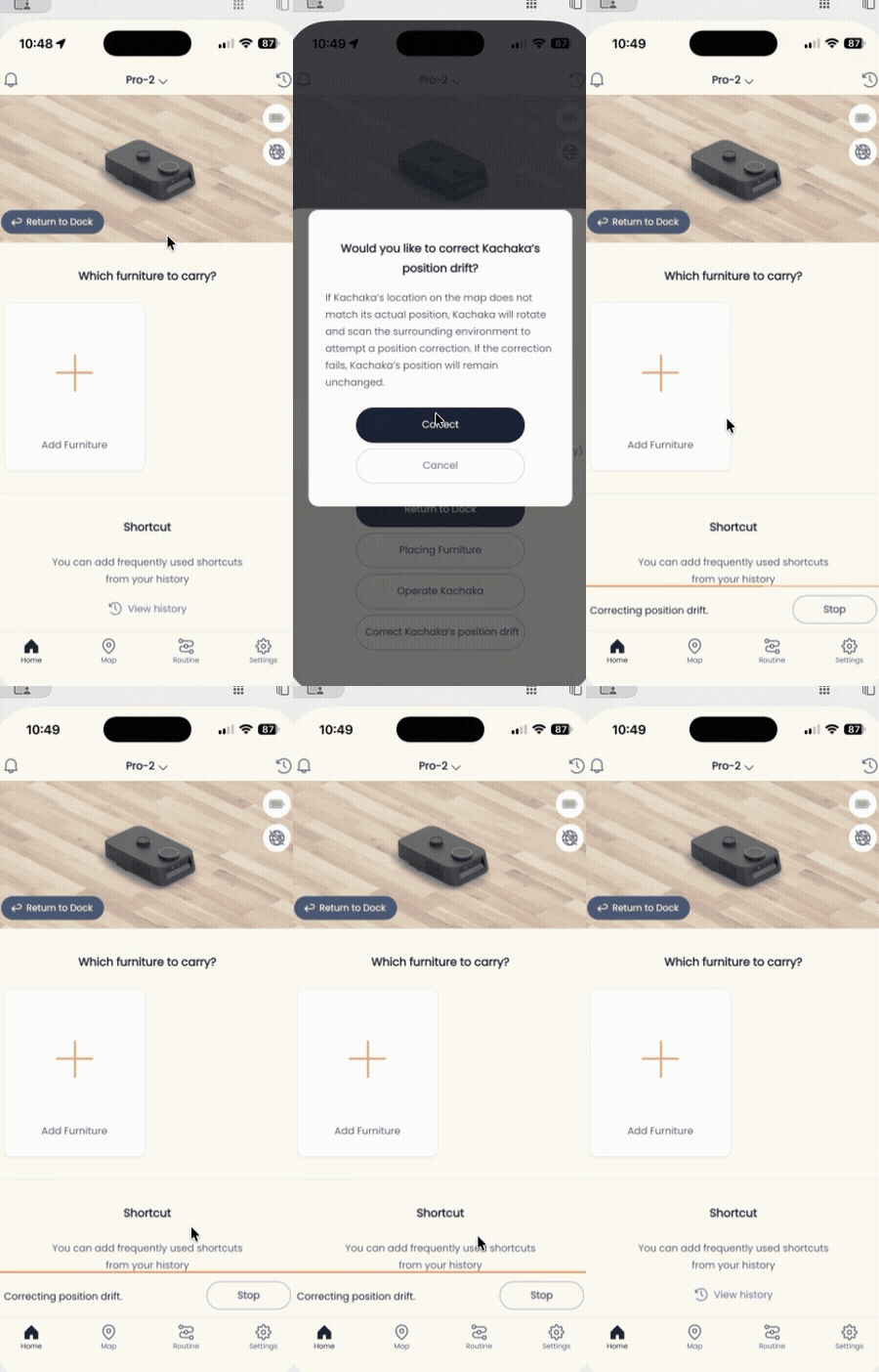
- Open the “Home” tab in the App.
- Tap the Kachaka image at the top of the screen to open the status view.
- Tap “Correct position drift.”
This feature requires version 2.20 or later of the mobile App.
When correction fails
If Kachaka replies that it could not restore its position and asks you to place it back on the dock by hand, manually push Kachaka back onto the charging dock, wait about a minute, then check its position on the map again. The dock is the reference point for localization, so returning to it lets the robot re-align.
Symptom 2: It ran fine for days, then started getting lost
If the map worked for a few days after you built it but the robot then began moving awkwardly, getting lost, or taking detours, something in the environment has usually changed in a way that affects localization. Check these three common causes in order.
Cause 1: The charging dock was moved
Kachaka uses the dock as its localization reference, so the dock must not be moved casually. If you have to move it, always follow the correct procedure in Moving the Charging Dock and update its position rather than just relocating it.
Cause 2: Landmark furniture was rearranged significantly
If large “landmark” furniture was moved after the map was built, it can throw off the robot’s self-position estimate. Try to keep the main furniture where it was at mapping time.
Cause 3: A shelf was moved by hand
When Kachaka goes to pick up furniture, it looks for the shelf at its registered position. If someone has pushed the shelf elsewhere, the robot may fail to find it or align poorly. If a shelf was moved by accident, see Furniture Storage Position: Wall Alignment and Reset to reset it back to its home position.
Advanced: Show the laser sensor point cloud
While troubleshooting localization, you can overlay what the sensor “sees” onto the map to judge how far it has drifted or why the robot can’t reach a destination:
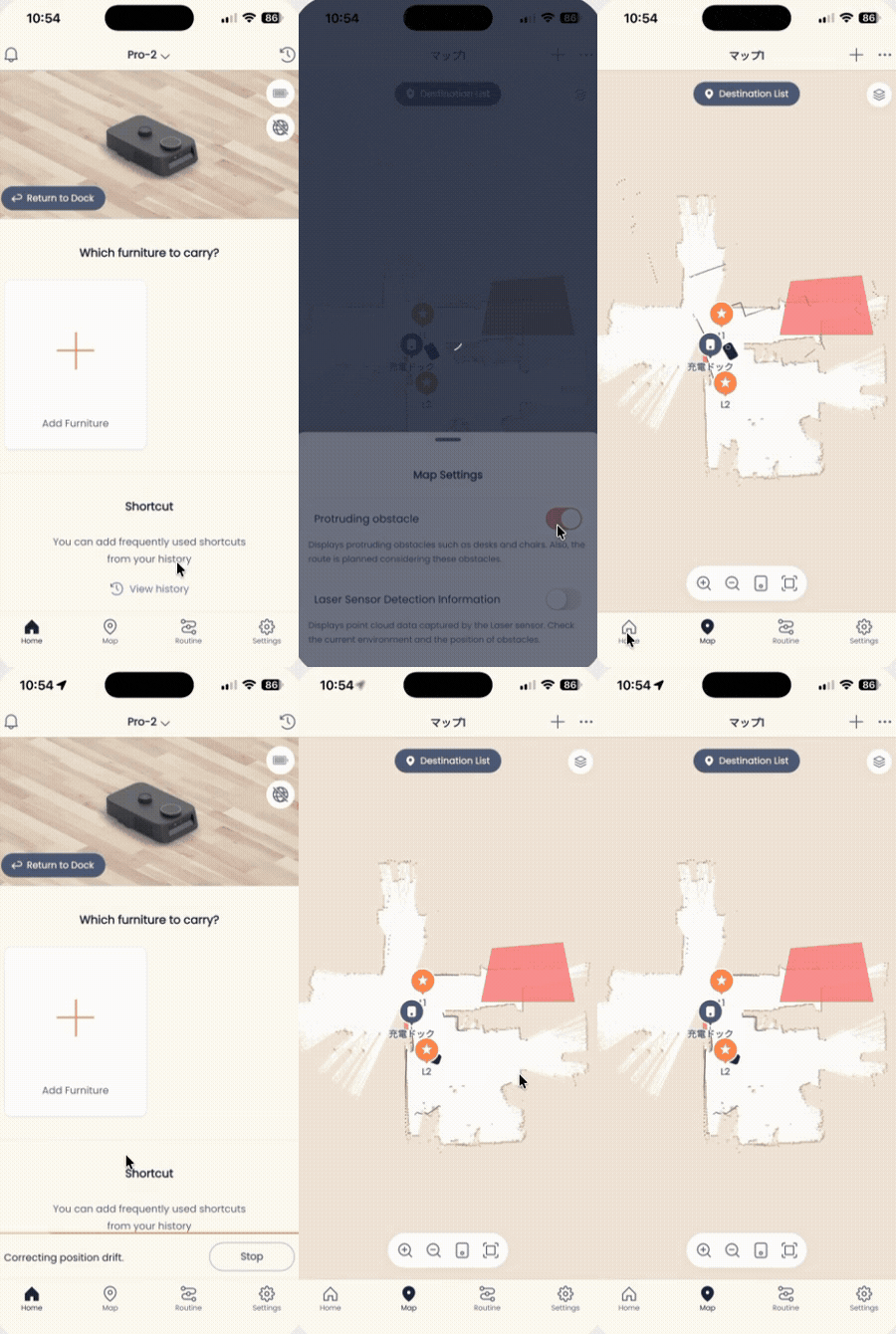
- Tap the “Map” tab.
- Tap the icon in the top-right corner.
- Turn on “Laser sensor detection info.”
Once enabled, brown dotted lines appear on the map, representing the surroundings the laser sensor is currently capturing. If these points are clearly offset from the map’s walls and furniture, that is direct evidence of position drift. The display is only a visual aid and does not affect actual movement, so you can turn it off when you’re done.
If drift keeps happening: update or rebuild the map
If the same spot drifts repeatedly, the map accuracy probably no longer matches reality (often due to Causes 1 and 2 above). Consider:
- Map Prep and Accuracy Tips: get the environment right before rebuilding.
- Creating a New Map: rebuild while keeping furniture, destination, and schedule settings.
- Removing Phantom Obstacles on the Map: clear false obstacles caused by mis-scans during mapping.
- Updating an Existing Map (Kachaka Pro): Pro units can re-scan and update while keeping settings.
- Self-Position Correction with Markers (Kachaka Pro): place dedicated markers at drift-prone spots so the robot auto-corrects as it passes.
When you need help from Sigma
If drift or getting lost still recurs after these steps, contact Sigma for investigation. To speed up diagnosis, please have the following ready:
- The serial number of the affected Kachaka.
- The date, time, and place (destination) where the problem occurred.
- A debug log captured within two days of the event (upload it in the App).
- For Kachaka Pro, an exported map file as well.
Screens
Related
- Manually Return Kachaka to the Dock
- Moving the Charging Dock
- Furniture Storage Position: Wall Alignment and Reset
- Map Prep and Accuracy Tips
- Creating a New Map
- Removing Phantom Obstacles on the Map
- Updating an Existing Map (Kachaka Pro)
- Self-Position Correction with Markers (Kachaka Pro)
- Uploading Debug Logs and Remote Support (Pro)
- Importing and Exporting Maps (Kachaka Pro)
- Finding Your Robot’s Serial Number