
Queue and Repeated or Multiple Tasks
When Kachaka is busy with a task, you don’t have to wait for it to finish before issuing the next command. The Queue feature lets you line up follow-up transport or move jobs so the robot runs them in order. And if you want round trips or want to hand off several jobs at once, this page covers four ways to do it.
The Queue: line up jobs while one is running
While Kachaka is executing a task, you can issue another command in the app — for example tapping a shortcut or telling it to “move to a destination.” Instead of interrupting the current action, the system adds the new command to the queue and lets you choose when it runs:
- After the current task: runs as soon as the task in progress finishes.
- After all tasks finish: runs only once everything else in the queue is done.
Turn on the Queue feature
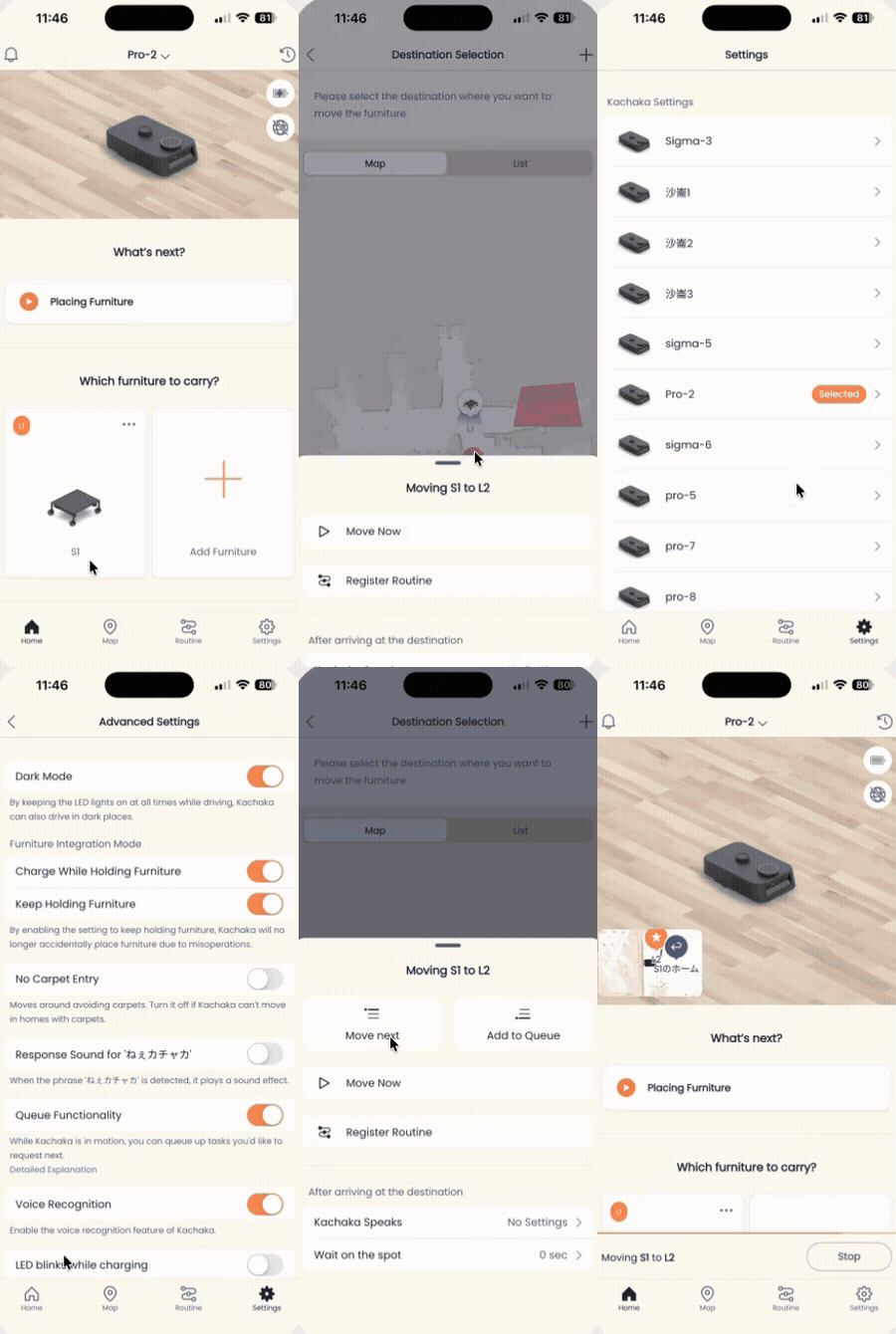
- Open the Settings tab in the app.
- Tap Kachaka Settings and select the Kachaka you’re operating.
- Open Advanced Settings and switch Queue on.
Add a task to the queue
Once it’s on, just issue your transport, move-to-destination, or shortcut command as usual while the robot is busy. The app will ask whether to run it after the current task or after all tasks finish — pick one, and it’s queued.
Check the queued tasks
Tap the status bar at the bottom of the home screen that shows the current task. It expands into the queue list, where you can see the task in progress and everything lined up behind it.
The Queue feature requires app version v2.2 or later and robot software v2.1 or later. If your versions are older, update the robot software first.
Four ways to repeat or batch tasks
For repetitive jobs like “shuttle back and forth between A and B several times,” or to hand off several jobs with one command, choose the approach that fits.
1. Queue: line up the same task repeatedly
The most direct method: add the same shortcut to the queue several times in a row, and the robot runs them one after another to achieve a round-trip effect.
2. Routine: one trigger, multiple actions
A Routine can chain multiple actions in a single setup. Kachaka Pro goes further, letting you register multiple actions in one Routine so a single trigger runs several transport jobs or a sequence of moves across multiple destinations.
3. Kachaka Onegai: hand off in natural language
With the generative-AI-powered Kachaka Onegai assistant, you can describe what you want in a single sentence — for example, “Please shuttle between A and B 10 times” — and the robot registers and runs the matching tasks itself. You can also ask it to register such a flow as a shortcut.
Keep these points in mind:
- Use a specific count, not an infinite loop. Give instructions with concrete numbers like “N times” or “N laps.” Instructions to “keep moving forever” or to “register an infinite loop” of patrolling will not be accepted.
- Verify before running. Because the flow is generated by AI, details such as wait times and move order may differ from what you intended. Review the result once after it registers, then put it into real use.
- It can misjudge. The AI may sometimes reply incorrectly that it “can’t do this.” If that happens, retry the operation a few times.
Example (asking it to register a shortcut):
- Tap Kachaka Onegai on the app home screen.
- Enter your request by text or voice, for example: “Please register a shortcut that waits one minute at each destination and patrols all destinations 5 laps.”
- Confirm the robot replies that registration is complete, then run the new shortcut from the home screen.
4. Kachaka API: write your own program
For more flexible multi-task flows, use the Kachaka API to write and run your own code chaining moves and various action commands.
Screens
Related
- Shortcuts: One-Tap Commands
- Routine Automation: Triggers and Multi-Action Setup
- Kachaka Onegai: Generative AI Assistant Use Cases and Troubleshooting
- Kachaka API: Overview and How to Enable
- Updating the Robot’s Software (Manual, Automatic, and Notifications)