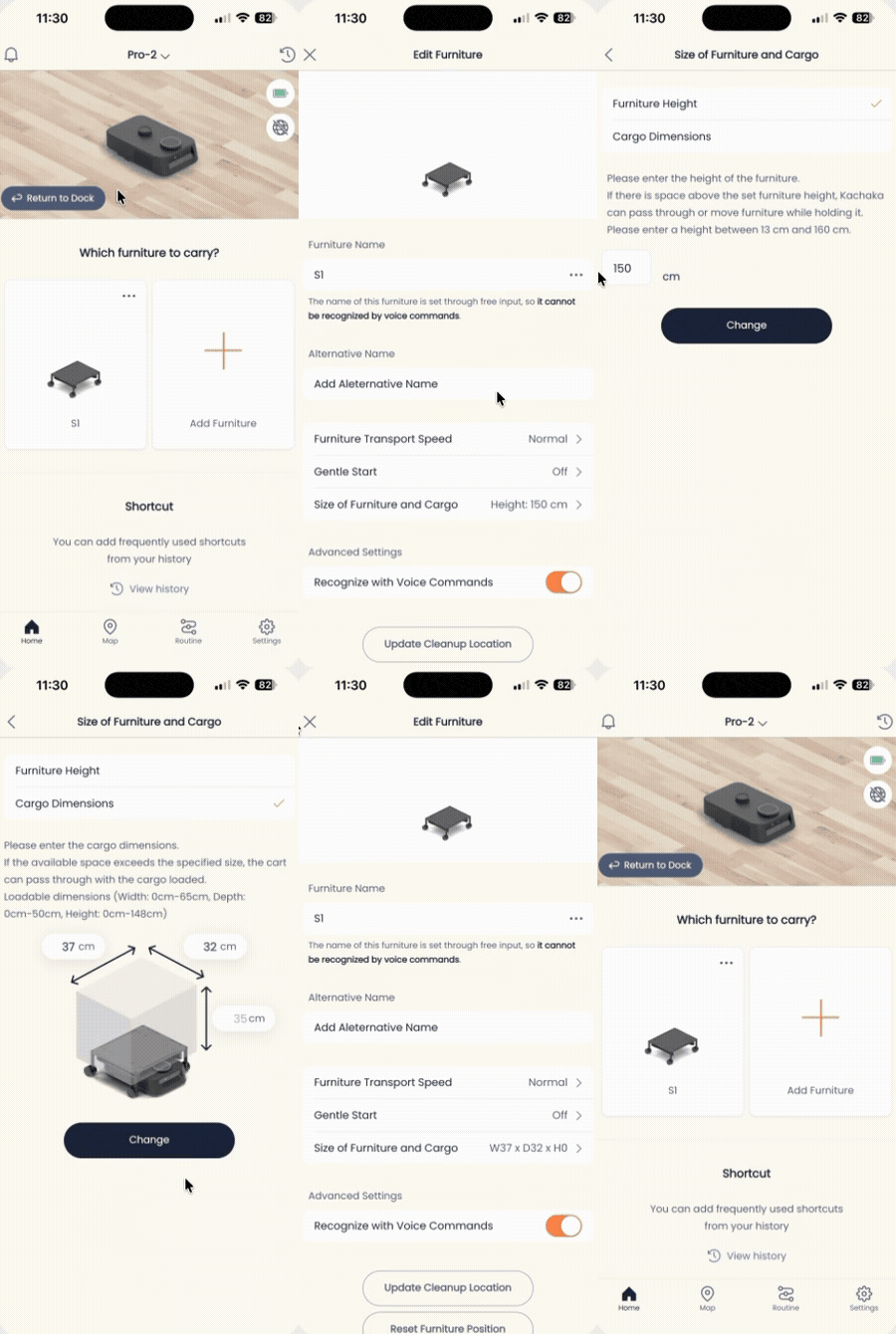
Setting Furniture Height & Pro Base Cargo Size
Once you register a furniture item’s height, Kachaka factors that dimension in when it carries the item, and only tucks it into spaces tall enough to clear it. That turns tight nooks like the area under a counter or beneath a shelf into usable storage, so you make the most of your space.
Without a height setting, Kachaka has no way to know how tall the furniture plus its load actually is. It may avoid a space the item would have fit into, or misjudge and get stuck. We recommend filling in each item’s height right after you register the furniture.
Steps
Set this in the app. The procedure is the same for Kachaka and Kachaka Pro.
- Open the Settings tab in the app.
- Tap the menu icon for the furniture item you want to configure.
- Choose Edit furniture from the menu.
- Tap Furniture height in the middle of the screen.
- Enter the total height, including whatever is loaded on top of the furniture — measure the shelf together with its contents, not the empty shelf alone.
- Tap Save to store the setting.
Measuring and fine-tuning
- Measure with the load on it. The highest point is what has to clear the opening, so base the height on the furniture as it is actually loaded. If the items you normally keep on it get taller or shorter, come back and update this value.
- Off by a little? Nudge it about 5cm. If Kachaka decides it “can’t get through” a space the furniture clearly fits, adjust the registered height up or down by roughly 5cm and try again — that usually does the trick.
- This height is only for judging whether a storage space is tall enough. For horizontal clearances such as passage width and turning room, see Passage Width & Space Requirements.
After you save, the next time you have Kachaka pick up and carry the furniture into storage, it will use this height to decide automatically whether it can enter the restricted space.
Kachaka Pro: Setting Base Cargo Size
When you place a larger item directly on the Kachaka Pro Base to carry it and the item extends beyond the base footprint, you can tell the robot the cargo’s three dimensions. Kachaka Pro then calculates its body outline from those values and actively steers around obstacles while driving, so the protruding load doesn’t hit walls or furniture.
This feature is Kachaka Pro only. Before you start, register the base itself as a furniture item — see Registering Furniture and Adding Aliases.
- Open the Home tab in the app.
- Find the registered base and tap the menu button (•••) in the top-right corner.
- Tap Edit furniture.
- Tap Furniture / cargo size.
- Tap Cargo dimensions (W/D/H).
- Enter the cargo’s width, depth, and height. The maximum values you can set are width 65, depth 50, height 148 (in centimeters).
- Tap Save.
Once saved, Kachaka Pro factors this cargo outline into its obstacle avoidance while carrying.
When you change the depth, turn off protruding obstacle detection. If you change the depth of a shelf placed on the base, the front ToF sensor (i.e. “protruding obstacle detection”) may mistake the load or the shelf itself for an obstacle, causing false detections or erratic movement. So whenever you adjust the depth, also turn off protruding obstacle detection — see Protruding Obstacle Detection. Even when the protruding item is within the set dimensions, you may still need to disable this detection for the robot to drive smoothly.
Never attach legs that stick out below the base. Do not install anything that protrudes below the top plate of the base (for example, a cart with its own casters). Any protrusion under the base prevents Kachaka from driving properly and can affect safety and the warranty. If you have a special cargo requirement, check with Sigma first.
Screens