Importing and Exporting Maps (Kachaka Pro)
Export a finished map from one Kachaka to a file, and you can import it into another Kachaka — no need to re-map on every machine. This feature is available on Kachaka Pro only.
The exported file is saved with a name like mapname.kmap, a dedicated map format. The whole process happens in the Kachaka App, and the steps are nearly identical on iOS and Android.
When to use this
- You run several Kachaka Pro units in the same space and want them to share one map.
- You have tuned the map, destinations and no-go zones on one machine and want to move that setup as-is to a newly arrived unit.
- You want to back up your site map, or hand it to Sigma to help with a support case.
Exporting a map
-
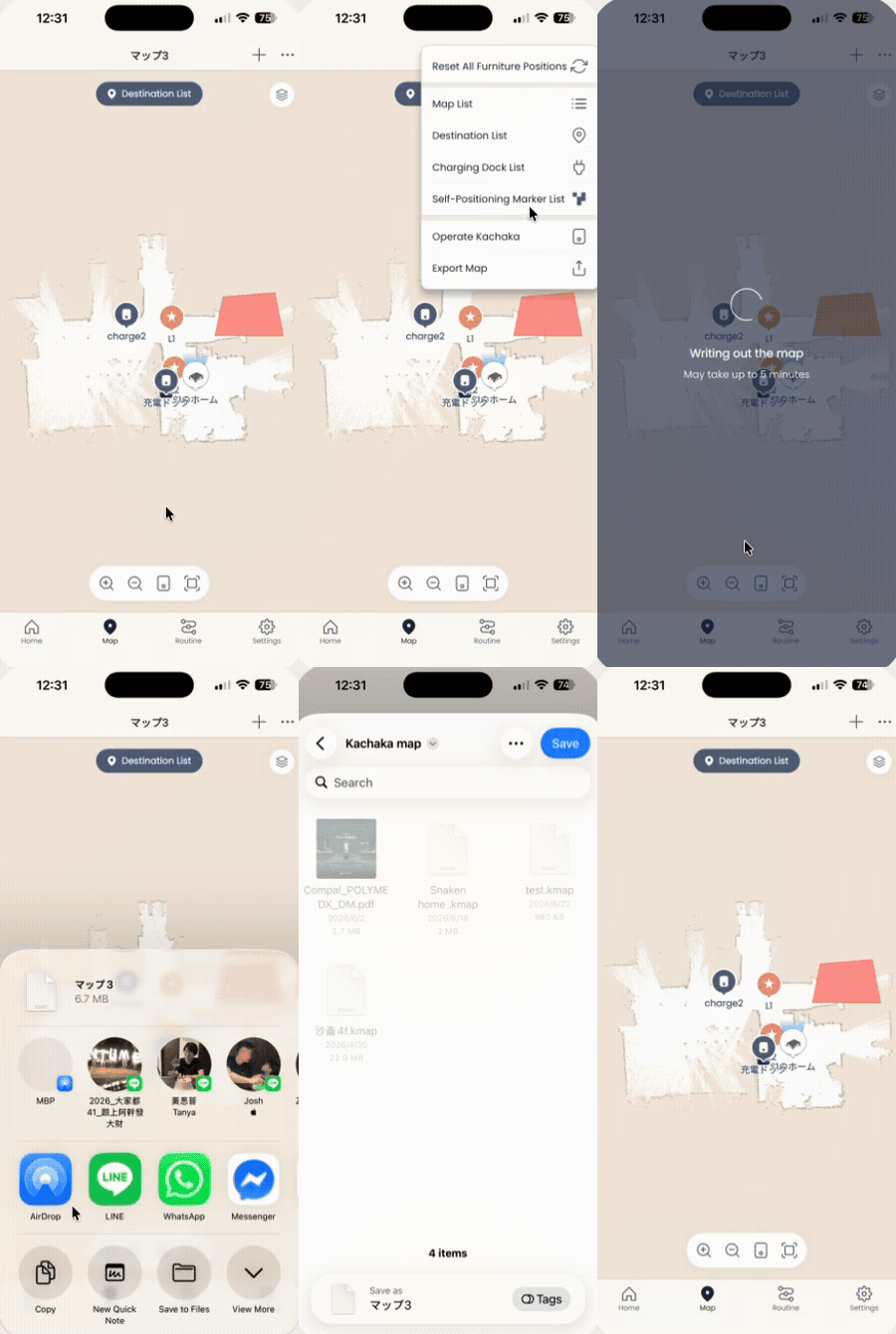
Open the Map tab in the App, tap the ”⋯” at the top right, and choose Map List to open the list of maps.
-
Select the map you want to export to open its detail screen, tap the ”⋯” at the top right, and choose Export Map.
-
When the explanation screen appears, tap Export Map to start writing the file.
-
Choose where to save it. The exact flow differs by platform:
- iOS: the system Share sheet opens. Choose Save to Files to store the
.kmapfile in the Files app on your iPhone/iPad, or send it via another app. - Android: the system file manager opens. Pick a destination folder and tap Save.
Once done, the file is saved with a name like
map.kmap. - iOS: the system Share sheet opens. Choose Save to Files to store the
If you later can’t find the saved map file on your phone, open your device’s internal storage and search for .kmap to locate it.
Importing a map
-
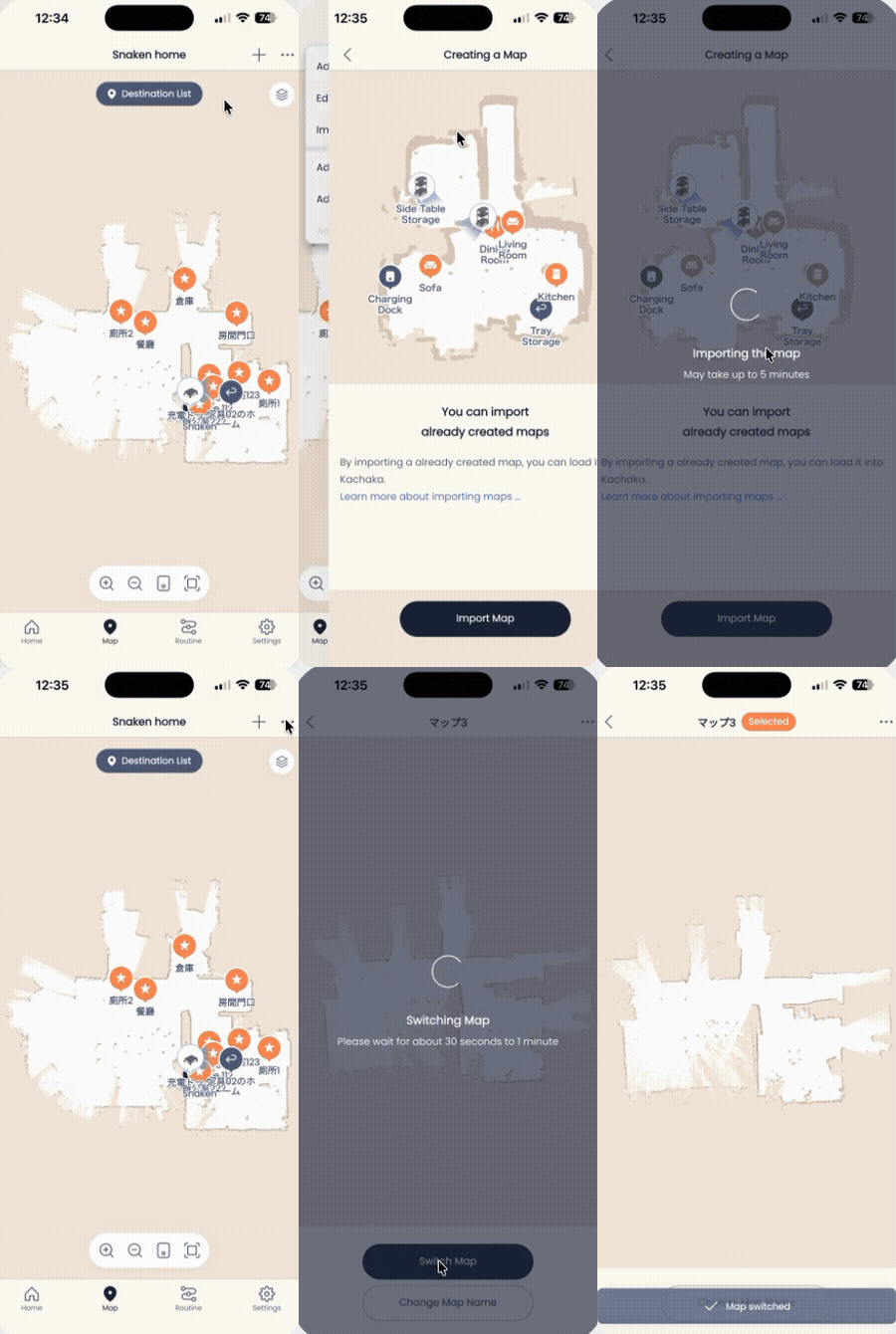
Open the Map tab, tap the ”+” button at the top right, and choose Import Map. When the explanation screen appears, tap Import Map.
-
A file browser opens — select the file you exported earlier (its name looks like
mapname.kmap). The exact flow differs by platform:- iOS: the Files app opens. Browse to the folder holding the
.kmapfile and tap it. - Android: the system file manager opens. Browse to the folder holding the
.kmapfile and tap it.
- iOS: the Files app opens. Browse to the folder holding the
-
The import starts, and after a short wait it finishes loading.
-
On the completion screen, rename the map if you like, then tap Save Map. When you see “Map saved,” it’s done. Back in the map list, you’ll see the newly imported map.
Notes
- An imported map is an independent copy. If the actual site differs from the source machine (furniture or walls in different positions), check localization on site after importing and update the map if needed. See Updating an Existing Map (Kachaka Pro).
- If you simply want to extend a map into a new, unscanned area, use Extending an Existing Map (Kachaka Pro) instead of re-importing.
- After importing, double-check that adding, repositioning and setting default destinations matches the new machine’s actual layout.
Screens