Registering Furniture and Adding Aliases
Before Kachaka can carry or put away a piece of furniture, you first register that furniture in the app. During registration, Kachaka reads the barcode on the underside of the furniture to identify it. The name you give it here is what you’ll use later to call it by voice or select it in the app.
Note: only Kachaka’s dedicated furniture (with a barcode on the underside) can be recognized and lifted. Off-the-shelf furniture cannot be registered. See Only Kachaka Dedicated Furniture Is Supported.
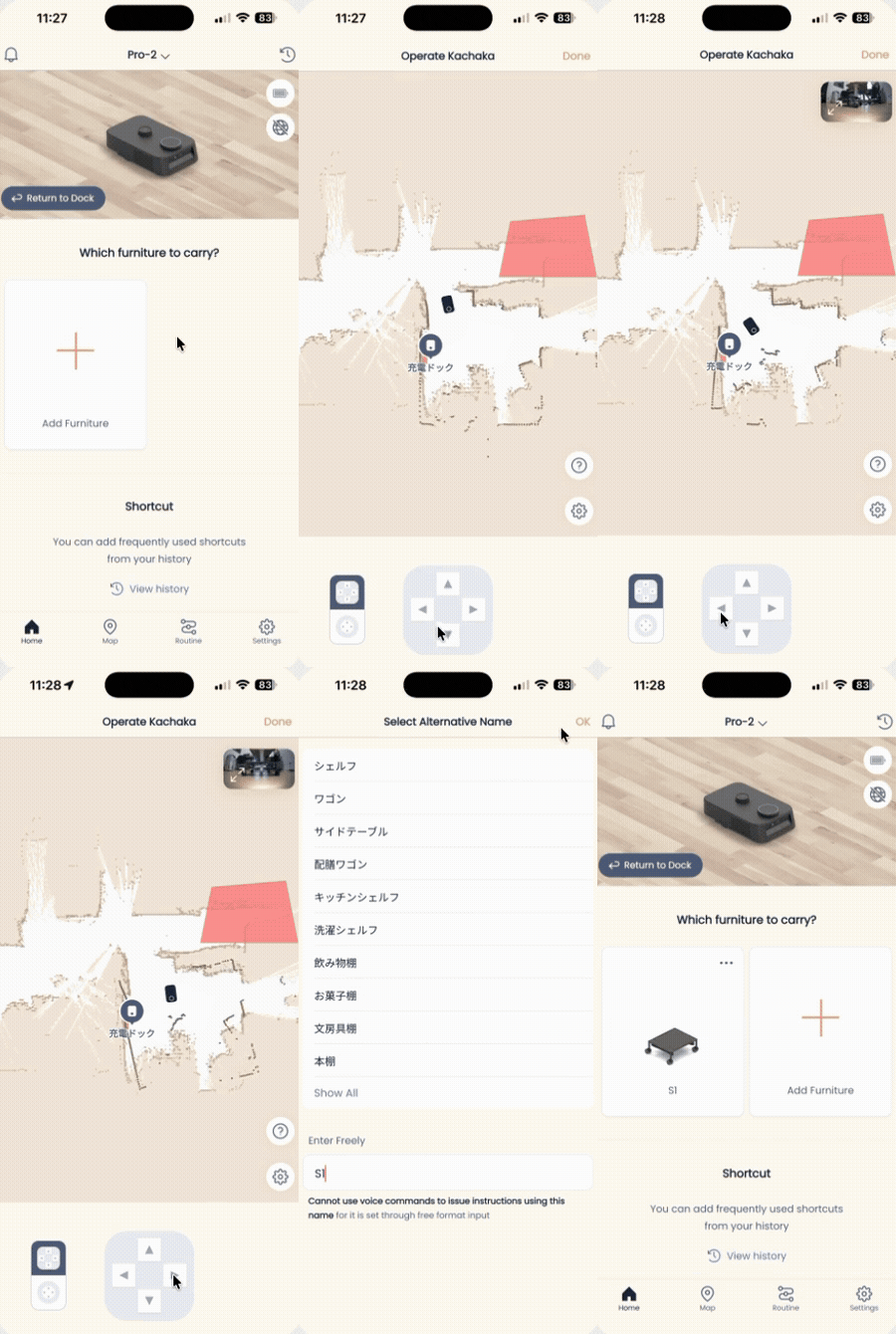
Register a new piece of furniture
- Move the furniture to the spot where you normally want it to sit (this also becomes its storage position).
- On the app Home tab, tap “Add furniture.”
- Once the furniture is in place, tap “Placement OK.”
- Use the on-screen D-pad to drive Kachaka to the front of the furniture. Kachaka slips in from the front and reads the barcode underneath.
- When recognition succeeds, Kachaka plays a voice prompt (in Japanese, meaning “Furniture found”).
- Choose a call name for the furniture from the list and tap “OK” to finish.
If lining up with the D-pad in step 4 is awkward, you can push the robot body along the floor by hand instead — but never lift the body, or its self-position will drift. For detailed tips, see Troubleshooting Furniture Registration; for D-pad remote driving, see Manual Remote Control.
Add aliases (multiple call names)
Beyond its original name, a single piece of furniture can carry several “call names,” any of which works for voice. For example, if a piece named “Kitchen Cart” gets the alias “Dishes,” saying either “Dishes” or “Kitchen Cart” will call it.
- In the furniture list, tap the ”⋯” in the top-right corner of that item.
- Tap “Edit furniture.”
- Tap “Add call name.”
- Pick a call name from the list and select it.
- Tap “Add” in the top-right; the screen shows “Furniture name added.”
When choosing a custom furniture name, we recommend picking a preset name from the list. For selectable names, see List of Registrable Furniture Names.
How many can one robot register?
There’s no limit — a single Kachaka can register any number of pieces of furniture.
After registration
Once furniture is registered, you can start moving it. Pick the furniture plus a destination in the app, or use a voice command, to have Kachaka deliver it to the spot you specify. For basic carrying, see Moving Furniture: Basics; for the slip-in-and-lift details, see Loading and Picking Up Furniture.
Screens