Adding and Switching Between Multiple Robots
When you add a second (or later) Kachaka or Kachaka Pro, you don’t need to create a separate account, and you don’t need to remove your existing robot. Just use “Add Kachaka” in the app to register the new unit under the same account, and you can manage every robot from one app—switching between them on the Home screen whenever you like.
Before You Start
- Adding a robot requires a Wi-Fi network with internet access, so make sure the on-site network is working first. For connection details and the QR-code reconfiguration method, see Setting Up and Changing the Wi-Fi Connection.
- Each Kachaka can be bound to only one account, but a single account can manage multiple robots and can be signed in on several devices at home or on site. See Account Sharing, Multiple Devices, and the One-Account-Per-Robot Rule.
- For a brand-new unit that hasn’t been set up yet, we recommend completing the full first-time setup once before returning to this page. See First-Time Setup: From Unboxing to Your First Delivery.
Adding a Second Kachaka
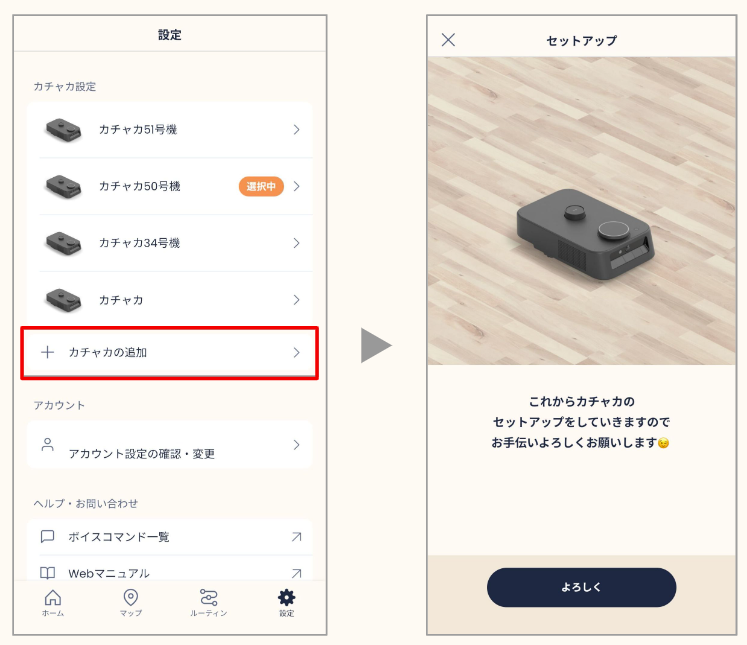
- Open the app and tap the “Settings” tab in the bottom right.
- In the middle of the screen, find and tap ”+ Add Kachaka.”
- The Setup screen appears. Follow the on-screen steps to complete the new unit’s Wi-Fi connection, which registers this Kachaka to your current account.
Once done, the new unit coexists with your existing robot under the same account, and the existing robot’s map, furniture, destinations, and schedules are all unaffected.
Switching Between Robots
After registering multiple units, switching between them is simple:
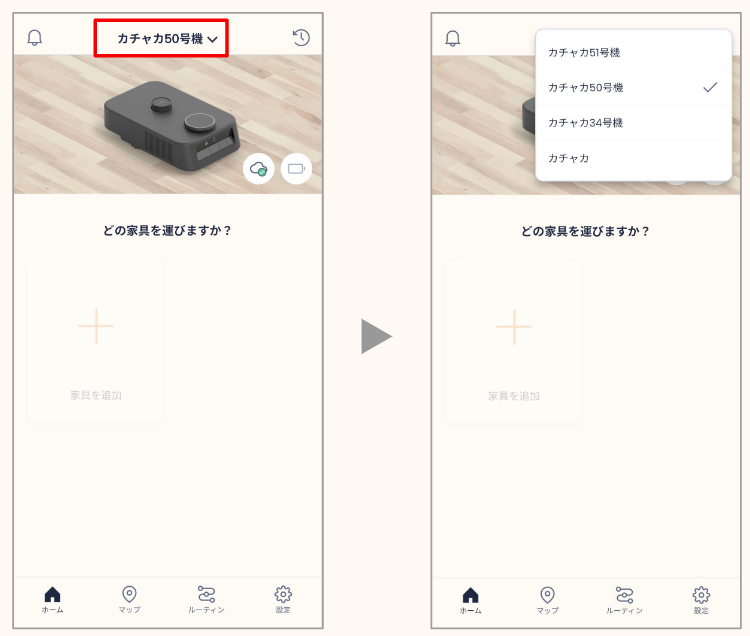
- On the app Home screen, tap the “Kachaka name” shown at the top.
- Select the robot you want to operate from the list.
After switching, the app’s Home screen, map, and settings all follow the selected robot, so operating one never interferes with another.
FAQ
- Do I need to delete the first robot to add a second? No. Adding a unit doesn’t touch your existing robot; both are listed together under the same account.
- Do I have to sign in again for each robot? No. All units share the same account; switching only changes which robot you operate—no re-login needed.
- Want to acquire an additional robot or dedicated furniture? For purchasing, quotes, and delivery in Taiwan, please contact Sigma, and we’ll help configure the right setup for your environment.
Screens