Removing Phantom Obstacles on the Map
While a map is being built, Kachaka’s laser sensor may scan something that was only there temporarily, such as the feet of a person standing nearby, or an object that was later moved away. When that happens, the map can show an obstacle that no longer exists. These “phantom obstacles” make Kachaka think an area is impassable, so it may take a detour or fail to reach a destination.
Use the method that matches Kachaka’s current state.
1. While the map is still being built
If you are still in the scanning stage, you can simply let Kachaka look at the area again to clear the bad points.
- Find the suspicious obstacle on the map, shown as a cluster of brown points.
- Drive Kachaka to a spot roughly 10cm to 1m away from that brown cluster.
- Have it rotate in place, or pass by and view the spot from several different angles.
- Keep moving it until the brown points there disappear and the area turns white (meaning it has been confirmed as passable).
As long as nothing is actually there, re-scanning from multiple viewpoints usually clears the phantom obstacle. For more mapping tips, see Map Prep and Accuracy Tips.
2. While extending a map (Kachaka Pro)
When you are extending an existing map (Kachaka Pro), handle it in two ways:
- Phantom obstacles in the existing area: the impact is minor, so use the “after the map is built” method below.
- Phantom obstacles in the newly added extension area: handle them the same way as “while the map is still being built” above. Rotate Kachaka in place or re-scan the spot from multiple angles until it turns white.
3. After the map is built (map already saved)
Once the map is saved you can no longer re-scan to clear it, but you can use a setting to mask the obstacle display in that spot.
Option A: Set an enterable area
Setting an enterable area over the location of the phantom obstacle removes the obstacle display there. For the steps, see No-Go Zones and Enterable Areas.
Note: an enterable area is also an area where floor obstacle detection is disabled (floor obstacle detection is explained in Safety Detection: Floor Obstacles, Drop-offs & Body Detection Height). To avoid missing a genuine low obstacle there, keep the enterable area as small as possible — just enough to cover the phantom obstacle.
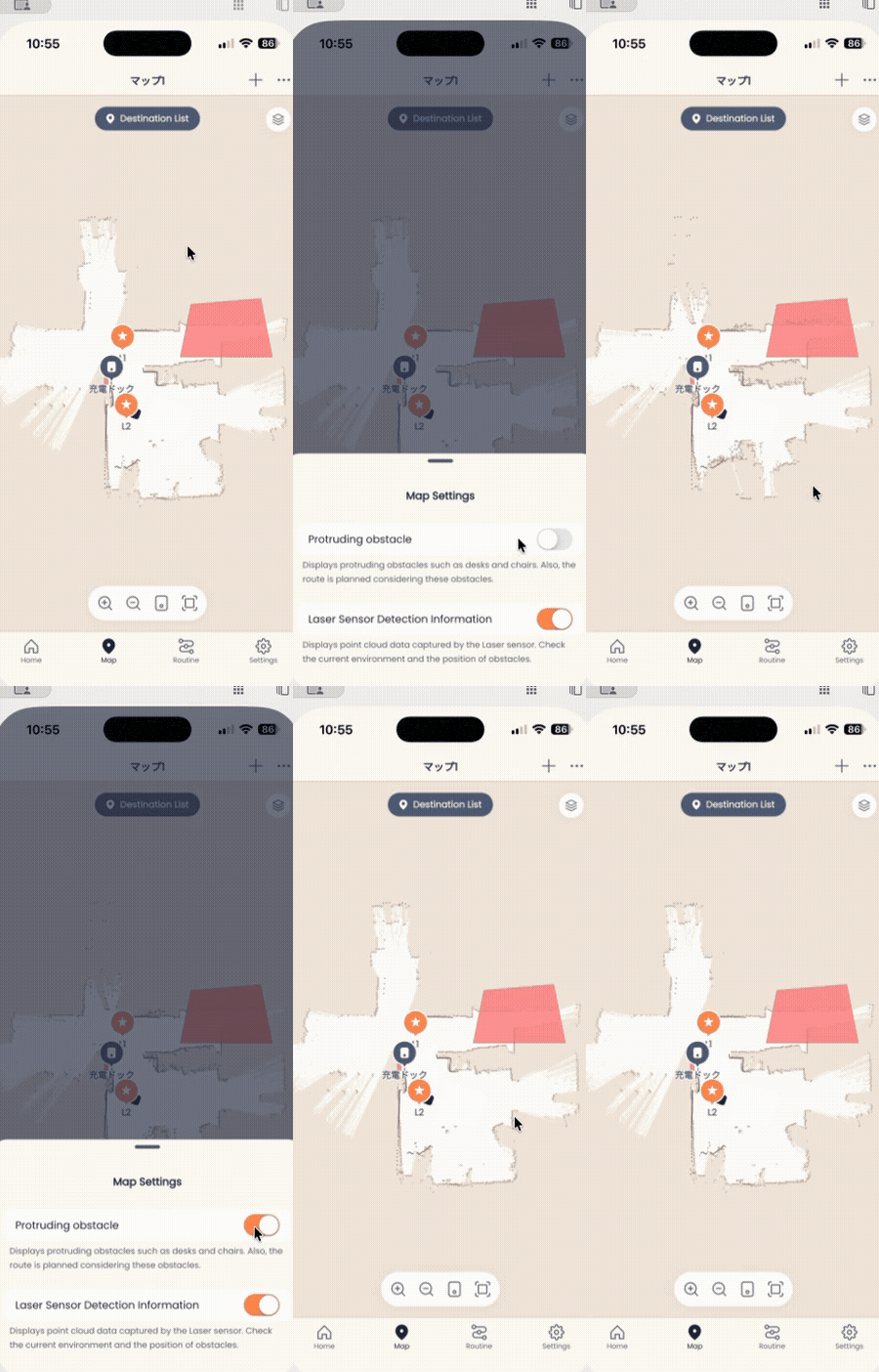
Option B: Turn off the 3D data display
If this map was created with 3D data, switching the map’s Include 3D data display to off may also make the phantom obstacle disappear. Toggle this off under the map’s display options to test it.
Screens