Updating an Existing Map (Kachaka Pro)
This feature is Kachaka Pro only. The consumer model does not support updating maps.
When to update a map
Update an existing map when your site’s layout has changed since you first mapped it, or when the robot keeps showing position drift or gets lost at certain spots. Updating rescans the changed environment back into the map.
The big advantage of updating is that it keeps your existing furniture and shelf registrations, destinations and no-go zones — you don’t have to rebuild everything from scratch. After the rescan, those settings carry over to the updated map.
Update is not Extend: pick the right tool first
Updating can only rescan areas that already exist on the map.
- To fix layout or drift in an area that’s already on the map → use “Update map” on this page.
- To add a room or area you’ve never scanned before → that’s an extension; use Extending an Existing Map (Kachaka Pro) instead.
- If the venue is entirely new or the layout has changed too drastically, a clean rebuild is better → create a new map.
Before you start
Park the robot back on its charging dock with precise alignment — this step determines whether furniture and destination coordinates stay correct after the update.
- Follow the on-screen guidance in the app to seat Kachaka snugly and squarely on the dock.
- If alignment is off, the furniture and destination layout rebuilt after the update will be shifted by the same amount.
- If you’ve registered multiple charging docks, park the robot on the first dock you registered (the original dock) before starting. Do not start the update from a dock you added later.
App steps
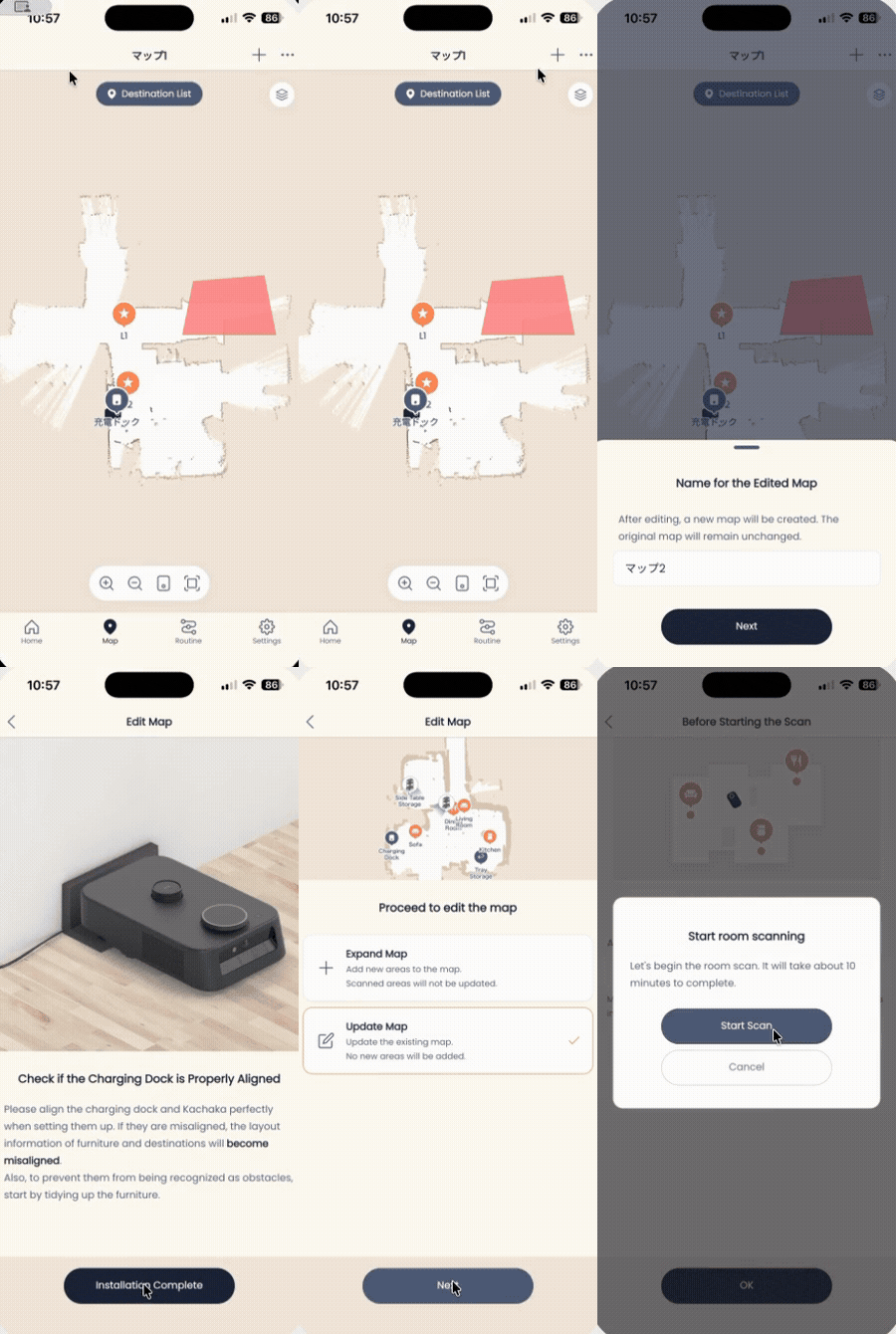
- Open the “Map” tab in the app.
- Tap the ”+” in the top-right corner.
- Choose “Edit map” from the menu.
- Enter a name for the updated map (any name you like).
- Tap “Next”.
- Once the robot is correctly seated on the dock, tap “Placed OK”.
- Select “Update map”.
- Tap “Next”.
- Tap “OK”.
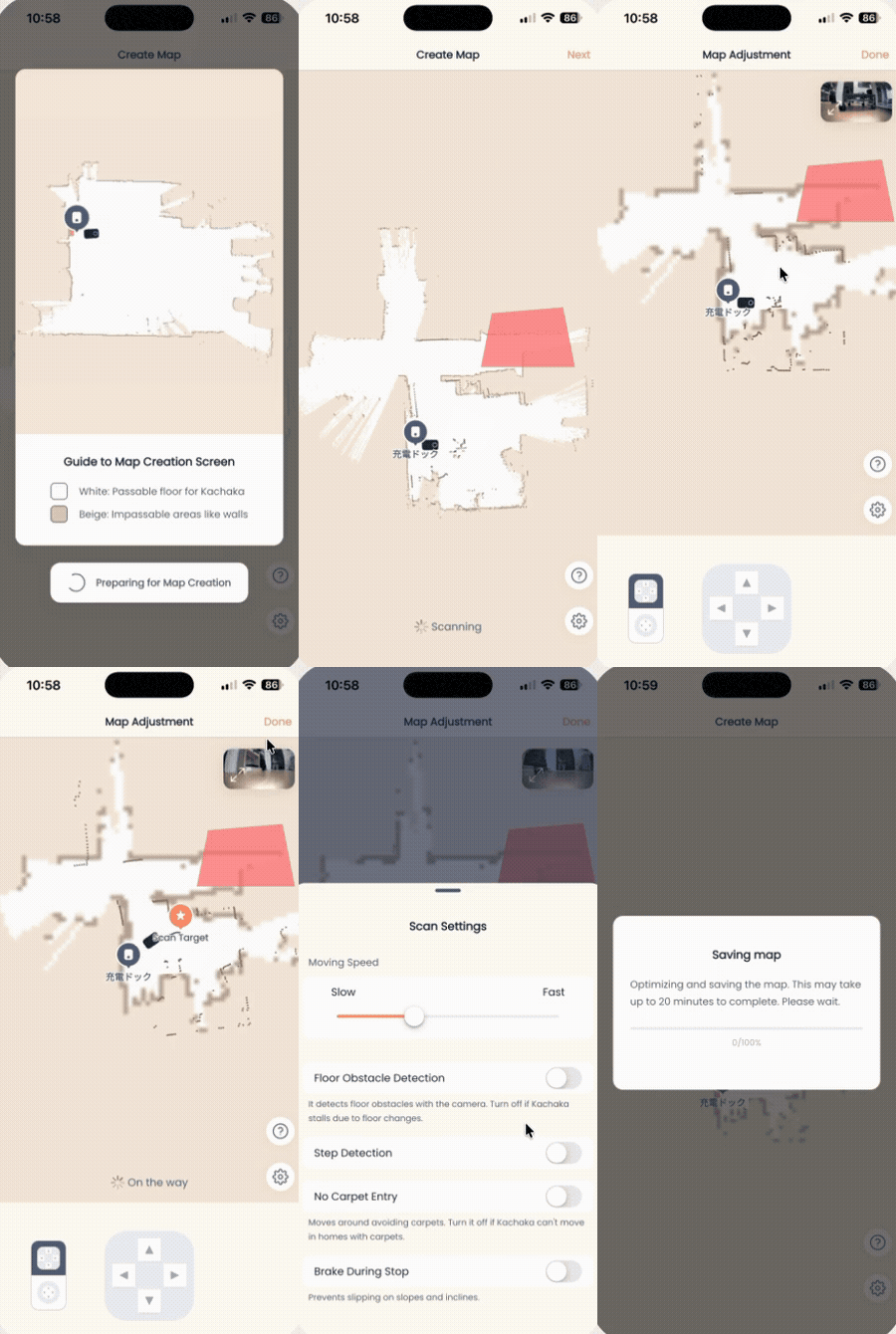
- Tap “Start scan”, then drive the robot through the area you want to update.
For scanning technique (looping back, keeping the area bright, not walking in front of the robot, etc.), see Map Prep and Accuracy Tips.
If the layout is still off after updating
If furniture or zones are still slightly out of place on the map after the scan, the dock alignment at the start was most likely off. You don’t need to redo the whole map — just fine-tune the individual destinations and zone positions in Adding, Repositioning and Setting Default Destinations.
Screens