Cannot Reach Destination or Dock With Shelf
After you send a carry command, Kachaka can fail to “get there” in two common ways: either it throws “couldn’t reach the destination (code:19001)” before it even sets off, or it drives up to the shelf but can’t slide underneath to lift the furniture. Neither is usually a fault — in both cases the map’s information no longer matches what’s actually on the floor. Here’s how to diagnose each.
Case 1: “Couldn’t reach destination (code:19001)” right after the command
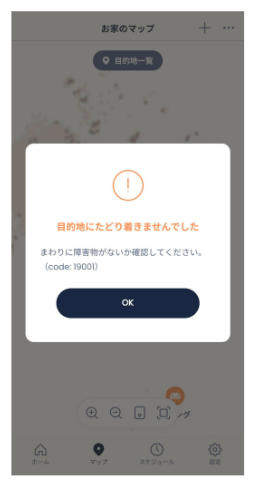
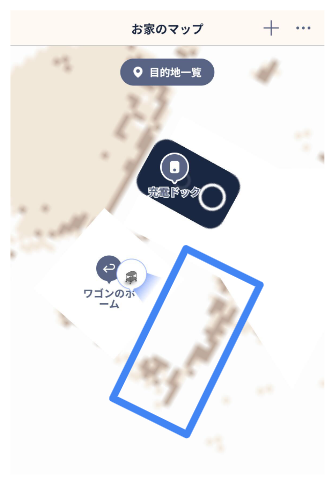
When “couldn’t reach the destination (code:19001)” appears almost immediately after you dispatch a carry job, Kachaka has decided that the path to pick up the furniture is blocked. If there is in fact nothing around the furniture, the problem is usually on the map: an obstacle that doesn’t really exist has been marked near the furniture (it shows as a darker shade on the App’s map), so Kachaka concludes it can’t get through and gives up early.
Work through these in order:
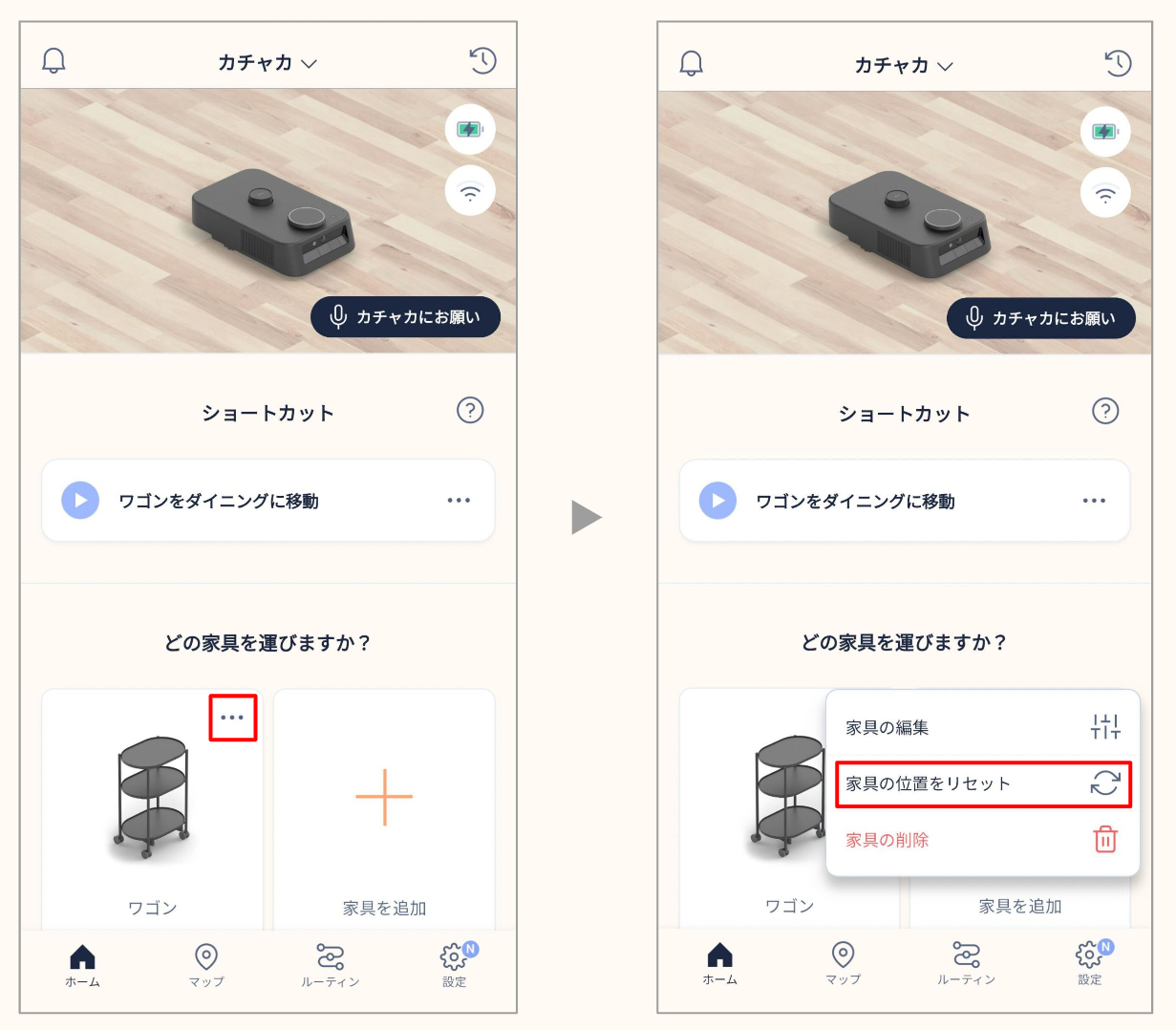
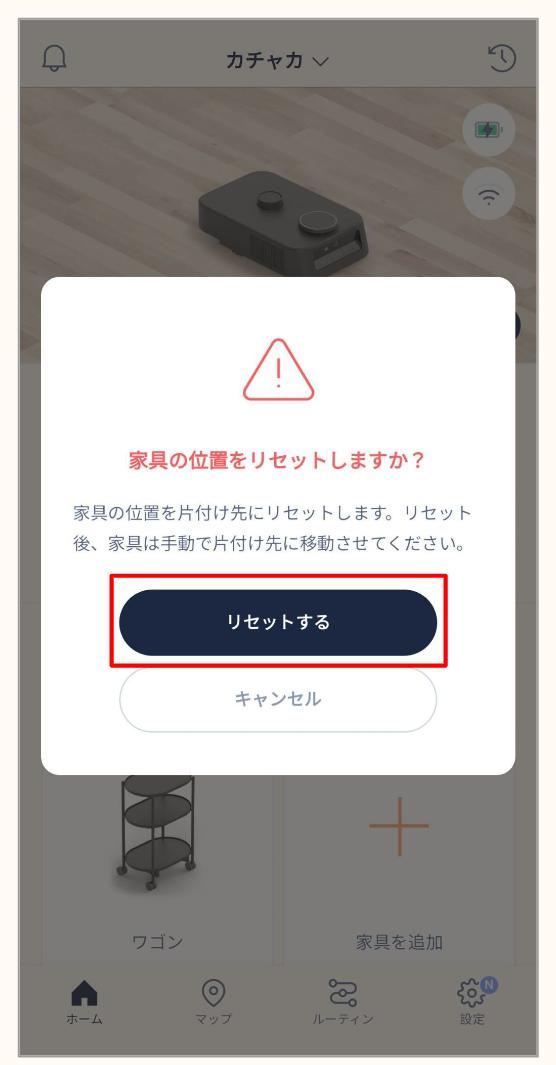
- Reset the furniture’s position on the map (the quickest fix). Put the furniture physically back in its storage spot (its furniture Home), then on the App home screen open the furniture’s ”⋯” menu and choose Reset Furniture Position. Send the carry command again. See Furniture Storage Position: Wall Alignment and Reset for the steps.
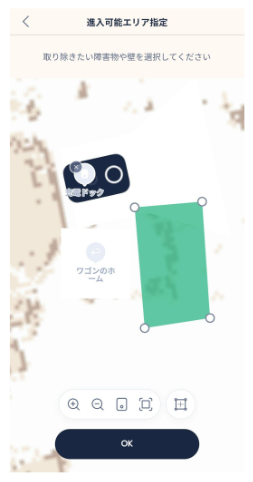
- If the map’s obstacle doesn’t match reality, mark that spot as an Enterable Area. When you’ve confirmed the area around the furniture is actually clear but the map still draws a dark obstacle there, draw an Enterable Area over that spot so Kachaka ignores the floor-obstacle reading and drives through. See No-Go Zones and Enterable Areas.
- If a phantom obstacle keeps lingering on the map, clear it for good. If a moving object such as someone’s foot was scanned during mapping, the map may keep a trace of an obstacle that isn’t there. The removal method differs depending on whether you’re mid-mapping, extending, or already finished — see Removing Phantom Obstacles on the Map.
If 19001 keeps recurring after all of the above, please contact Sigma for help.
Case 2: It reaches the shelf but can’t dock (can’t slide under and lift)
Kachaka lifts furniture by sliding under its dedicated shelf and raising its base. If the robot has already driven up near the shelf but docking fails, the map position and the real position are usually out of sync — either the furniture was moved, or Kachaka’s own localization has drifted. Check the two directions below.
1. The furniture’s map position doesn’t match its real position
Open the Map tab in the App, find the furniture’s icon, and compare its position on the map with where it actually is. If they’re clearly off, do one of these:
- Move the furniture back to the position shown on the map so the two line up again; or
- Reset the furniture’s map position: on the home screen tap the furniture’s ”⋯” in the top-right, then Reset Furniture Position, then Reset. Move the furniture by hand to its storage spot (its furniture Home), then send a carry command to confirm it can be picked up normally. Full steps: Furniture Storage Position: Wall Alignment and Reset.
2. Kachaka’s map position doesn’t match its real position
Still in the Map tab, check whether the Kachaka icon sits where the robot actually is. If the robot’s own localization has drifted, say “ねぇカチャカ、落ち着いて” to it (keep the wake word in the original Japanese). Kachaka re-checks and updates its position; once the map position has updated, try docking again.
If the position drifts repeatedly and the robot often gets lost, that’s more than a one-off error — see Fixing Position Drift and Getting Lost for further recalibration or remapping.
Screens