
Remote Control: Operate Away From Home Wi-Fi
Even when Kachaka is not on the same Wi-Fi network as your phone, you can still control it from away using the Kachaka app — issuing commands such as moving furniture or sending it to a destination. This page explains how remote control works, what it can and cannot do, and the safety points you must observe.
Before you start
Remote control requires both the app and the robot software to be ver 2.0 or later. Check your versions and update if needed — see Updating the Robot’s Software.
As long as the robot is connected to a Wi-Fi network with internet access and the app is in “internet connection” mode, remote control becomes available automatically. There is nothing extra to turn on.
How to tell you’re in remote control mode
When your phone and the robot are on different Wi-Fi networks, the app switches to remote control mode automatically. You can recognize it as follows:
- On the app home screen, a cloud icon appears at the lower right of the Kachaka icon, with a green check mark.
- The center of the screen shows the label “Remote control”.
When you see this, you are operating the robot remotely. The experience is much like operating it on the same Wi-Fi, except that the available functions are limited (see below).
Supported and unsupported functions
In remote control mode you can only issue a subset of commands. Many functions that need a live view or settings changes are unavailable.
Supported in remote control mode
- Moving furniture and putting furniture away
- Going to a destination and returning to the dock to charge
- Viewing the execution history
- Routines: create, edit, and run
Not supported in remote control mode
- Stopping mid-move and manual remote control
- Changing robot settings, creating a map, or registering furniture
- Map functions (viewing, switching, editing)
- The “Kachaka, please” generative-AI assistant
- Advanced routines with multiple actions (create, edit, run)
During remote control you cannot check Kachaka’s real-time position on the map, and you will not receive error notifications such as “cannot move”. When you need to view the map, change settings, build a map, or register furniture, do it at home once your phone is back on the same Wi-Fi as the robot.
Safety notes
During remote control the operator is not present, cannot see the robot’s real-time condition, and cannot intervene immediately. Do not use remote control in any unattended environment where the robot’s movement could cause a fire or an accident.
Do not drive the robot remotely in the following environments:
- Where there is an open flame such as a candle or heater that could start a fire.
- Near sticky surfaces, or fragile items such as ceramics that could break or fall due to vibration.
- Where there are steps or slopes that could cause the robot to tip over or fall. For the robot’s environmental limits, see Environment Requirements.
Even when people are present, if they are outside the operator’s line of sight, you must still observe the points above so the robot does not damage nearby objects or indirectly harm anyone. If someone on site needs to stop the robot, they can do so directly on the spot — see Stopping and Pause Mode (note that a stop command cannot be issued from the remote side).
Disabling remote control
If you want to use Kachaka only within your home Wi-Fi and do not want this device to control it from away, you can turn remote control off per device. This setting is per device, so each device must be set separately.
- App ver 2.22 or later: in the “Settings” tab, select the corresponding Kachaka → open “Connection mode” → with “Internet connection” selected, toggle “Remote control”.
- App ver 2.21 or earlier: in the “Settings” tab → “Other settings” → toggle “Remote control (Beta)”.
Screens
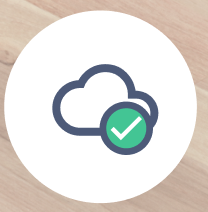
▲ The cloud icon with a green check mark on the app home screen — when this icon appears, you are connected remotely.
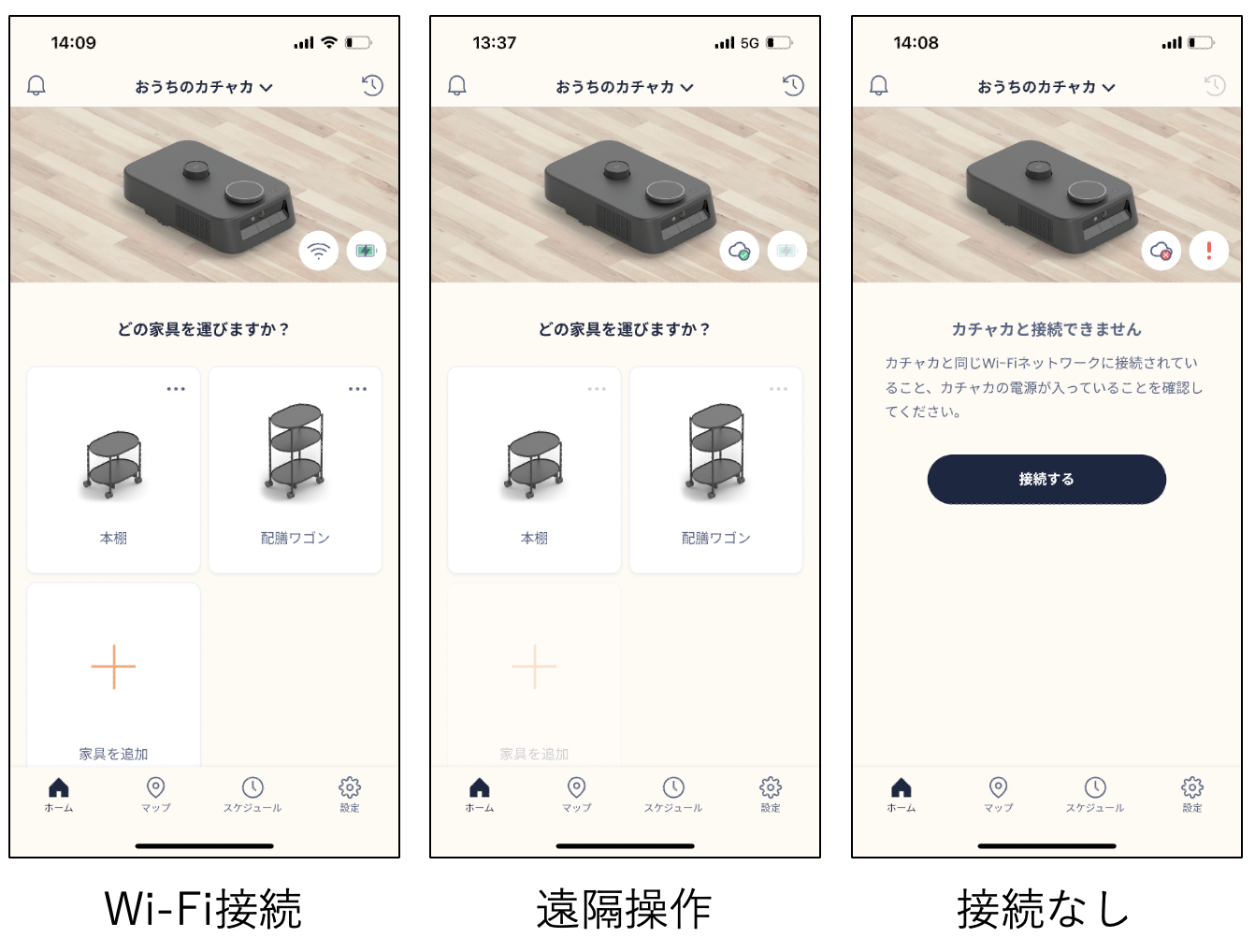
▲ The “Remote control” label in the center of the screen — confirming you have left the local Wi-Fi and are connected over the cloud channel.
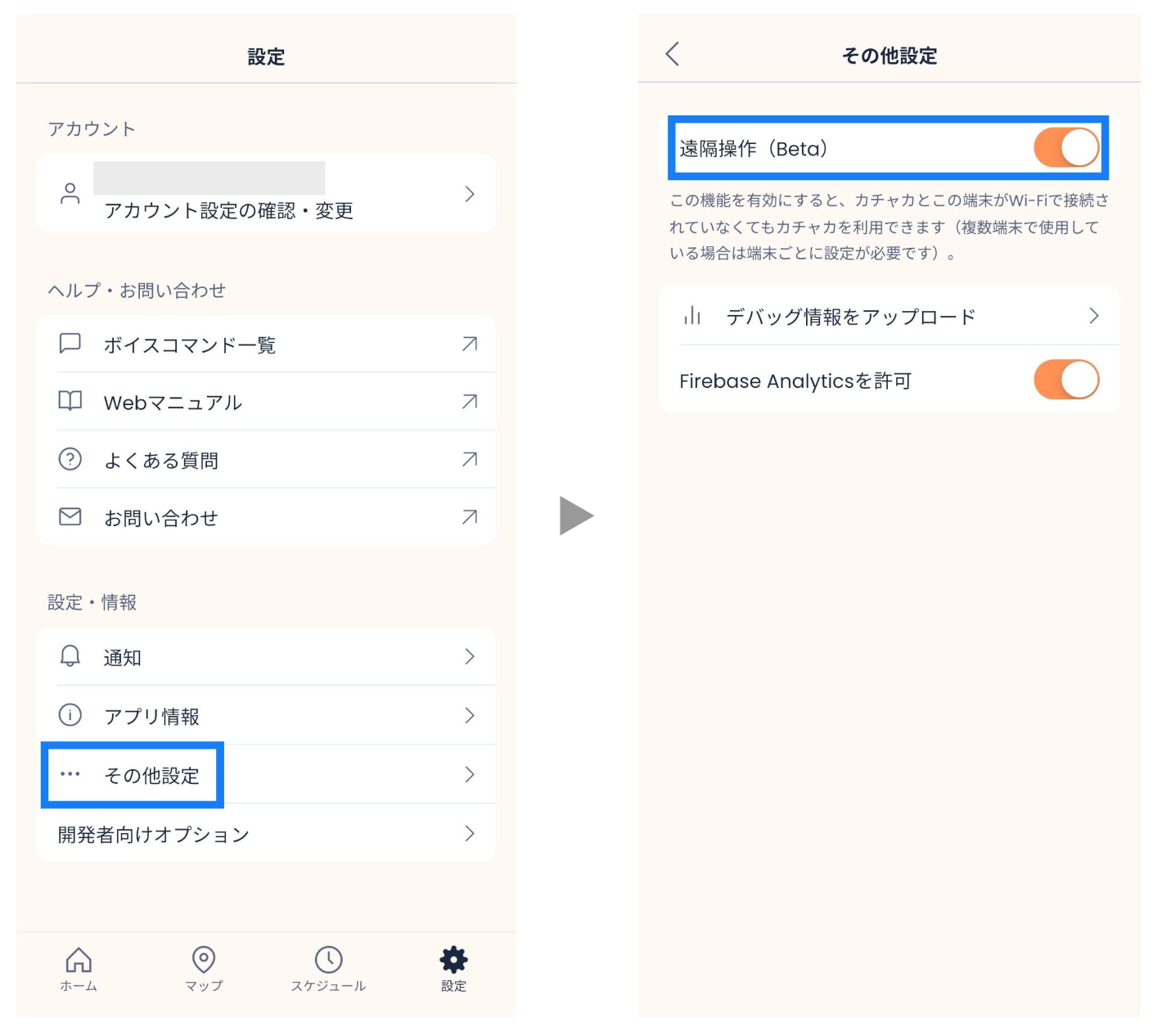
▲ The “Connection mode” settings screen on ver 2.22 or later — the “Remote control” toggle sits below the “Internet connection” item.
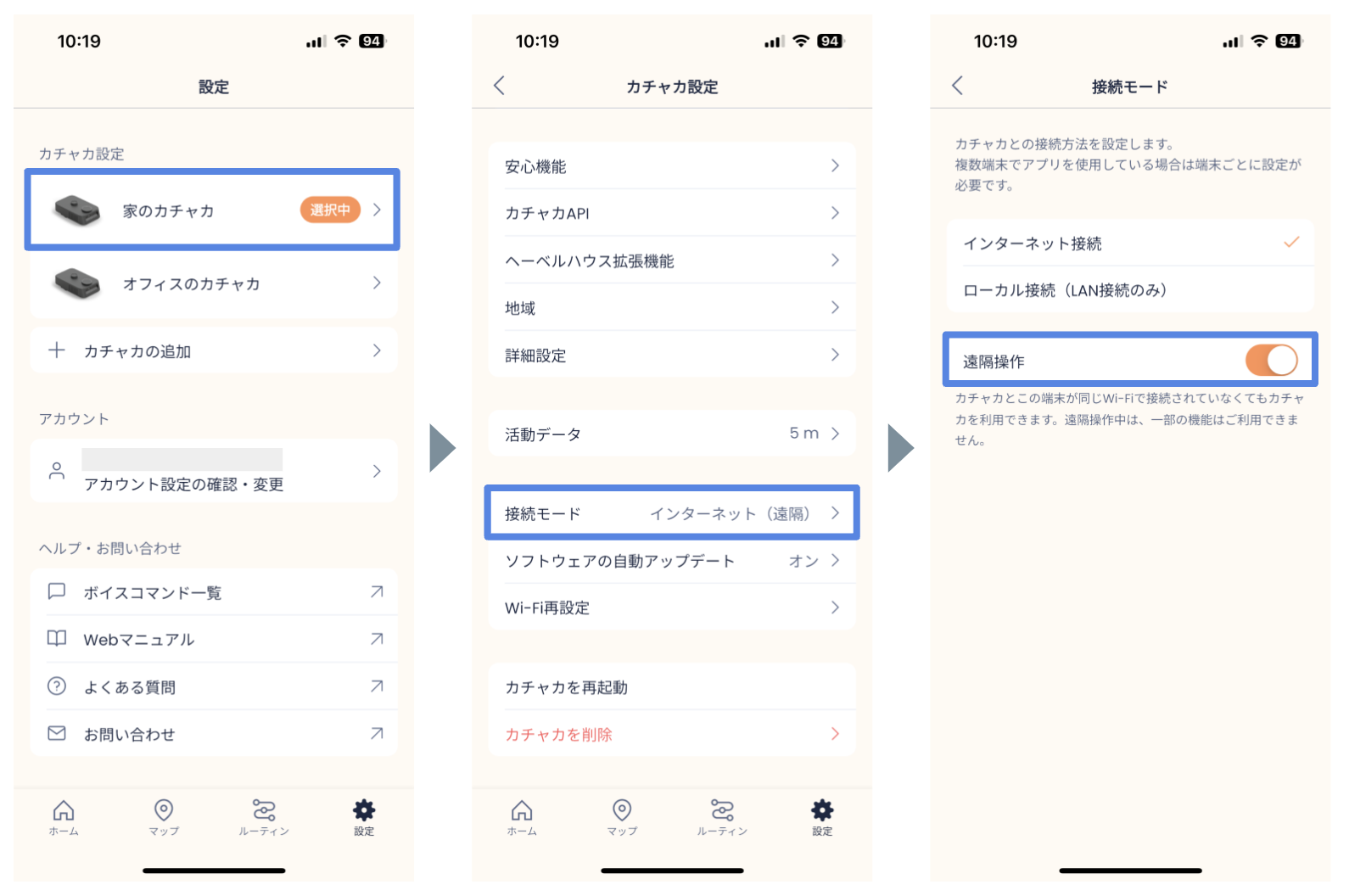
▲ The “Other settings” screen on ver 2.21 or earlier — toggle “Remote control (Beta)” to disable it.