Kachaka Won't Move or Move Forward
When Kachaka stays put and won’t move forward even after you give it a command, don’t reach for a restart just yet. Most cases can be narrowed down by working through three areas in order: the LED, the app settings, and the surroundings.
Step 1: Check the LED ring
The LED ring tells you immediately what mode the robot is in:
- Solid yellow: Kachaka has detected something like a drop-off and entered Pause mode. Press the power button once to release the pause (see Stopping and Pause Mode).
- Blinking white (rotating): It’s starting up or shutting down. Wait until the ring changes from blinking to solid before operating it.
- No light at all: The power is off. Press and hold the power button to turn Kachaka on (see Power On and Off).
For the full meaning of every color and pattern, see the LED Status Light Reference.
Step 2: Check for a no-go zone in the app
If the LED looks normal but the robot still won’t head to its destination, open the Map tab in the app and confirm that no red no-go zone is sitting on the route to the destination. If the destination, or a passage it must travel through, falls inside a no-go zone, Kachaka can’t plan a path and will stop.
To adjust or remove a no-go zone, see No-Go Zones and Enterable Areas.
Step 3: Check around and on the robot
Once the first two checks are clear, the cause is usually something in the environment or on the robot triggering a safety stop:
- Obstacles nearby or a passage that’s too narrow: If there’s clutter around Kachaka, or it’s trying to squeeze through a passage that’s too tight, it may stop. Clear the obstacles and open up enough width.
- Items sticking out of the shelf: When a load protrudes from the front or side of the shelf, it can trigger the protruding-obstacle detection. Tuck loads in so nothing extends past the shelf edge.
- Add-ons below the base: Anything mounted below the base’s top plate (for example, aftermarket casters) can be detected as an obstacle. Don’t attach anything below the top plate.
- Stickers or adhesive residue on the body: If a sticker on the top of the body has a corner peeling up, the laser sensor can misread that corner as an obstacle, causing weaving and other erratic movement. Don’t put tape or stickers on the Kachaka body.
If there are clearly no obstacles but it still won’t move, try setting that spot as an enterable area, or turning off floor-obstacle detection (for the setting path and cautions, see Safety Detection). For cases where it bumps furniture or stops on a floor pattern, see Collisions, Obstacle Detection and Floor-Pattern Stops.
Manual joystick or D-pad does nothing
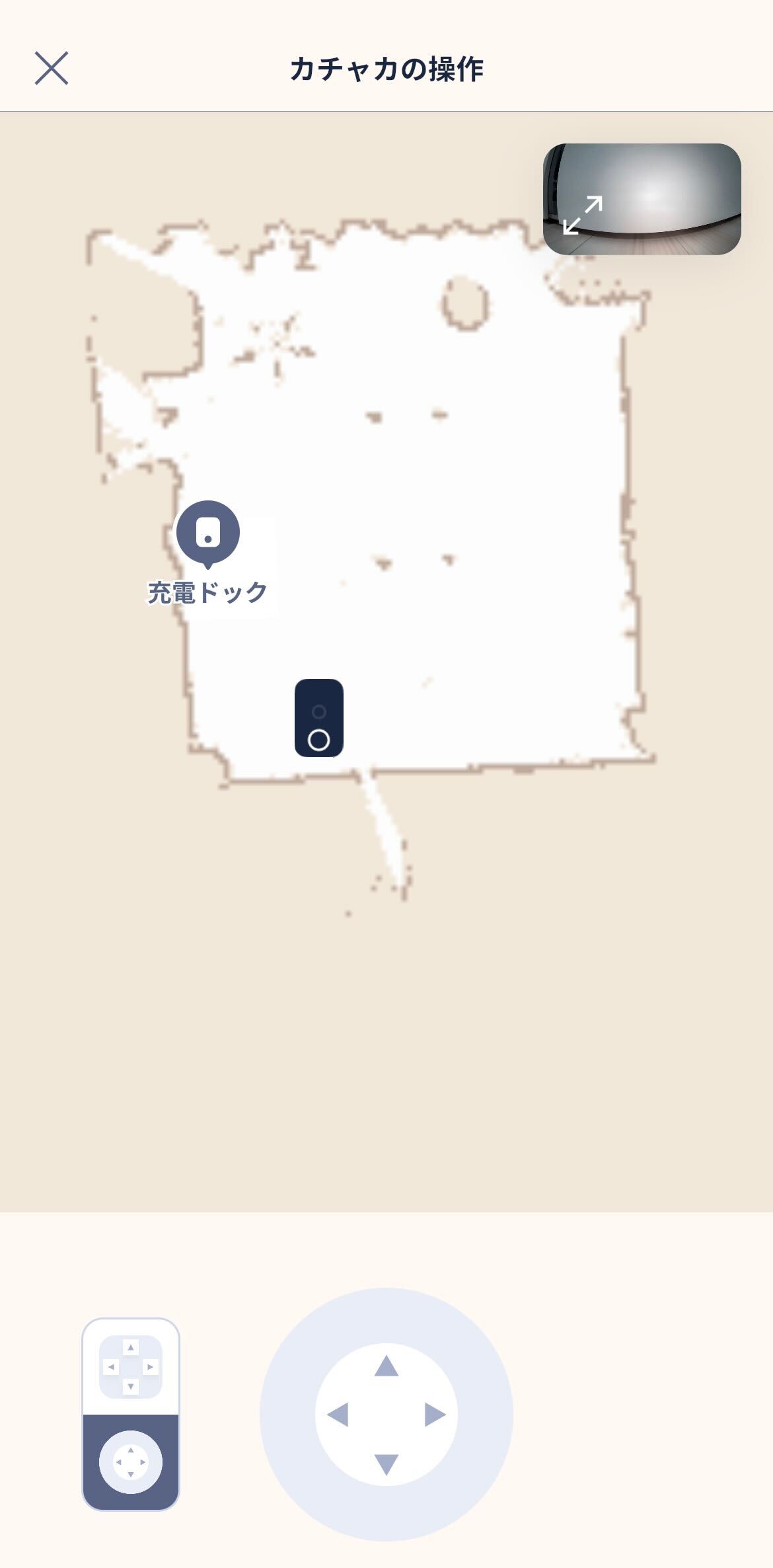
On the Manual Control screen (used for manual map-scan adjustments, registering furniture, and adding or editing destinations), if you move the joystick or press the D-pad and the robot doesn’t budge:
- Wi-Fi signal too weak: If the controls do nothing and the app shows “Cannot connect,” the problem is usually Wi-Fi. First confirm the router’s internet connection is fine, then move Kachaka and the router closer together to see if it improves. For full connection-instability troubleshooting, see Unstable Connection, Disconnection & Remote Mode Issues.
- A safety stop triggered by a close obstacle: When Kachaka is right up against an obstacle, the safety function holds it in place. Push the body away from the obstacle by hand, or move the nearby obstacle aside, then try again. Note: push the body — never lift it, or its self-localization will drift.
If it still won’t move after working through these checks, please contact Sigma for assistance.
Screens